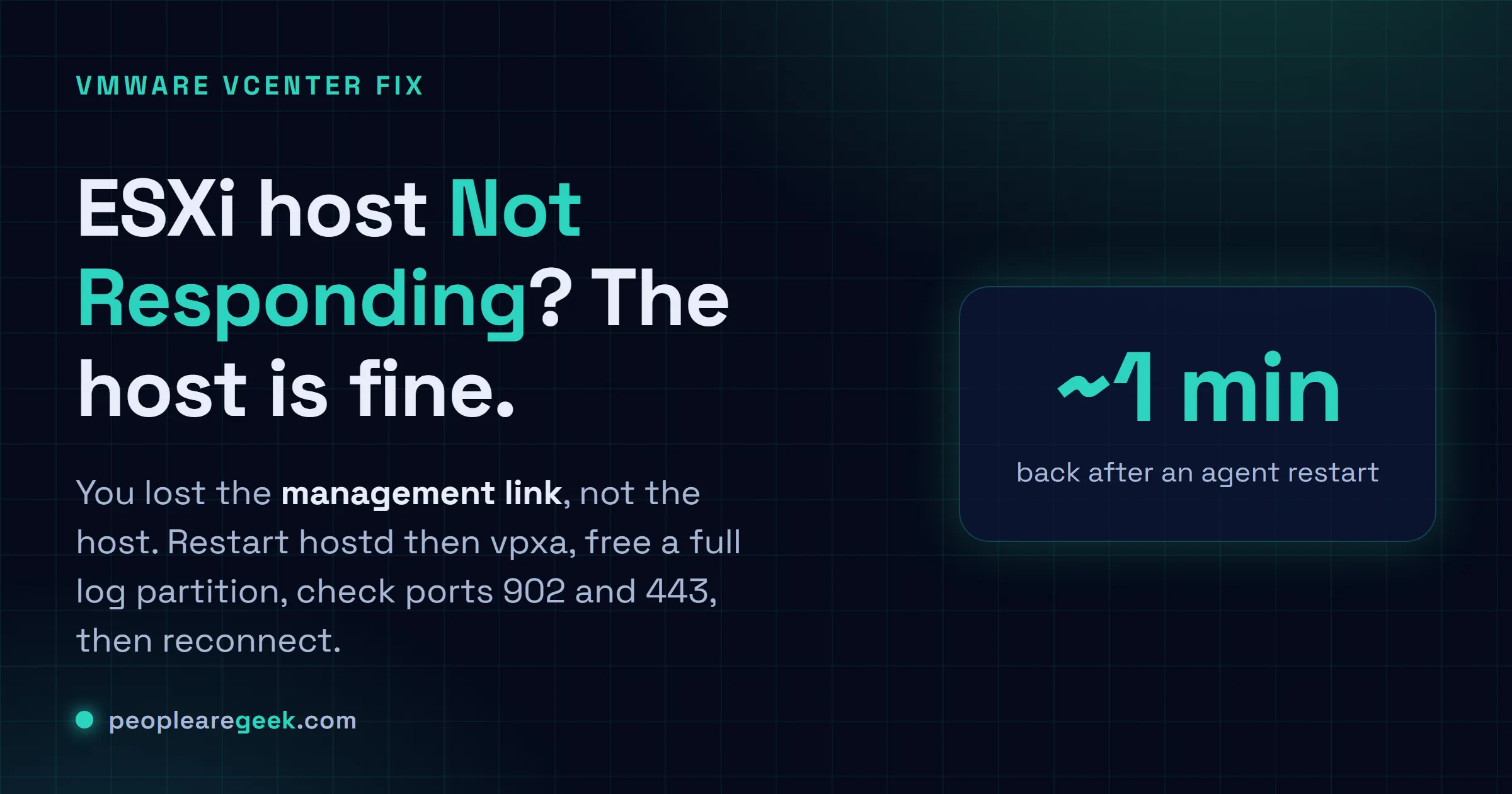
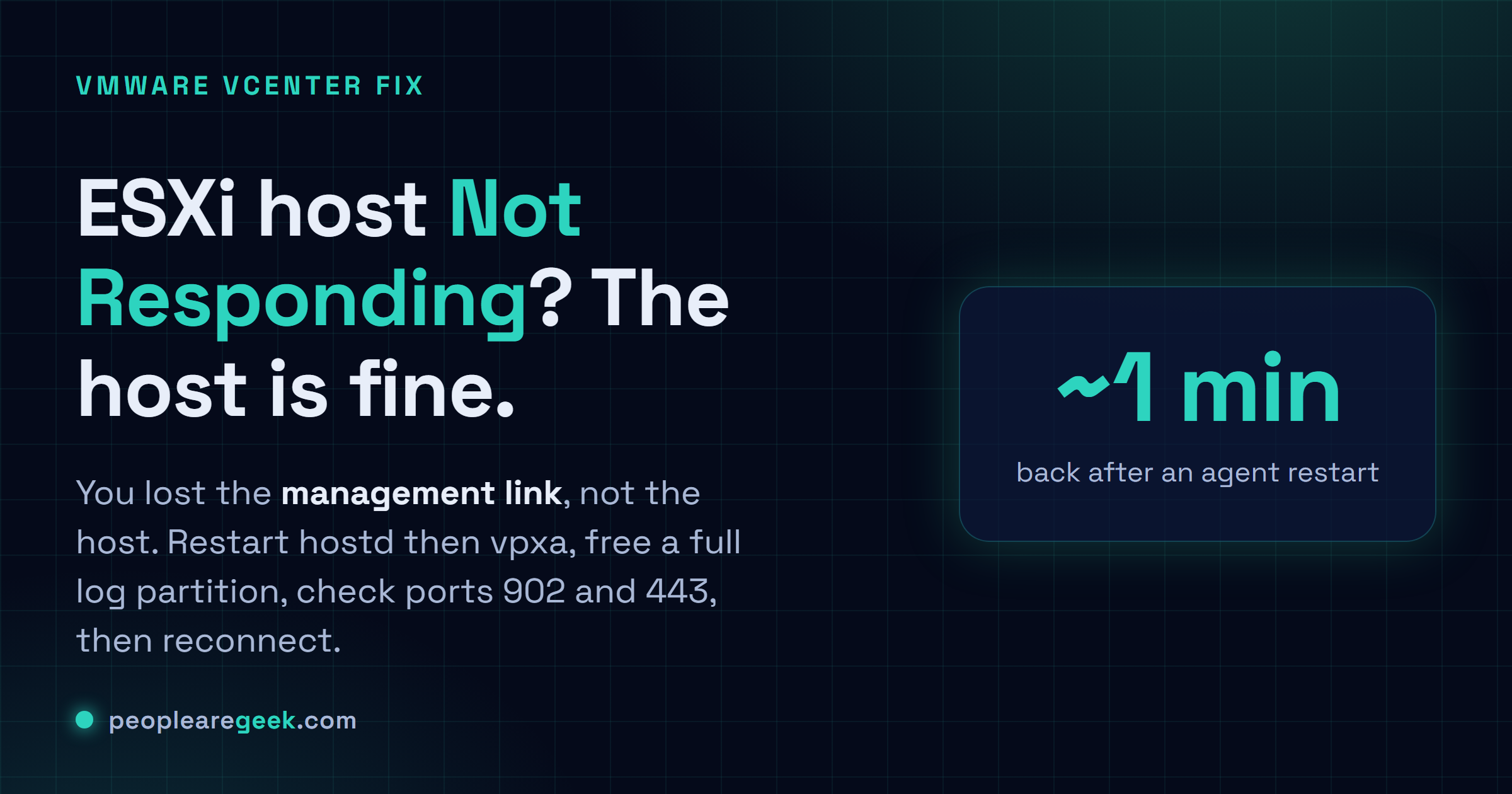
An ESXi host Not Responding in vCenter looks terrifying and almost never is. The box is usually up and chewing through its VMs like nothing happened. What actually died is the management connection to vCenter, a much smaller problem wearing a scary mask. Below is the order I go in, fastest stuff first, from kicking the agents to re-adding the host: confirm the host is really up, restart hostd then vpxa, free a full scratch or log partition, check the network path on ports 902 and 443, then reconnect or re-add. And how to catch the rare case where the host honestly did fall over.
The short answer
A host goes grey in vCenter as Not Responding, but the box is almost always still
running its VMs. You lost the management link, not the host. Work it in order: confirm
the host is really up, restart hostd then vpxa, free a full scratch or log partition,
check that vCenter can reach the host on TCP 902 and TCP 443 both directions, then
reconnect or re-add.
You open vCenter and there it is. A host gone grey, flagged Not Responding (or Disconnected), every VM on it parked at "unknown." For years my gut said the same thing yours is probably screaming right now: the host's dead. It almost never is. The box is usually up and chewing through its VMs like nothing happened. What actually died is the management connection to vCenter, which is a much smaller problem wearing a scary mask. I've worked this one more times than I can count. Below is the order I go in, fastest stuff first, from kicking the agents to re-adding the host. And how to catch the rare case where the host honestly did fall over.
What "Not Responding" actually means
Here's the plumbing. On each host sits an agent called vpxa, and vpxa is what vCenter actually talks to. vpxa leans on the host's own management daemon, hostd. vCenter expects a heartbeat on a schedule. When that heartbeat goes quiet, because an agent fell over, or the management network dropped, or the log partition filled and dragged hostd down with it, vCenter shrugs and paints the host Not Responding, VMs unknown. Hold onto this: your VMs are almost always still running through the whole mess. You lost the dashboard, not the datacenter. So the job is getting the agent or the network talking again. Not resurrecting a corpse, because there usually isn't one.
Step 1: confirm the host is really up
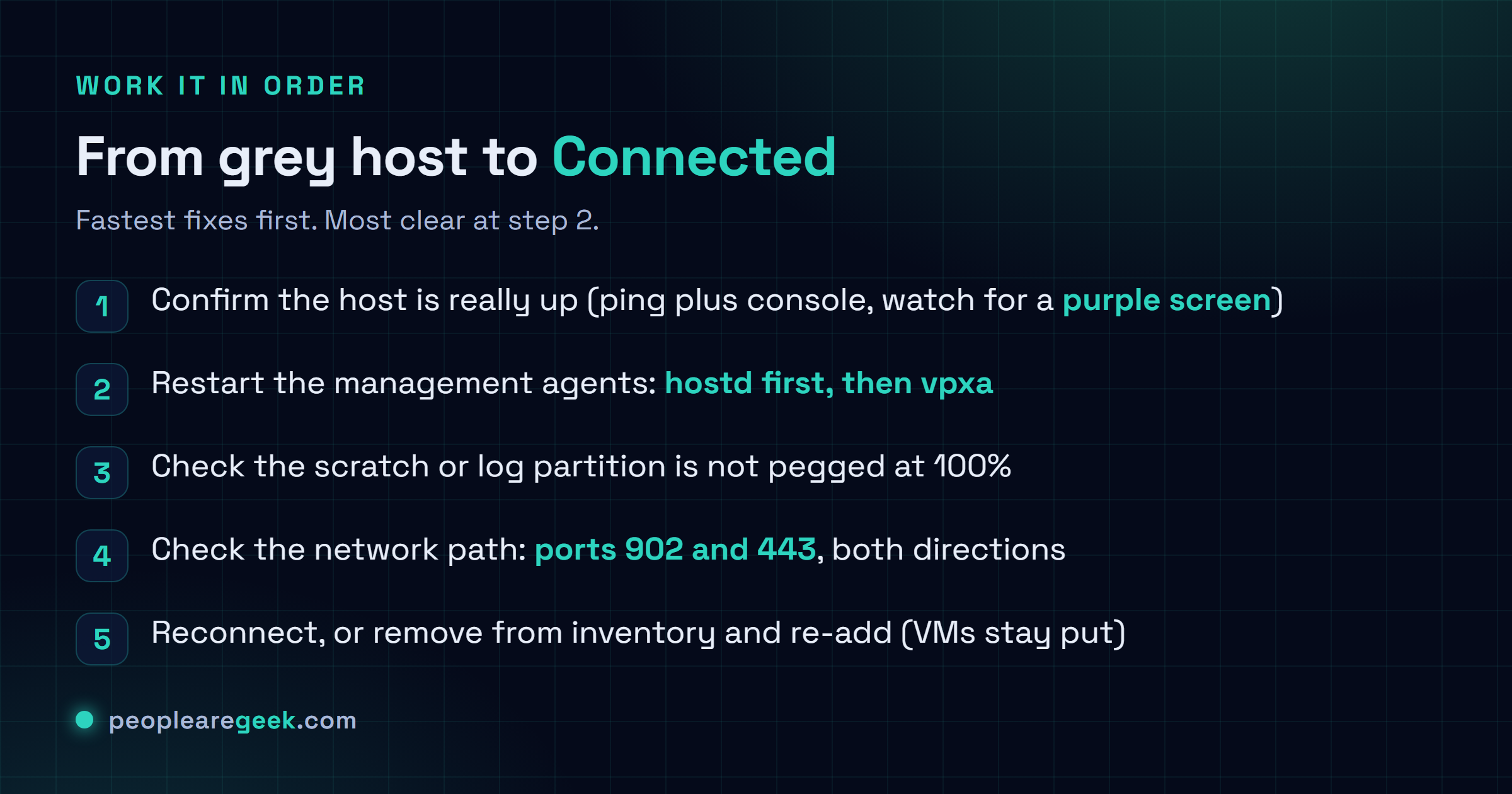
Before you touch anything, prove the host is alive. Ping its management IP. Then pull up the console, physical or the out-of-band card (iLO, iDRAC, IPMI), whatever you've got. What you're hunting for is a purple screen. See one and you can stop reading here: that's a PSOD, a totally different animal, and it has its own recovery path. But if the host answers your ping and the console shows that familiar yellow-and-grey DCUI? Good. The host is fine, and you're dealing with an agent or a network problem instead. Keep going.
Step 2: restart the management agents
This is the step that earns its keep. Honestly, I think it clears more of these than every other fix put together, though maybe I just get lucky with the boring outages. Get a shell on the host: SSH if you left it on, otherwise the DCUI at the console (F2, then Troubleshooting Options > Restart Management Agents). Then bounce hostd and vpxa. One thing I learned the hard way. Restart hostd first, then vpxa. vpxa rides on hostd, so flip the order and vpxa just comes up confused.
/etc/init.d/hostd restart
/etc/init.d/vpxa restart
# or restart all management services at once:
services.sh restart
Now give it a minute. Don't sit there hammering refresh every two seconds. Just watch the host in vCenter and let it breathe. Most of the time it flips itself back to Connected and you're done. And if SSH was never enabled? No drama. That Restart Management Agents entry in the DCUI does the exact same job from the console.

Step 3: check the log partition is not full
So you restarted the agents and they either refused to come up or keeled over again ten seconds later. Annoying. The culprit is almost always the same boring thing: a full scratch or log partition. hostd needs somewhere to write, and when there's zero bytes free, it quits on you. Go look:
vdf -h
# look at /var/log and the scratch location for 100% usage
Find one pegged at 100%? Clear or rotate the bloated logs so hostd can breathe. Don't stop there though. Figure out what filled it, or it just refills on you: usually some chatty third-party agent, or an error looping forever in the background. And if this host boots off a dinky USB or SD card with no real scratch (I've inherited way too many of those), point a persistent scratch location at a datastore. Keeps the logs from drowning that tiny boot device every few weeks.
Step 4: check the network path to vCenter
Host is up, agents are running, and vCenter still won't see it? Then something sitting between the two is in the way. Time to check whether vCenter can actually reach the host on the ports it cares about:
- TCP 902 (heartbeat and migration) and TCP 443 (management API) both have to be open both directions between vCenter and the host. This is the one people miss constantly, because they check one way and call it good.
- From a box near vCenter, just ask it:
Test-NetConnection <host-ip> -Port 902. - Check that forward and reverse DNS for the host both resolve. vCenter is weirdly fussy about name mismatches, and honestly a broken PTR record will bite you here when you least expect it.
- Did anyone touch the network lately? A vSwitch tweak, a VLAN change, some VMkernel edit. Any of those can quietly cut the management VMkernel out from under you. If that's what happened, the DCUI Configure Management Network screen is where you fix it.
Step 5: reconnect or re-add the host
Host is healthy, network's clear, and vCenter still hasn't caught up on its own? Fine. Now you nudge it to rebuild the link:
- Right-click the host and hit Connection > Reconnect. Start here. It's the gentlest option and very often all you need.
- If that throws an agent error, the vpxa on the host has probably drifted out of step with vCenter. Classic move right after a vCenter upgrade. Pull the host out of inventory (right-click > Remove from Inventory, and yes, this leaves the VMs completely alone) then add it straight back. vCenter ships down a fresh vpxa that matches, and the mismatch evaporates.
- Changed the host's IP or name recently? You'll probably hit a certificate or thumbprint mismatch on reconnect. Just accept the new thumbprint when it prompts and carry on.
Pulling a host from inventory and re-adding it won't touch your VMs or data, they just get re-registered straight off the datastores. I've done this on production hosts and lost nothing. The catch: only do it once you're genuinely sure the host and its storage are healthy. What you bring back should be a known-good host, not a half-broken one you've now made vCenter trust again.
Sources and further reading
Frequently asked questions
Are my VMs down while the host shows Not Responding?
Usually no. This is the part that calms everyone down once it sinks in. The VMs keep right on running. All you actually lost is vCenter's view of them. You probably can't see or click them in vCenter until the host reconnects, sure, but they're serving traffic the entire time. Don't take my word for it. Ping a VM, or hit its service directly, and watch it answer.
What is the quickest fix for a host that is Not Responding?
Restart the management agents. That's my first move every single time. From the DCUI it's Troubleshooting Options, then Restart Management Agents. Over SSH it's /etc/init.d/hostd restart then /etc/init.d/vpxa restart (hostd first, since vpxa leans on it). Most of the time the host is back inside a minute and you wonder what the panic was about.
Why do the management agents keep crashing?
Almost always a full scratch or log partition strangling hostd. Run vdf -h, find whatever's pegged at 100%, clear it. If it's a USB or SD-boot host, do yourself a favor and set a persistent scratch location on a datastore. Skip that and the logs just keep filling that tiny boot device, and you'll be reading this exact answer again in a month.
Which ports does vCenter use to manage a host?
Two to remember. TCP 902 carries the heartbeat and migration traffic. TCP 443 is the management API. Both have to be open in each direction between vCenter and the host, not just outbound. I've watched one stray firewall rule clamp down on a single port and drop a host straight to Not Responding, so when in doubt, that's the first place I go digging.
Reconnect fails with a vpxa or agent error. What now?
That's almost always version drift. The vpxa on the host no longer lines up with vCenter, which happens a lot right after a vCenter upgrade. The fix that's never let me down: remove the host from inventory (your VMs stay exactly where they are) and add it back. vCenter pushes down a fresh vpxa that matches, and the error just disappears.
How is this different from a purple screen (PSOD)?
Night and day. A PSOD is the kernel slamming on the brakes: purple console screen, every VM dead with it. Not Responding means the host is still up and serving, it just lost its line to vCenter. That's exactly why I glance at the console before touching anything else. Purple screen, and you're in PSOD recovery. A normal DCUI, and you work through the steps above.