You came here from a search box with a half-finished find command in your head. Something like find a file named, uh. Fine. Let us not waste your time with a history lesson about find dating back to 1970-something. The recipes you actually reach for are below, the most-wanted ones first, so you can copy, tweak the path, and get back to whatever broke. One thing to know before you scroll: find reads left to right, and the bits after the path are tests and actions, not flags in the usual sense. That is why order matters and why a stray space can wreck the whole thing.
The short answer
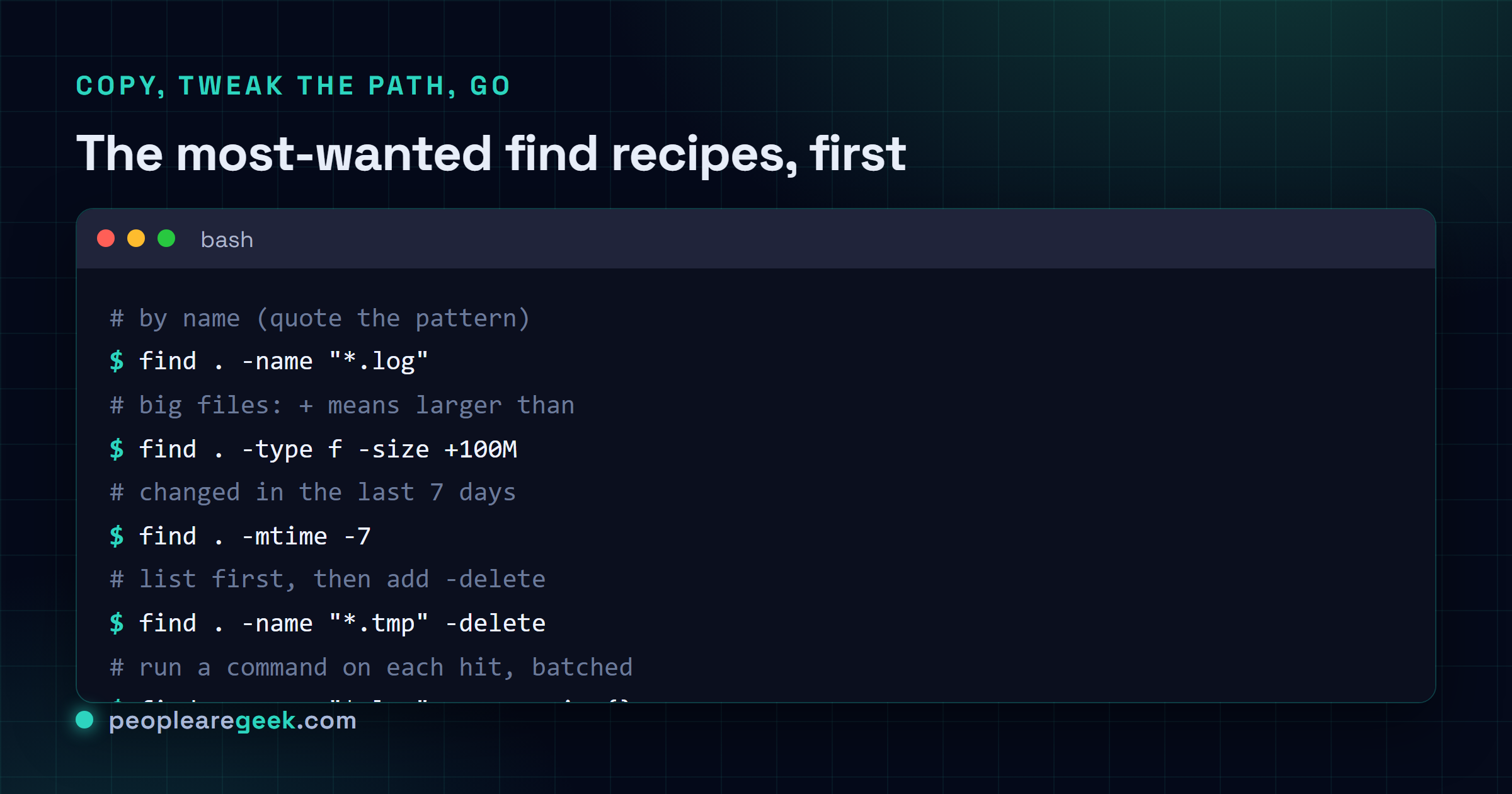
The recipes you reach for, fast: find . -name "*.log" by name (quote the pattern,
use -iname when case is a coin toss), find . -type f -size +100M for disk hogs,
find . -mtime -7 for the last week, find . -name "*.tmp" -delete to clean up (run
it once without -delete first), and -exec cmd {} + to run a command on every hit.


You came here from a search box with a half-finished command in your head. Something like "find a file named, uh." Fine. Let's not waste your time with a history lesson about find dating back to 1970-something. The recipes you actually reach for are below, the most-wanted ones first, so you can copy, tweak the path, and get back to whatever broke.
One thing to know before you scroll. find reads left to right, and the bits after the path are tests and actions, not flags in the usual sense. That's why order matters and why a stray space can wreck the whole thing. You'll see what I mean.
Find a file by name
The one everybody googles. The starting . is the directory to search, which is just "here and everything under it". Quote the pattern, or the shell expands * against your current folder before find ever sees it, and you get a baffling error.
| Recipe | What it does |
|---|---|
find . -name "*.log" | Every .log file under the current directory, case-sensitive |
find . -iname "readme*" | Same idea but case-insensitive, so README, readme, ReadMe all match |
find /etc -name "*.conf" | Search a specific path instead of here |
find . -name "*.log" -o -name "*.txt" | Logs or text files (more on -o below) |
If you'd rather click your way to the exact line instead of memorizing the quoting rules, our find command generator builds it for you. No shame in it. I keep it open in a tab more than I'd admit.
Files only, folders only
-type f limits matches to regular files. -type d limits to directories. You'll combine this with almost everything else, because "find me a file" and "find me a folder" are different jobs and mixing them is how you accidentally delete a directory.
| Recipe | What it does |
|---|---|
find . -type f -name "*.bak" | Only files ending in .bak, never folders |
find . -type d -name "cache" | Only directories named cache |
find . -type f -empty | Empty files (zero bytes) |
find . -type d -empty | Empty directories, the kind that pile up after a messy delete |
Find big files (and small ones)
Disk's full, you need the culprits. -size +100M reads as "larger than 100 megabytes". The sign is the whole trick: + means more than, - means less than, and no sign means exactly that size, which is almost never what you want. Suffixes go k, M, G for kilo, mega, giga.
| Recipe | What it does |
|---|---|
find . -type f -size +100M | Files bigger than 100 MB. The classic disk-hog hunt |
find . -type f -size -1k | Files smaller than 1 KB |
find . -type f -size +1G | The genuinely huge stuff, over a gigabyte |
Honestly, pair this with -exec du -h {} + when you want the sizes printed too. Plain find just lists paths, which tells you what's big by category but not by how much.
Find recently modified files
Two clocks here, and people mix them up constantly. -mtime counts in days, -mmin counts in minutes. The sign flips meaning the way you'd hope: -mtime -7 is "modified in the last 7 days", -mtime +30 is "older than 30 days". That minus sign trips up everyone the first ten times, me included.
| Recipe | What it does |
|---|---|
find . -mtime -7 | Changed in the last 7 days |
find . -mtime +30 | Older than 30 days, good for cleanup sweeps |
find . -mmin -60 | Touched in the last hour, my go-to for "what did that script just write?" |
find . -type f -mtime -1 -name "*.log" | Log files changed in the last day |
Find and delete
The dangerous one. -delete removes everything that matched, no confirmation, no undo. So the rule, and I will die on this hill: run the command first with no -delete at all, eyeball the list, then add it. Two seconds of caution beats a recovery you don't have backups for.
| Recipe | What it does |
|---|---|
find . -name "*.tmp" | Step one: just list what would go |
find . -name "*.tmp" -delete | Step two: actually delete the .tmp files |
find . -type d -empty -delete | Clear out empty folders |
One gotcha: -delete implies depth-first, so it deletes contents before the folder holding them. That's usually what you want. If a directory isn't empty though, it won't remove it, and you'll see a "Directory not empty" grumble.
Run a command on every match: -exec and xargs
This is where find goes from "list stuff" to "do stuff". The {} is a placeholder for each path it found. And there are two endings, which look almost identical and behave very differently.
| Recipe | What it does |
|---|---|
find . -name "*.sh" -exec chmod +x {} \; | Runs chmod once per file. The \; ends the command |
find . -name "*.log" -exec gzip {} + | Batches the files into one (or few) gzip call(s). Way faster |
find . -name "*.jpg" -print0 | xargs -0 ls -l | Pipe to xargs, null-separated so spaces in names survive |
The difference between \; and + is real, not pedantry. With \;, find launches your command once for every single file. A thousand matches, a thousand processes. With +, it crams as many paths as fit onto one command line and runs it a handful of times. On a big tree that's the gap between "instant" and "go make coffee".

My take: use -exec + and stop reaching for xargs by reflex. For most "do X to each file" jobs,
-exec cmd {} +is faster than-exec cmd {} \;and safer than a naive| xargs, because it handles filenames with spaces, quotes and newlines without you remembering-print0. xargs still earns its keep for parallelism (xargs -P) or feeding tools that don't play nicely with-exec. But the thing people actually forget? The trailing\;. Leave it off and find just errors out with "missing argument to -exec", every time, and you'll stare at it for a minute wondering why.
Combine, negate, prune
Tests stack with AND by default, just by sitting next to each other. For OR you spell it out with -o. For "everything except", you negate with !. And when a giant folder like node_modules is wasting your time, you prune it so find never even descends into it.
| Recipe | What it does |
|---|---|
find . -type f -name "*.js" -size +1M | JS files and bigger than 1 MB (AND is implicit) |
find . -name "*.jpg" -o -name "*.png" | jpg or png |
find . -type f ! -name "*.md" | Every file except Markdown (note the !) |
find . -path "*/node_modules/*" -prune -o -name "*.js" -print | Skip node_modules entirely, then print the .js files |
find . -maxdepth 1 -type f | Files in the current folder only, no recursion |
find . -user deploy -type f | Files owned by the user deploy |
find . -type f -perm 644 | Files with permission mode 644 |
That prune line looks cryptic, I know. Read it as a sentence: "if the path is inside node_modules, prune it (don't descend), otherwise print matching .js files". The trailing -print matters here, because once you've used -prune the default print behavior changes, and leaving it off is a classic head-scratcher.
-maxdepth is the underrated one. Stick it early and find stops drilling into deep trees, which on a network mount or a node project can turn a 30-second crawl into a blink. On permissions, if you'd rather reason about 644 versus 755 visually, our chmod calculator spells out exactly what each octal mode grants.
Where to go from here
That's the working set. Name, type, size, time, delete, exec, and the combine-and-prune logic that ties them together. Maybe ninety percent of my real find usage is some mix of those, and the other ten percent I look up like everyone else.
If your day involves more than just files, the same muscle memory carries over. Poking at connections and interfaces? See our Linux networking commands with ip and ss. Jumping between distros and forgetting whether it's apt or dnf this week? The Linux distro reference has the package-manager mappings side by side. Different tools, same instinct: stop memorizing, keep a good cheatsheet nearby.
Frequently asked questions
How do I find a file by name in Linux?
Use find with -name and a quoted pattern: find . -name "*.log" searches the current directory and everything under it for files ending in .log. Quote the pattern so the shell does not expand the wildcard before find runs. If case might vary, use -iname instead, which matches README, readme and ReadMe all the same.
How do I find large files taking up disk space?
Run find . -type f -size +100M to list every file bigger than 100 megabytes under the current directory. The plus sign means "larger than", a minus would mean "smaller than", and suffixes are k, M and G. Add -exec du -h {} + on the end if you want the actual sizes printed next to each path instead of just the names.
What is the difference between -exec {} \; and -exec {} +?
Both run a command on the files find matched. With \; find launches the command once per file, so a thousand matches means a thousand processes. With + it batches many paths into one command, running it just a few times, which is much faster on big trees. Use + when the command accepts multiple arguments, and do not forget the command still needs its terminator.
How do I find and delete files with find?
Append -delete, as in find . -name "*.tmp" -delete. There is no confirmation and no undo, so run the same command without -delete first to see exactly what would be removed, then add it once you trust the list. For empty directories, find . -type d -empty -delete clears them out cleanly.
How do I exclude a folder like node_modules from find?
Use -prune so find never descends into it: find . -path "*/node_modules/*" -prune -o -name "*.js" -print. Read it as "if the path is inside node_modules, skip it, otherwise print the matching .js files". The trailing -print is required here, because using -prune changes the default print behavior. For a quick single-level search instead, -maxdepth 1 stops the recursion entirely.