This grep cheatsheet puts the four commands you actually type right at the top, so you can copy one, swap your pattern, and go. grep takes a pattern and a file, prints the lines that match, and stays quiet about the rest. It does about nine things you care about and roughly a hundred you will never touch, so this skips the hundred. Search inside one file, walk a whole directory tree with grep -rn, ignore case with -i, show line numbers with -n, invert the match with -v, and choose your pattern engine with -E for extended regex or -F for a literal fixed string. That genuinely covers what most people do with grep in a normal week.
The short answer
Search one file with grep "error" app.log (pattern first, file second). Search a
whole tree with grep -rn "TODO" .: the r goes recursive, the n adds line numbers,
and this combo is the one you'll live in. Add -i to ignore case, -v to invert the
match, and -F when your pattern is literal text with dots or slashes you want left
alone.


You've got a word, and you need to know where it lives. In one file, or buried somewhere in a tree of two hundred. That's the job, and grep is the tool, so the four things you'll actually type are right at the top. Copy, swap your pattern, go. The thing about grep is that it does about nine things you care about and roughly a hundred you'll never touch, so this skips the hundred.
One bit of orientation before the recipes. grep takes a pattern and a file, prints the lines that match, and stays quiet about the rest. The pattern is a regular expression by default, which trips people up when they search for something with a dot or a bracket in it and get weird results. There's a flag for that, and I'll get to it.
Search inside one file
This is the plain version, and most people start here. grep "pattern" file. Quote the pattern so the shell doesn't try to expand anything weird inside it, then name the file. grep reads it top to bottom and spits out every line that contains a match. That's the whole contract.
| Command | What it does |
|---|---|
grep "error" app.log | Print every line in app.log that contains error |
grep "error" app.log access.log | Search several files at once, each match prefixed with its filename |
grep -n "error" app.log | Same, but with the line number in front of each hit |
grep -c "error" app.log | Count the matching lines instead of printing them |
Always quote the pattern. Even when it's a single word and you think you don't need to. The day you forget is the day your pattern has a space or a special character in it, and the shell eats half of it before grep ever sees the thing. Habit beats cleverness here.
Search a whole tree (the daily driver)
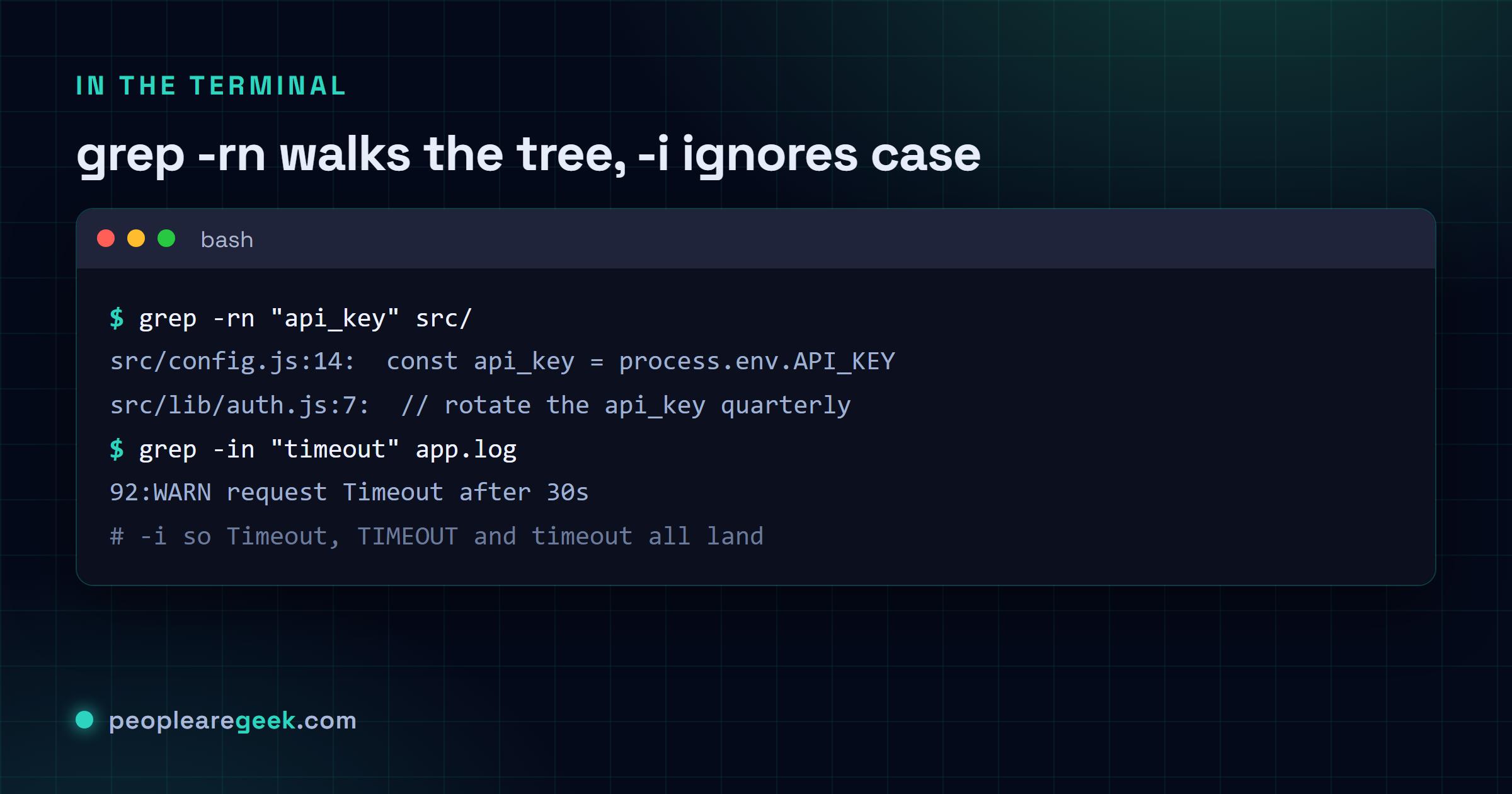
Here's the one I type more than any other grep, by a mile. grep -rn "thing" . walks the current directory and everything under it, prints each match with its file path and line number. The r is recursive, the n is line numbers, the . means start right here. Honestly, grep -rn is the command. Most days the rest is garnish.
| Command | What it does |
|---|---|
grep -r "api_key" . | Recursively search every file under the current folder |
grep -rn "api_key" . | Same, plus file path and line number on every hit |
grep -rn "api_key" src/ | Limit the walk to one subdirectory instead of everything |
grep -rl "api_key" . | Just the filenames that contain it, one per line, no matching text |
That last one, -rl, is quietly great. Sometimes you don't care what the matching line says, you only want the list of files that mention a thing so you can go open them. Refactoring a function name across a repo? grep -rl hands you the exact set of files to touch and nothing else.
Ignore case, because logs never agree
Logs and config files cannot decide whether it's Error, ERROR or error, and you shouldn't have to care. -i makes the match case-insensitive. One letter, and your search stops missing things just because someone hit shift.
| Command | What it does |
|---|---|
grep -i "warning" file | Match warning, Warning, WARNING, any casing |
grep -rin "timeout" . | Recursive, case-insensitive, with line numbers. A workhorse line |
grep -iw "get" routes.rb | Case-insensitive whole word, so get matches but target doesn't |
The -w on the end there is the unsung partner to -i. Without it, searching for get drags in target, forget, widget, the lot. -w says "match this as a standalone word, with boundaries on both sides", and the noise drops away. I forget it exists about half the time and then remember the moment my screen fills with junk.

Show lines, hide lines: -v, -o, context
Past the basics, a few flags reshape what grep hands back. Flip the match so you see what doesn't hit. Pull out only the matched bit instead of the whole line. Grab the lines around a match so you've got context. These are the ones that turn grep from a finder into something closer to a scalpel.
| Command | What it does |
|---|---|
grep -v "debug" app.log | Invert: print the lines that do NOT contain debug |
grep -o "[0-9]\{1,3\}\.[0-9]\{1,3\}\.[0-9]\{1,3\}\.[0-9]\{1,3\}" access.log | Print only the match (here, the IP addresses), not the whole line |
grep -A3 "panic" app.log | The match plus the 3 lines after it (A for after) |
grep -B3 "panic" app.log | The match plus the 3 lines before (B for before) |
grep -C3 "panic" app.log | 3 lines around the match, both sides (C for context) |
The context flags earn their keep when you're reading a stack trace or a log. A bare match for panic shows you the panic and none of the lead-up, which is useless. -C3 pulls the three lines on each side so you can actually see what happened. I default to -C3 and bump the number when three isn't enough. Sometimes it's five, sometimes it's twenty, depends how chatty the log is.
Search only certain files in a tree
A plain grep -r reads everything, including the node_modules swamp and that 80 MB minified bundle you forgot was there. The --include glob fences the recursive search to the file types you mean, which is faster and a lot less noisy.
| Command | What it does |
|---|---|
grep -rn --include='*.js' "fetch" . | Recursive search, but only in .js files |
grep -rn --include='*.py' "import requests" . | Only Python files under here |
grep -rn --include='*.{c,h}' "malloc" . | Two extensions at once with a brace glob |
grep -rn --exclude-dir=node_modules "TODO" . | Skip a whole directory you never want to read |
Quote the glob ('*.js', with the quotes) so the shell hands the literal pattern to grep instead of expanding it against your current folder first. That detail bites people. --exclude-dir=node_modules is the other half of staying sane in a JS project, because nobody has ever wanted to grep inside node_modules on purpose.
My take: grep -rn is the daily driver, and ripgrep is worth a look
If you learn one grep, learn grep -rn "pattern" . and add -i when case bites. That single line answers "where is this thing in my code" maybe ninety percent of the time, and it's on every Linux box, every Mac, every container, every cron-locked server you'll ever SSH into. That ubiquity is the whole point. Now the honest part: there's a newer tool, ripgrep (the command is rg), that's genuinely faster on big trees and skips .gitignore junk for you without any flags. On a large repo the difference is real and you feel it. But it's a separate install, and it just isn't there on a fresh server. So I reach for rg on my own machine and fall back to grep -rn the instant I'm somewhere unfamiliar. Maybe that's me being lazy about installing things, I don't know. Knowing plain grep cold has never once let me down, and I can't say that about anything I had to apt install first.
Patterns: when to use -E, and when to use -F
grep speaks regular expressions, and that's a gift and a trap. A gift when you want to match a pattern like an IP or a date. A trap when you just want to find a literal string that happens to contain a dot or a bracket, and grep reads those as regex metacharacters and gives you nonsense. Two flags sort this out.
| Command | What it does |
|---|---|
grep -E "[0-9]{3}-[0-9]{4}" file | Extended regex: {3} and friends work without backslash-escaping |
grep -E "error|warning|fatal" app.log | Match any of several patterns with the | alternation |
grep -F "192.168.1.1" hosts | Fixed string: the dots are literal dots, no regex magic |
grep -Fw "v1.2.0" CHANGELOG.md | Literal string, whole word, for searching version numbers safely |
Quick rule I actually use: if your pattern has {}, |, + or () and you want them to mean something, reach for -E. If your pattern is a literal string with dots or slashes that you want left alone, reach for -F. Searching for an IP address with plain grep without -F technically works, because a dot matches any character, but it'll also match things you didn't mean, like 192x168x1x1 in some log line. -F kills that ambiguity dead.
Where to go from here
That's the working set. Search a file, search a tree with -rn, ignore case with -i, invert with -v, pull just the match with -o, count with -c, list files with -l, whole word with -w, context with -A -B -C, fence the file types with --include, and choose your pattern engine with -E or -F. That genuinely covers what I do with grep in a normal week, and the odd exotic flag I look up like everyone else.
While you're living in the shell, the same copy-don't-memorize habit pays off next door. Tracking down files by name or size instead of content? The find command cheatsheet groups those recipes the same way. Building the regex itself and want to see it match live before you trust it? A regex tester shows the hits as you type. Poking at connections and interfaces? Reach for the Linux networking commands with ip and ss. And if you're hopping between distros and can't remember whether it's apt or dnf today, a Linux distro reference lays it out.
Sources
Frequently asked questions
How do I search for a word in a file with grep?
Run grep "word" file. The pattern comes first, then the file, and grep prints every line that contains a match. Quote the pattern even for a single word, so the shell doesn't mangle it if it has a space or a special character. Add -n if you also want the line number in front of each hit.
How do I grep recursively through a whole directory?
Use grep -rn "pattern" . where the dot means the current folder. The r walks every file underneath it and the n adds line numbers, so each hit shows its file path and line. To limit the noise in a code project, add --include='*.js' for a single file type or --exclude-dir=node_modules to skip a directory you never want to read.
How do I make grep case-insensitive?
Add -i. Then grep -i "warning" file matches warning, Warning and WARNING all the same. It stacks with the others, so grep -rin "timeout" . is a recursive, case-insensitive search with line numbers. Pair it with -w when you want a whole word, so get matches but target and forget do not.
What does grep -v do?
It inverts the match. grep -v "debug" app.log prints every line that does NOT contain debug, which is how you filter noise out of a log. Stack it to chain filters, for example grep -v "debug" app.log piped into grep -v "info" leaves only the lines that mention neither. Handy for cutting a busy log down to the lines you actually care about.
How do I search for a literal string with grep, not a regex?
Use -F, which tells grep to treat the pattern as fixed text instead of a regular expression. So grep -F "192.168.1.1" hosts matches that exact string, with the dots read as literal dots rather than the regex wildcard that matches any character. Reach for -F any time your search term contains dots, slashes, brackets or other characters you want left alone.