Linux networking commands changed under your feet: you ssh into a box, type ifconfig out of muscle memory, and get command not found. The old net-tools crew (ifconfig, netstat, route, arp) is not deprecated in some vague future sense, on a lot of distros it is just gone, not installed by default, and nobody is bringing it back. So here is the replacement set that actually ships now: ip and ss from iproute2. Most-wanted answers first (ip a for your addresses, ss -tulpn for listening ports plus the owning process), then the mapping table so the commands stuck in your fingers translate in a day.
The short answer
See your IPs with ip a (long form ip addr show), or ip -4 a for IPv4 only, or
hostname -I when you want it scriptable. Listening ports plus the process holding
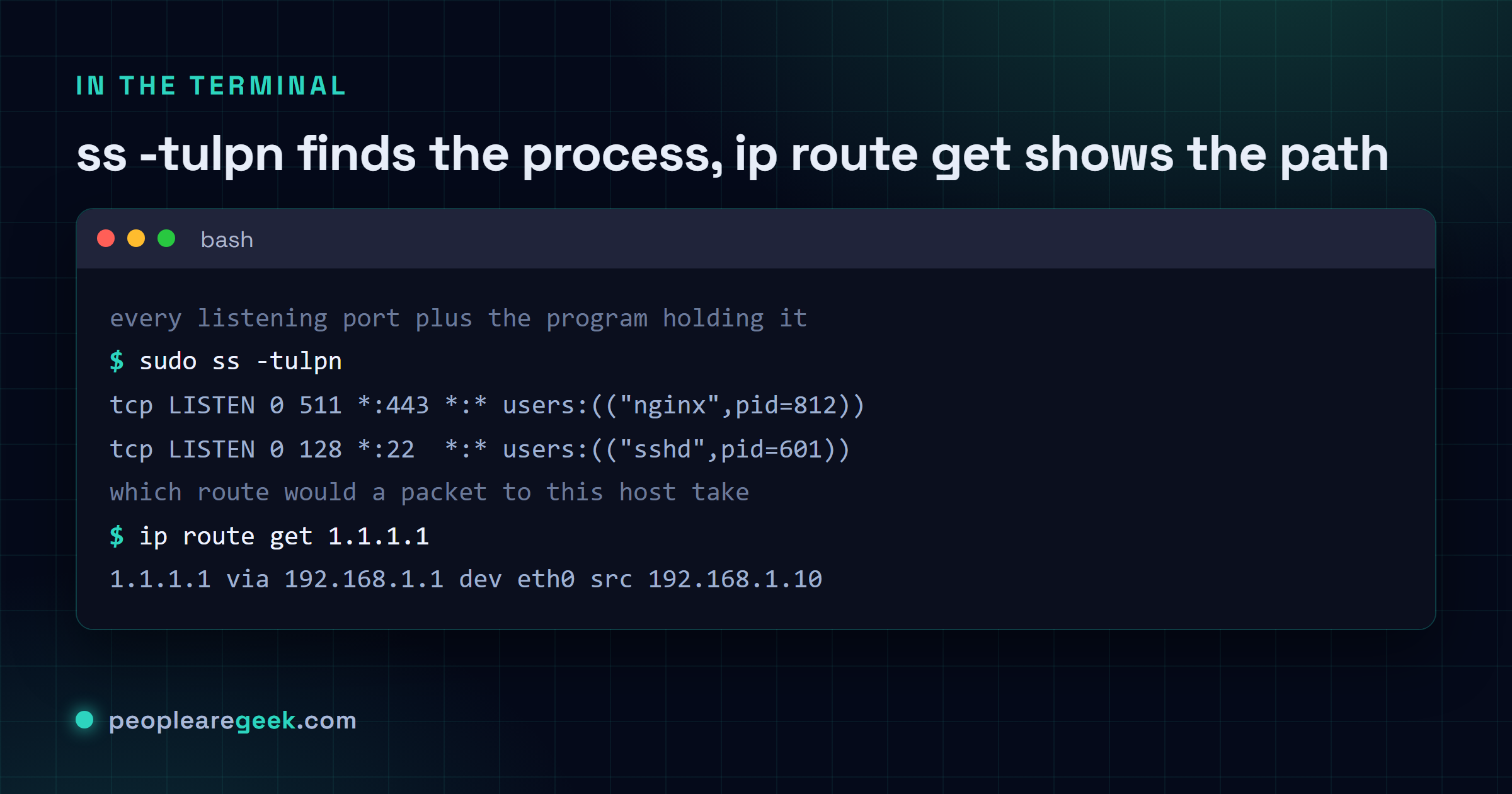
them: ss -tulpn. The routing table is ip route, and ip route get 1.1.1.1 shows
which route a packet would take. The ARP table is now ip neigh. net-tools
(ifconfig, netstat, route, arp) is deprecated upstream and missing on most
minimal installs, so learn the iproute2 set instead.

You ssh into a box, type ifconfig out of pure muscle memory, and get command not found. Welcome to a fresh Debian or Arch or basically any modern minimal install. The old net-tools crew (ifconfig, netstat, route, arp) isn't deprecated in some vague future sense. On a lot of distros it's just gone, not installed by default, and nobody's bringing it back.
So here's the replacement set, the stuff that actually ships now: ip and ss from iproute2. This is the cheatsheet I wish someone had handed me the first time a server told me my favourite command didn't exist. Most-wanted answers first, then the mapping table so you can translate the commands stuck in your fingers.
Just tell me my IP address
Most common reason anyone reaches for these tools, honestly. You want to know what address the machine is sitting on. Three ways, depending on how much noise you can tolerate.
ip ashows everything: every interface, IPv4, IPv6, the MAC, the link state. It's the full picture and a little verbose.ip -4 afilters down to IPv4 only, which is usually what you actually wanted.hostname -Ispits out just the addresses, space separated, no labels. Perfect inside a script. The flag is a capital I, not lowercase, that trips people up constantly.
For your public IP, none of these help, by the way, they all show the local/private address. The box behind a NAT has no idea what the world sees. You'd query an outside service for that, or just use our what is my IP tool from the same network.
ip a, ip link: addresses and interfaces
The ip command is built around objects. You name the object, then the action. ip address for addresses, ip link for the interfaces themselves, ip route for routing, ip neighbour for the ARP table. Almost everything shortens, so ip a, ip l, ip r, ip n all work. Saves your fingers once it clicks.
| Command | What it does |
|---|---|
ip a · ip addr show | Show all interfaces with their IPv4 and IPv6 addresses |
ip -4 a | Same, but IPv4 only (use -6 for IPv6 only) |
ip a show dev eth0 | Just one interface, by name |
ip link | List interfaces with state and MAC, no IP addresses |
ip -br a | Brief one-line-per-interface view, much easier to skim |
That last one, ip -br a (brief), is criminally underused. It collapses the wall of text into a tidy column: interface, state, address. When you just want to glance and move on, it's the one.
The honest first impression: yeah, ip feels clunky coming from ifconfig. More words, an object-then-verb grammar that reads backwards at first. I grumbled about it for a solid week. Then one day you reach for ifconfig on some new server, it's not there, and you realize you don't actually miss it. The consistency wins you over. Give it that week.
Bring an interface up or down, add an address
This is where ip earns its keep, because it does the configuration too, not just the read-only display. Changing link state and assigning addresses both need root, so sudo in front or you'll get a permission error.
- Bring an interface up:
sudo ip link set dev eth0 up - Take it down:
sudo ip link set dev eth0 down - Add an address:
sudo ip addr add 192.168.1.10/24 dev eth0 - Remove that address again:
sudo ip addr del 192.168.1.10/24 dev eth0
One thing worth saying out loud: changes made with ip are live but not saved. Reboot and they're gone. For anything permanent you edit the config that owns the interface, Netplan, NetworkManager, systemd-networkd, whatever your distro uses. The ip commands are perfect for testing a fix right now, or patching something in an emergency. Just don't expect them to survive a restart.
Routing: ip route and the one trick worth knowing
Your routing table tells the kernel where to send packets. ip route (or ip r) prints it, and the default gateway line is usually the one you care about.
| Command | What it does |
|---|---|
ip route | Show the whole routing table; the default via line is your gateway |
ip route get 1.1.1.1 | Show exactly which route and source IP a packet to that host would use |
sudo ip route add 10.0.0.0/24 via 192.168.1.1 | Add a static route |
sudo ip route del 10.0.0.0/24 | Remove it |
That ip route get command is the hidden gem. Instead of squinting at the table and doing the longest-prefix-match in your head, you hand it a destination and it tells you the actual route the kernel would pick, plus the source address it'd use. For debugging "why isn't this traffic going where I expect," it's the fastest answer there is. Pair it with our IP subnet calculator when the math on a route gets fuzzy.
ss: the netstat replacement you'll actually live in
Right, ss (socket statistics). This is the big one. It replaces netstat, it's faster on busy systems because it reads kernel data more directly, and the flag combo you want burned into memory is ss -tulpn.
Breaking that down, because the letters aren't obvious: t is TCP, u is UDP, l is listening sockets only, p shows the owning process (needs root to see processes you don't own), n keeps ports numeric so it doesn't slow down resolving names. Stick them together and you get a clean list of every service listening on the box and exactly which program holds each port.
| Command | What it does |
|---|---|
sudo ss -tulpn | All listening TCP and UDP ports plus the process behind each one |
ss -s | Summary: socket counts by type, quick health glance |
ss -tan | All TCP sockets (not just listening), numeric |
ss -tp state established | Only the live, established TCP connections |
sudo ss -tulpn | grep :443 | What's holding port 443? This answers it in one line |
If something else is squatting on a port your service needs, ss -tulpn piped through grep finds the culprit in seconds. Checking a port from another machine instead? Our port checker does the remote side. And the ss -s summary is a nice five-second pulse check, total sockets, how many are in each state, whether something's leaking connections.

ip neigh: the ARP table, renamed
The ARP table maps IP addresses to MAC addresses on your local segment. Old command was arp -a. Now it's ip neigh (neighbour, abbreviated ip n).
ip neighlists the current neighbor entries with their states (REACHABLE, STALE, and so on)ip neigh show dev eth0narrows it to one interfacesudo ip neigh flush dev eth0clears the cache for an interface when an entry's gone stale on you
Most days you won't touch this. But when a machine on the LAN is unreachable and you're trying to work out whether it's even answering at layer 2, ip neigh is exactly where you look. A FAILED entry there tells you the host isn't responding to ARP at all, which narrows the problem down fast.
Old command to new command, the cheatsheet
Here's the one to bookmark. If your fingers know net-tools, just read the left column and learn the right. The mapping is close enough that retraining takes a day, not a week.
| Old (net-tools) | New (iproute2) | For |
|---|---|---|
ifconfig | ip a | Show interfaces and addresses |
ifconfig eth0 up | ip link set dev eth0 up | Bring an interface up or down |
ifconfig eth0 192.168.1.10/24 | ip addr add 192.168.1.10/24 dev eth0 | Assign an address |
netstat -tulpn | ss -tulpn | Listening ports plus process |
netstat -tan | ss -tan | All TCP connections |
route -n | ip route | Show the routing table |
route add ... | ip route add ... | Add a static route |
arp · arp -a | ip neigh | Show the ARP / neighbor table |
If you genuinely need the old binaries on a modern box, the package is usually called net-tools and you can still install it. I'd push back on that, though. You're learning the deprecated thing to avoid learning the current one, and the current one is better. Spend the day instead.
Sources
- man7.org: ip(8) manual page (iproute2)
- man7.org: ss(8) manual page (iproute2)
- man7.org: ip-route(8) manual page
Frequently asked questions
Why is ifconfig not found on my Linux server?
Because net-tools isn't installed by default on most modern distros anymore. Debian, Ubuntu server, Arch, Fedora and others ship iproute2 instead, where the command is ip. You can install the old net-tools package if you really want ifconfig back, but the intended replacement is ip a. That's the one to learn.
What replaced netstat on Linux?
That's ss, short for socket statistics, also from iproute2. It does the same job and runs faster on busy machines because it reads kernel socket data more directly. The everyday command is ss -tulpn: TCP and UDP, listening only, with the owning process, ports kept numeric. Run it with sudo to see processes you don't own.
How do I see which process is using a port?
Run sudo ss -tulpn and look at the Process column, or pipe it like sudo ss -tulpn | grep :8080 to jump straight to the port you care about. The -p flag is what shows the program, and you need root to see processes owned by other users. It's the quickest way to find whatever is squatting on a port you need.
How do I find my IP address from the command line?
Use ip a for the full view, or ip -4 a to cut it down to IPv4 only. For a clean scriptable answer use hostname -I (capital I), which prints just the addresses. All of these show your local address. Your public IP lives outside the NAT, so you'd query an external service or use a what-is-my-ip page for that.
Are ip and ss permanent? Do they survive a reboot?
No. Anything you set with ip, an address, a route, an interface coming up, is live immediately but lives in memory only and vanishes on reboot. For permanent config you edit whatever owns the interface on your distro: Netplan, NetworkManager or systemd-networkd. Treat the ip commands as the tool for testing or emergency fixes, then write it into the real config.