This nmcli cheatsheet puts the scan-and-connect pair right at the top, because that is why most people land here: a box with no desktop, the Wi-Fi dropped, and you need it back. Copy it, swap the SSID, you are online. nmcli is the command-line face of NetworkManager, the thing already managing your connections on basically every modern distro, Ubuntu, Fedora, Debian with a desktop. So this is not some extra tool to install. It is already there, waiting. Below: scan nearby Wi-Fi, join a network, list saved profiles, flip connections up and down, check device status, toggle the radio, set a static wired IP, and read or set the hostname.
The short answer
Scan nearby Wi-Fi with nmcli device wifi list, join with
nmcli device wifi connect "SSID" password "PASS", and list saved profiles with
nmcli connection show (add --active for live ones). Flip a connection with
nmcli connection up "Home" and down, check hardware with nmcli device status,
toggle the radio with nmcli radio wifi on, and set a static IP with
ipv4.addresses plus ipv4.method manual.
You're on a box with no desktop, the Wi-Fi dropped, and you need it back. That's why most people land here, so the scan-and-connect pair is right at the top. Copy it, swap the SSID, you're online. nmcli is the command-line face of NetworkManager, which is the thing already managing your connections on basically every modern distro. Ubuntu, Fedora, Debian with a desktop, they all run it. So this isn't some extra tool to install. It's already there, waiting.
Quick orientation, because the wording trips people. nmcli talks about two different things: devices (the actual hardware, your wlan0 or eth0) and connections (saved profiles with passwords, IPs, all of it). A device is the radio. A connection is the memory of a network. Once that split clicks, half the commands stop looking arbitrary.

Scan and connect to Wi-Fi (the reason you're here)
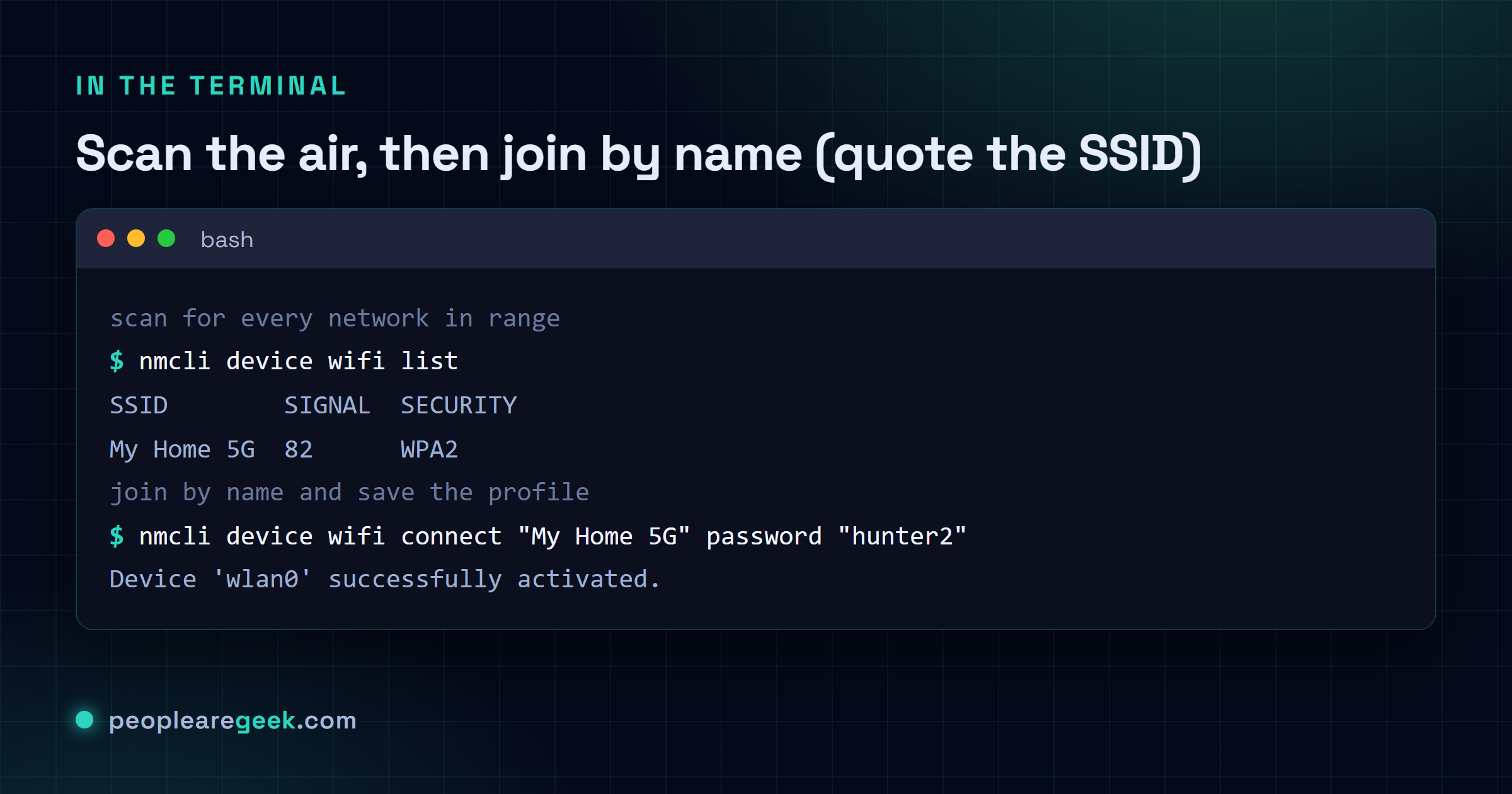
Two commands, and you're back online. First you scan, then you connect to whatever you saw. nmcli device wifi list triggers a fresh scan and dumps a table: SSID, signal strength, the security type, which one you're on. Then you connect by name. NetworkManager remembers it after, so next boot it just reconnects on its own without you typing a thing.
| Command | What it does |
|---|---|
nmcli device wifi list | Scan and print every network in range, with signal and security |
nmcli device wifi connect "SSID" password "PASS" | Join a network and save it as a profile for next time |
nmcli device wifi connect "SSID" | Connect to an open network, or one whose password is already saved |
nmcli device wifi rescan | Force a fresh scan when the list looks stale or empty |
The quotes matter, and here's the gotcha that gets everyone at least once. If your network is called My Home 5G, then nmcli device wifi connect My Home 5G password ... falls apart, because the shell hands nmcli three separate words and it has no clue which one is the SSID. Wrap it: "My Home 5G". Same goes for a password with a space or a $ or a ! in it. Quote both, always, and you skip a whole category of confusing failures.
See your saved connections
NetworkManager keeps a profile for every network you've ever joined, plus your wired ones. nmcli connection show lists them all by name, with the type and the device each one's bound to. This is your inventory. When you want to reconnect to something, this is where you find the exact name to feed the next command.
| Command | What it does |
|---|---|
nmcli connection show | List every saved profile by name, with its type and bound device |
nmcli connection show --active | Show only the connections that are live right now |
nmcli connection show "Home" | Dump every setting of one profile, IPs, DNS, the lot |
That last form is a wall of output, hundreds of lines, but it's where the truth lives when a connection misbehaves. Want to know which DNS server a profile actually hands out, or whether it's set to DHCP or static? It's all in there. I pipe it through grep most days rather than reading the whole thing, life's short.
Bring connections up and down
Once a profile exists, you don't rescan or retype a password to use it. You just bring it up by name. up activates a saved connection, down deactivates it. This is the clean way to hop between, say, a wired profile and a Wi-Fi one, or to bounce a connection that's gone sideways without rebooting the whole machine.
| Command | What it does |
|---|---|
nmcli connection up "Home" | Activate a saved connection by its name |
nmcli connection down "Home" | Deactivate it, without deleting the profile |
nmcli device disconnect wlan0 | Disconnect a device and stop it auto-reconnecting for now |
There's a real difference between connection down and device disconnect, and it bites people. Bring a connection down and NetworkManager may happily bring up another autoconnect profile in its place, so the device stays online on something else. device disconnect is the firmer "stop, stay off" for that specific piece of hardware. When you genuinely want the interface dark, disconnect the device.
Check device status
Before you debug anything, look at what your hardware's even doing. nmcli device status is the one-line-per-device overview: every interface, its type, whether it's connected, disconnected or unmanaged, and which connection it's riding. It's the first thing I run when something's off, because half the time the answer is right there. The device says unmanaged, or it's sitting disconnected, and now you know where to aim.
| Command | What it does |
|---|---|
nmcli device status | One line per device: type, state, and active connection |
nmcli device show wlan0 | Deep detail on one device: IP, MAC, gateway, DNS |
nmcli general status | The overall NetworkManager state and connectivity check |
If a device shows up as unmanaged, NetworkManager is deliberately keeping its hands off it, usually because something else (like a static config in /etc/network/interfaces, or netplan pointing elsewhere) claimed it first. That's not a bug to fight blindly. It means two systems both think they own the interface, and you get to pick one.
My take: on a headless server, nmcli beats hand-editing config files. I used to edit
/etc/netplan/*.yamlor the oldinterfacesfile by hand and then pray onreboot. Sometimes the box came back. Sometimes it came back with no network and I was stuck driving to the data center, or worse, begging someone for KVM access.nmclichanged how I feel about this. It validates as you go, applies a change live, and if a profile's wrong you fix it in place over the connection you're still on. No reboot roulette. The honest caveat: if your distro manages the network with plain netplan or systemd-networkd and NetworkManager isn't even in charge, thennmcliisn't your tool and forcing it just adds a second cook to the kitchen. Check who's driving first, withnmcli device status, then commit to one. I might lean on it harder than is strictly wise, but I've been burned by silent reboots enough times to trust the live-apply approach.
Toggle the Wi-Fi radio
Sometimes nothing shows up in a scan because the radio itself is off, software-killed or just disabled. nmcli radio wifi controls that switch directly, no GUI toggle hunting. When device wifi list comes back empty and you swear there's a network there, this is the first thing to check.
| Command | What it does |
|---|---|
nmcli radio wifi on | Power the Wi-Fi radio on |
nmcli radio wifi off | Kill the radio, every Wi-Fi connection drops |
nmcli radio wifi | Just ask whether it's currently enabled |
One thing this won't override: a hardware kill switch. If your laptop has a physical Wi-Fi toggle or an Fn key combo that flipped it off, nmcli radio wifi on can't undo that from software. The command reports the radio as still blocked and there's nothing it can do about the lever. Flip the physical switch, then try again.
Add a wired profile and set a static IP
Servers usually want a fixed address, not whatever DHCP feels like handing out. With nmcli you create a profile, then modify it to use a manual IPv4 address. The two-step reads a little verbose, but every piece is explicit, which on a remote box is exactly what you want. Nothing happening by magic.
| Command | What it does |
|---|---|
nmcli connection add type ethernet con-name "Wired" ifname eth0 | Create a new wired profile bound to eth0 |
nmcli connection modify "Wired" ipv4.addresses 192.168.1.50/24 | Set the static address and its subnet |
nmcli connection modify "Wired" ipv4.gateway 192.168.1.1 ipv4.dns 1.1.1.1 | Add the gateway and DNS |
nmcli connection modify "Wired" ipv4.method manual | Switch from DHCP to manual, so it stops auto-assigning |
nmcli connection up "Wired" | Apply everything by bringing the profile up |
The step everyone forgets is ipv4.method manual. You can set a beautiful static address with ipv4.addresses, but if the method's still auto, DHCP keeps overriding you and you're left wondering why your "static" IP keeps drifting. Set the addresses, set the method to manual, then bring it up. To go back to DHCP later, it's just ipv4.method auto. Or rather, set the method to auto and clear the old addresses if you want it truly clean.
Show or set the hostname
NetworkManager handles the system hostname too, which is a little surprising the first time. nmcli general hostname with no argument prints the current one. Hand it a name and it sets it, persistently, no separate hostnamectl dance required.
| Command | What it does |
|---|---|
nmcli general hostname | Print the current system hostname |
nmcli general hostname web-01 | Set the hostname to web-01, persistently |
Small thing, genuinely useful when you're spinning up a fresh box and three terminals all say localhost and you can't tell which is which. Name them and the prompts stop lying to you.
Where to go from here
That's the working set. Scan, connect, list profiles, up and down, device status, the radio toggle, a static wired IP, and the hostname. Honestly that covers nearly everything I touch with nmcli in a normal week, and the rare oddity I look up in man nmcli like everyone else.
Sources
Frequently asked questions
How do I connect to Wi-Fi from the Linux terminal?
Scan first with nmcli device wifi list to see what's around, then run nmcli device wifi connect "SSID" password "PASS" with your network name and key. NetworkManager saves the profile, so it reconnects on its own next boot. Keep the quotes around the SSID, especially if the name has a space in it, or nmcli won't know where the network name ends.
How do I list saved network connections with nmcli?
Run nmcli connection show to list every saved profile by name, with its type and the device it's bound to. Add --active to see only the connections that are live right now. To inspect one in full, nmcli connection show "Home" dumps all its settings, including the IP method and DNS, which is where you look when a connection is misbehaving.
How do I set a static IP address using nmcli?
Modify the profile: nmcli connection modify "Wired" ipv4.addresses 192.168.1.50/24, add the gateway and DNS, then the step people forget, nmcli connection modify "Wired" ipv4.method manual. Without setting the method to manual, DHCP keeps overriding your address. Finish with nmcli connection up "Wired" to apply it. To revert, set ipv4.method auto.
Why won't nmcli connect to my Wi-Fi network?
Check the radio first with nmcli radio wifi, since a software or hardware kill switch stops every scan. If the SSID has spaces, wrap it in quotes or nmcli reads the words separately and fails. Run nmcli device status too: if the device shows unmanaged, something else owns the interface and NetworkManager is staying out of it.
What is the difference between a device and a connection in nmcli?
A device is the hardware, your wlan0 or eth0 radio. A connection is a saved profile that holds a network's password, IP settings and DNS. You scan and join with device commands, then activate the saved profile later with connection up. One device can have several connection profiles, and only one is active on it at a time.