This PowerShell networking cheatsheet puts the cmdlet most people actually want, Test-NetConnection, right at the top, because it does a ping, a TCP port check and a traceroute in one command. You opened PowerShell to check if a port is open and your fingers typed ping out of muscle memory. The old CMD tools still run, but they are not where Windows networking lives anymore. The cmdlets are. These come from built-in modules, mainly NetTCPIP and DnsClient, ship with every modern Windows, and return real objects instead of a wall of text you have to parse by eye. Copy, swap the host, go.
The short answer
Test a port (the ping replacement) with Test-NetConnection 1.1.1.1 -Port 443,
one command for reachability and an open-port check. See your whole setup with
Get-NetIPConfiguration (IP, gateway and DNS together). Look up a name with
Resolve-DnsName example.com. List what is listening with
Get-NetTCPConnection -State Listen, and flush a stale record with
Clear-DnsClientCache.
You opened PowerShell to check if a port's open, and your fingers typed ping out of muscle memory. Happens to me too. The old CMD tools still run, sure, but they're not where Windows networking lives anymore. The cmdlets are. And the one most people actually want, Test-NetConnection, does ping and a port check and a traceroute in a single command. So that's right at the top. Copy, swap the host, go.
One thing worth knowing before you scroll. These cmdlets come from a couple of built-in modules, mainly NetTCPIP and DnsClient, and they ship with every modern Windows. Nothing to install. They return real objects too, not a wall of text you have to squint at and parse by eye, which is the whole point of doing this in PowerShell instead of CMD.
Test a port and reachability with Test-NetConnection
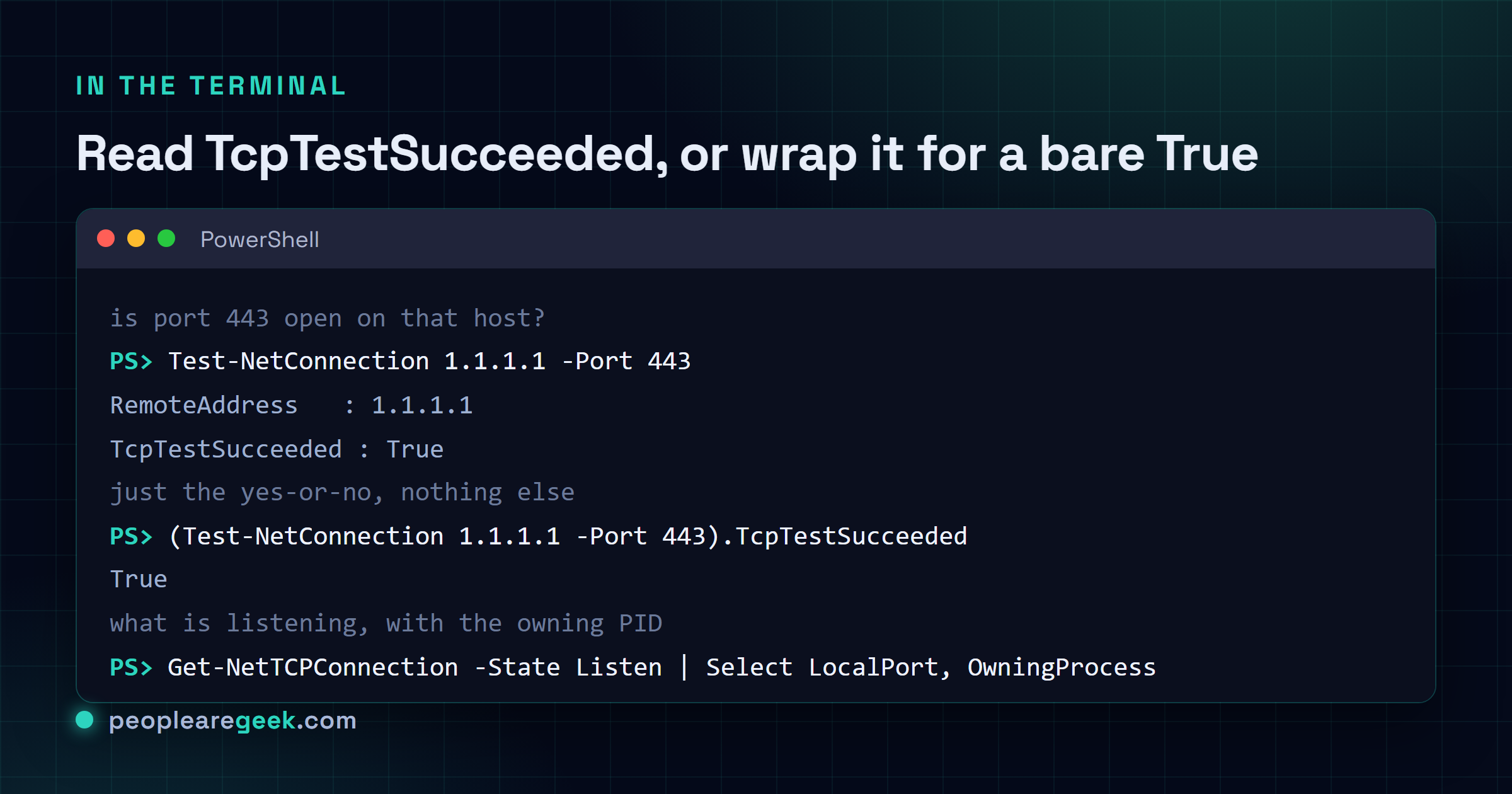
This is the one. If you remember nothing else, remember Test-NetConnection. It pings, it checks a TCP port, it traces a route, and it does each of those without you switching tools. Want to know if a web server's actually answering on 443? Don't ping it (ping won't tell you the port's open). Run Test-NetConnection host -Port 443 and read the TcpTestSucceeded line. True means the port answered. That's the answer you came for.
| Command | What it does |
|---|---|
Test-NetConnection example.com | A basic reachability check, roughly what ping gave you |
Test-NetConnection 1.1.1.1 -Port 443 | Is port 443 open on that host? Read TcpTestSucceeded |
Test-NetConnection example.com -TraceRoute | Trace the route hop by hop, like tracert but in one tool |
tnc example.com -Port 22 | Same thing, shorter. tnc is the built-in alias |
The output's a little chatty by default, it prints the source address, the remote one, ping results, the lot. When I just want the yes-or-no I tack on the property I care about: (Test-NetConnection host -Port 443).TcpTestSucceeded hands back a bare True or False and nothing else. Honestly that one-liner has replaced telnet for me entirely, and good riddance, telnet wasn't even installed by default half the time.

See your IP, gateway and DNS at a glance
Two cmdlets cover almost everything you used ipconfig for. Get-NetIPConfiguration is the friendly summary, it bundles your address, the default gateway and the DNS servers per adapter. Get-NetIPAddress goes deeper and lists every IP the machine holds, IPv4 and IPv6 both, which is more than you usually want but exactly right when you're chasing a weird link-local thing.
| Command | What it does |
|---|---|
Get-NetIPConfiguration | The summary: IP, gateway and DNS per adapter, all together |
Get-NetIPAddress | Every IP address on the box, v4 and v6 |
Get-NetIPAddress -AddressFamily IPv4 | Just the IPv4 ones, when the v6 noise is in your way |
Get-NetRoute -DestinationPrefix 0.0.0.0/0 | Your default route, the gateway packets leave through |
That last line is the quiet one I lean on most. Get-NetRoute is the routing table, and filtering to 0.0.0.0/0 shows the default route, which is where your traffic actually goes when the destination isn't local. When something can reach the LAN but not the internet, the gateway in that row is the first place I look. Nine times out of ten it's wrong or missing.
Find what's listening (the netstat replacement)
You need to know what's holding a port. Maybe something won't start because 8080's already taken. Get-NetTCPConnection is the modern netstat, and -State Listen narrows it to the sockets actually waiting for connections. Better still, it gives you the OwningProcess as a real PID you can pipe straight into Get-Process to put a name to the culprit.
| Command | What it does |
|---|---|
Get-NetTCPConnection -State Listen | Every listening TCP port on the machine |
Get-NetTCPConnection -LocalPort 8080 | Who's on port 8080 specifically |
Get-NetTCPConnection -State Established | Open active connections, the ones doing real work |
The trick that makes this genuinely useful: pipe it. Get-NetTCPConnection -State Listen | Select-Object LocalPort, OwningProcess gives you a clean table, and from there Get-Process -Id <pid> tells you it was Docker, or some stray Node process you forgot about. Try doing that cleanly with netstat. You can, with -ano, but you're back to eyeballing columns.
DNS lookups and flushing the cache
For names, Resolve-DnsName is your tool. It's nslookup, except it returns objects, so you can ask for just the records you want instead of reading a paragraph. And when a record's clearly stale, when a site moved and your machine's still pointed at the old address, Clear-DnsClientCache wipes the local resolver cache in one go.
| Command | What it does |
|---|---|
Resolve-DnsName example.com | A plain DNS lookup for that name |
Resolve-DnsName example.com -Type MX | Just the mail (MX) records, for chasing email routing |
Resolve-DnsName example.com -Server 1.1.1.1 | Ask a specific resolver, handy to bypass a flaky local one |
Clear-DnsClientCache | Flush the local DNS cache, same as ipconfig /flushdns |
Quick gotcha. Resolve-DnsName can read your local cache too, so if you just flushed and you want a truly fresh answer from the server, the -Server switch sidesteps any local weirdness. I reach for -Server 1.1.1.1 when I suspect the box's own DNS settings are the problem and I want a second opinion that ignores them entirely.
Adapters and changing your IP or DNS
Sometimes you're not diagnosing, you're configuring. Get-NetAdapter lists your network interfaces with their names and link state, and that interface name (often "Ethernet" or "Wi-Fi") is what the change commands key off. From there you can point an adapter at a new DNS server or pin a static IP, no clicking through five Control Panel windows to get there.
| Command | What it does |
|---|---|
Get-NetAdapter | List the network adapters and whether they're up |
Set-DnsClientServerAddress -InterfaceAlias "Ethernet" -ServerAddresses 1.1.1.1 | Point that adapter's DNS at a server you choose |
New-NetIPAddress -InterfaceAlias "Ethernet" -IPAddress 192.168.1.50 -PrefixLength 24 -DefaultGateway 192.168.1.1 | Assign a static IP with its gateway |
Two warnings, because these actually change your config. They need an elevated PowerShell (run as admin) or they'll just refuse. And if you're setting a static IP on the very box you're remoted into, you can cut your own connection mid-command, so do that one at the console, not over RDP, unless you enjoy a walk to the server room. To undo DNS later and go back to automatic, Set-DnsClientServerAddress -InterfaceAlias "Ethernet" -ResetServerAddresses hands it back to DHCP.
My take on Test-NetConnection
Test-NetConnection quietly replaced ping, telnet and tracert. Three separate habits, folded into one cmdlet. Reachability, the open-port check telnet used to fake for you, and a traceroute, all from Test-NetConnection with a different switch. That's a real consolidation, and the -Port check alone justifies retiring telnet, which Windows stopped installing by default anyway. Here's the honest hedge though: it's slower than a raw ping, the verbose output is overkill when you only want True or False, and on a tight remote session the old tools still load faster. So I keep ping in my fingers for a five-second "is anything alive" gut check. For literally everything past that, it's tnc. Maybe I lean on it too hard because typing one command beats remembering three, but the time it's saved me is not small.
Where to go from here
That's the working set. Test a port, read your config, list what's listening, resolve a name, flush the cache, see your adapters, set an IP. Genuinely covers nearly everything I touch in a normal week of Windows networking, and the odd rare thing I look up like everyone else.
If you're switching between worlds, the muscle memory carries. Still need the classic CMD tools for an older box or a script? The Windows network commands cheatsheet keeps ipconfig, ping and netstat grouped the same way. Wrangling Wi-Fi profiles and saved passwords? That's netsh wlan commands territory. And when you'd rather not open a shell at all, a port checker tests a host and port from the browser, while a DNS lookup tool resolves a name without you typing a thing.
Sources and further reading
- Microsoft Learn: NetTCPIP module (Test-NetConnection, Get-NetIPAddress, Get-NetTCPConnection, Get-NetRoute)
- Microsoft Learn: DnsClient module (Resolve-DnsName, Clear-DnsClientCache)
Frequently asked questions
How do I check if a port is open in PowerShell?
Run Test-NetConnection host -Port 443, swapping in your host and port number. Look at the TcpTestSucceeded line: True means the port answered, False means it didn't. For a clean yes or no with no other output, wrap it like (Test-NetConnection host -Port 443).TcpTestSucceeded. It's the modern replacement for the old telnet port test, which Windows no longer installs by default.
What is the PowerShell equivalent of ipconfig?
Get-NetIPConfiguration is the closest match. It prints your IP address, default gateway and DNS servers per adapter in one summary. For more detail, Get-NetIPAddress lists every address the machine holds across IPv4 and IPv6. Both come from the built-in NetTCPIP module, so there's nothing to install on a modern Windows.
How do I flush the DNS cache in PowerShell?
Run Clear-DnsClientCache. It wipes the local resolver cache, the same job as ipconfig /flushdns, which helps when a site has moved and your machine is still resolving the old address. To then confirm a fresh answer straight from a server and skip the cache entirely, use Resolve-DnsName example.com -Server 1.1.1.1.
What replaced netstat in PowerShell?
Get-NetTCPConnection is the modern netstat. Add -State Listen to see only listening ports, or -LocalPort 8080 to find what is holding a specific port. The big win is OwningProcess, a real PID you can pipe into Get-Process to put a name to whatever owns the socket, no squinting at columns the way netstat -ano makes you.
How do I set a static IP address with PowerShell?
Use New-NetIPAddress -InterfaceAlias Ethernet -IPAddress 192.168.1.50 -PrefixLength 24 -DefaultGateway 192.168.1.1, matching the interface name from Get-NetAdapter. You need an elevated (run as admin) PowerShell, and never do it over RDP on the same box, since changing the address can drop your own session. Set DNS separately with Set-DnsClientServerAddress.