This rsync cheatsheet puts the recipes you actually run right at the top: mirror a folder, push it over ssh, and the dry run you should do before anything destructive. Copy the line, swap your paths, go. rsync only copies what is different, so the second run is fast, and a half-finished run can resume instead of starting over. The annoying part of rsync was never the flags. It is one tiny detail at the end of the source path, the trailing slash, that quietly changes what the whole command means, and it gets its own section below because honestly it is the only part of rsync worth being nervous about.
The short answer
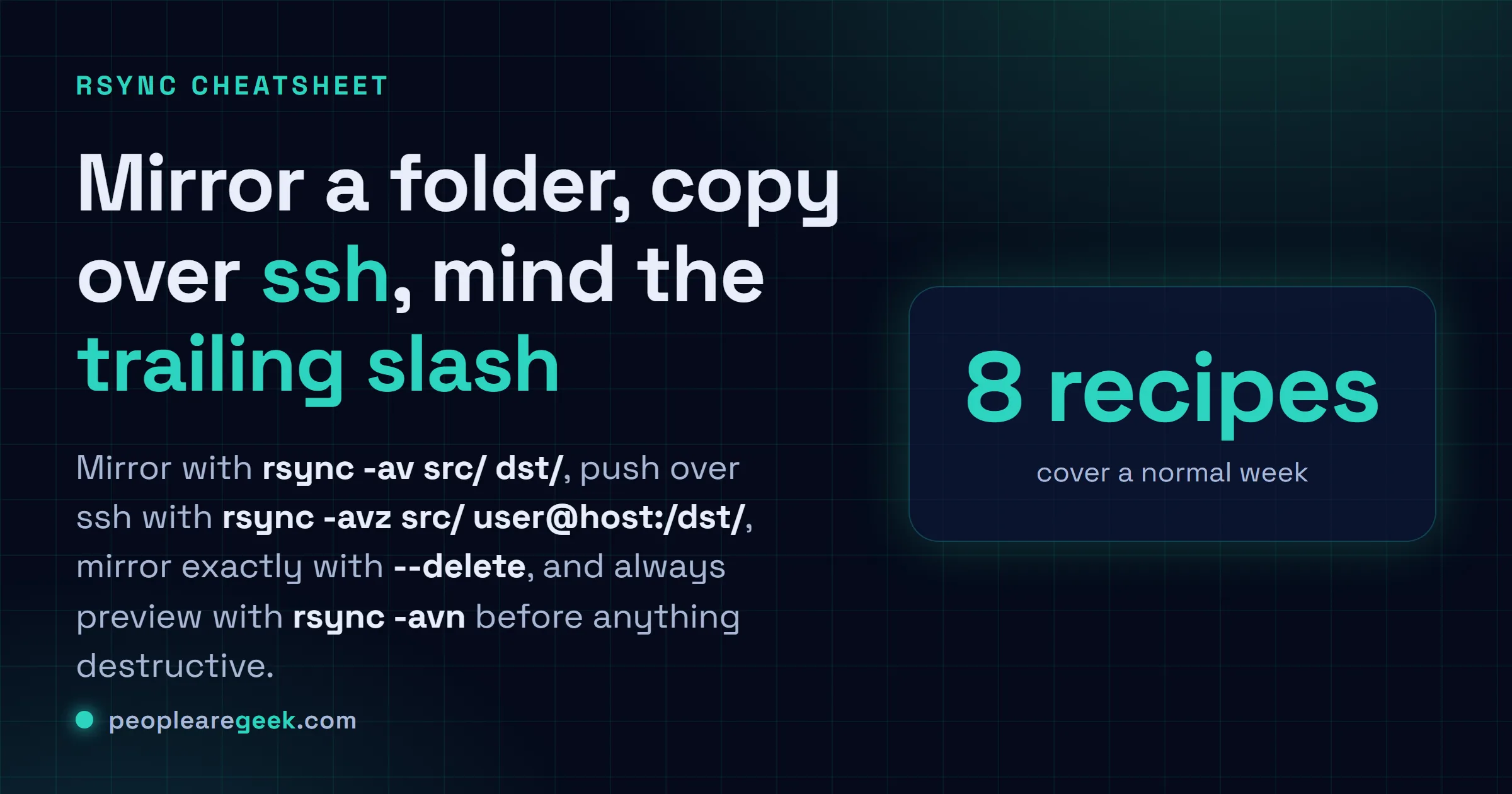
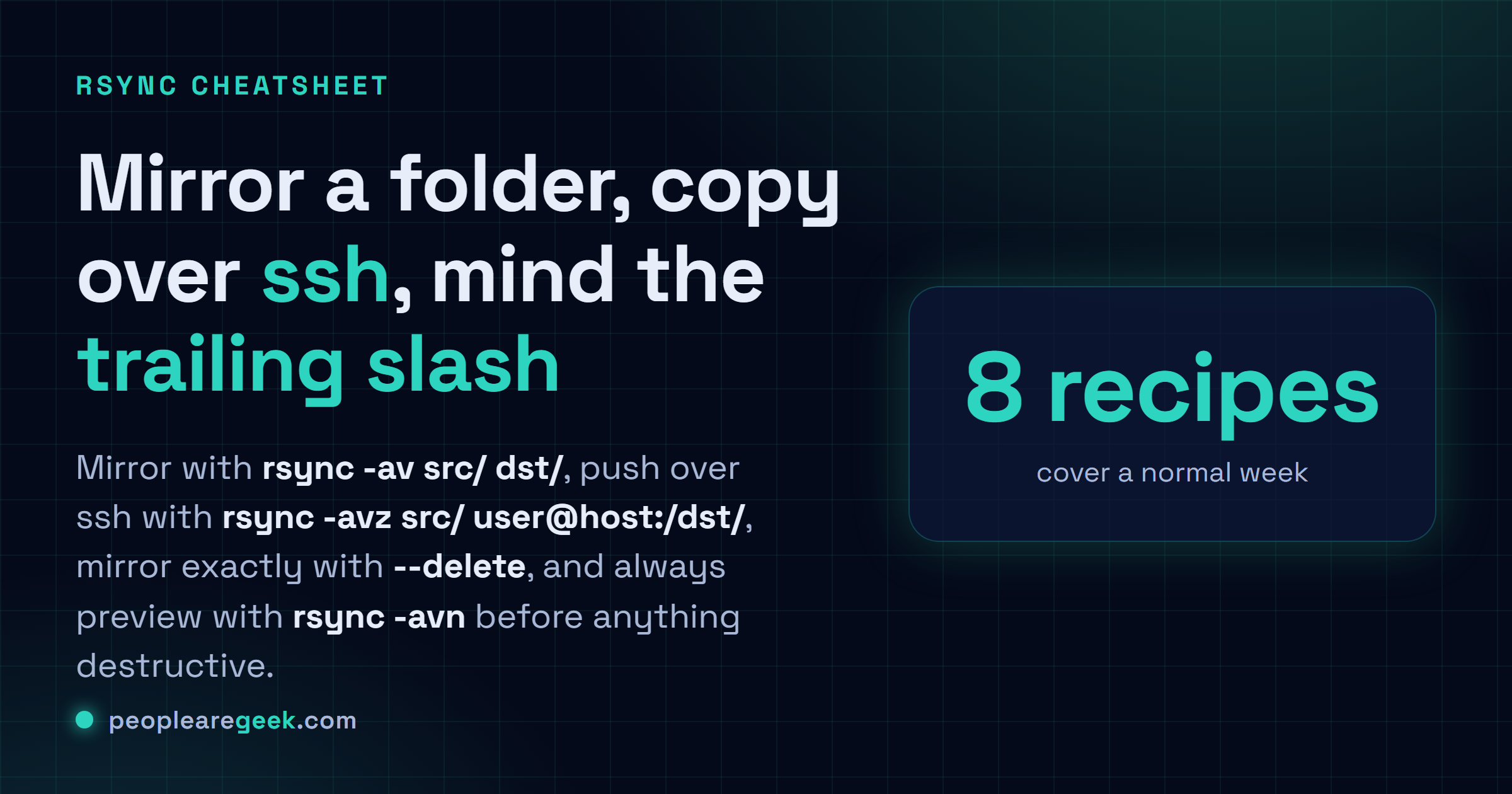
Mirror a folder with rsync -av src/ dst/, copy over ssh with rsync -avz src/ user@host:/dst/,
and make the destination an exact mirror with rsync -av --delete src/ dst/. Always dry-run
first using rsync -avn src/ dst/, resume a big transfer with rsync -avP src/ dst/, and remember
that a trailing slash on the source copies the contents while no slash copies the folder itself.
You want a folder copied to another folder, or another machine, and you want it to pick up where it left off when the wifi drops. That's rsync. The recipes you actually run are right at the top: mirror a folder, push it over ssh, and the dry run you should do before anything destructive. Copy the line, swap your paths, go. The annoying part of rsync was never the flags. It's one tiny detail at the end of the source path that quietly changes what the whole command means.
Quick orientation before you scroll. rsync only copies what's different, so the second run is fast, and a half-finished run can resume instead of starting over. The catch nobody mentions on day one is that trailing slash, which gets its own section below because honestly it's the only part of rsync worth being nervous about.
Mirror a folder locally
This is the one you'll type most. rsync -av src/ dst/ copies everything from src/ into dst/ and keeps the metadata intact. The -a stands for archive, which is really a bundle: recurse into subfolders, preserve permissions, timestamps, symlinks, the lot. Run it again tomorrow and only the changed files move. That second-run speed is the whole reason people pick rsync over a plain cp.
| Command | What it does |
|---|---|
rsync -av src/ dst/ | Mirror the contents of src/ into dst/, metadata preserved |
rsync -av src dst/ | Note the missing slash: copies the folder itself, landing as dst/src/ |
rsync -avh src/ dst/ | Same, but human-readable sizes in the output (h) |
rsync -a src/ dst/ | Quiet version, no per-file chatter. Good for cron jobs |
See the difference between the first two rows? One slash. With src/ you copy what's inside src. Without it, src goes into dst as a subfolder. I still get this wrong sometimes, which is exactly why I lead with the dry run further down.
Copy over ssh to another machine
Here's where rsync earns its keep. Put user@host: in front of a path and rsync runs over ssh, no extra setup if you can already ssh to the box. Add z and it compresses the stream, which matters on anything slower than a LAN. Same direction rules apply: source first, destination second, and that trailing slash still decides contents-versus-folder.
| Command | What it does |
|---|---|
rsync -avz src/ user@host:/dst/ | Push a local folder up to a remote path, compressed |
rsync -avz user@host:/src/ dst/ | Pull the other way: remote down to local |
rsync -avzP src/ user@host:/dst/ | Push with a progress bar and resumable partials (the P) |
rsync -avz --delete src/ user@host:/dst/ | Push and mirror exactly, removing remote files not in src |
The z is a judgement call, not a freebie. On a fast local network it can actually slow you down, because the CPU spends time squeezing data the link could've just carried. Over the internet or a VPN though, turn it on. If you'd rather not assemble these by hand, our rsync command generator builds the exact line from a few clicks, ssh target and all.
Dry-run before you change anything
The flag that's saved me more than any other. -n (long form --dry-run) makes rsync go through the whole motion and report every file it would touch, while writing nothing to disk. Pair it with -v so you can actually read the list. It costs you two seconds and it's the difference between catching a path typo and explaining to someone why their data's gone.
| Command | What it does |
|---|---|
rsync -avn src/ dst/ | Preview a normal copy, touching nothing (n is dry run) |
rsync -av --dry-run src/ dst/ | Exact same thing, spelled out as --dry-run |
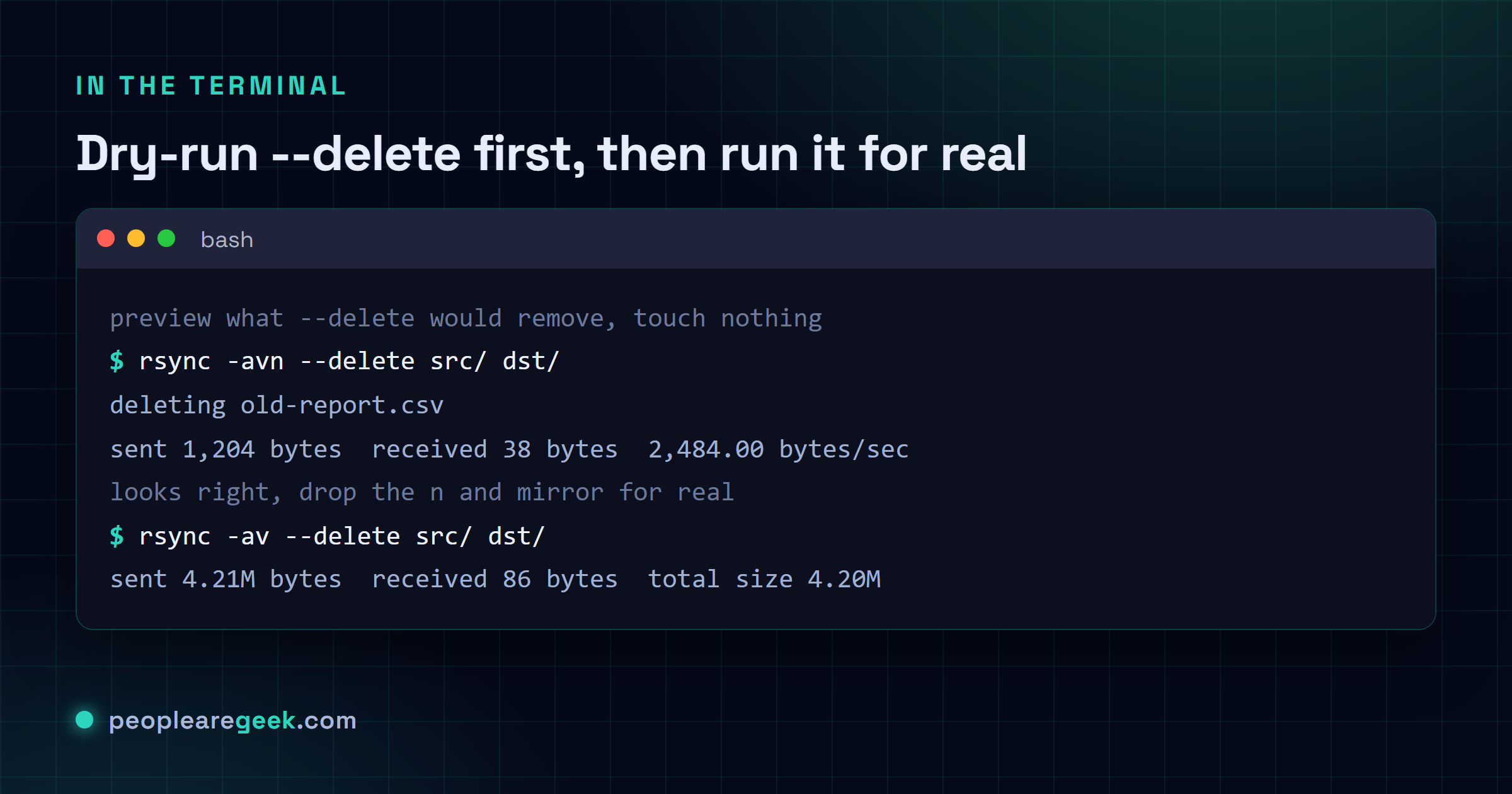
rsync -avn --delete src/ dst/ | The important one: see what --delete would remove before it does |
That last row is the habit to build. Anytime --delete is in the command, run it once with -n first and read the deletions out loud if you have to. rsync will happily mirror an empty source onto a full destination, which is a one-line way to wipe a folder. The dry run turns that landmine into a list you can sanity-check.
rsync -avn --delete src/ dst/ Make a destination match the source exactly
A normal rsync only adds and updates. It never removes anything from the destination, so files you deleted in the source stick around on the other side forever. --delete fixes that by making the destination a true mirror: anything in dst that isn't in src gets removed. Real backups and real deploys usually want this. Just respect it.
| Command | What it does |
|---|---|
rsync -av --delete src/ dst/ | Make dst/ an exact mirror, deleting extras |
rsync -avn --delete src/ dst/ | Dry-run it first (do this every single time) |
rsync -av --delete --exclude='.git' src/ dst/ | Mirror, but protect matched paths from deletion too |
The danger isn't --delete itself, it's --delete plus a wrong source path. Point it at an empty or mistyped directory and it dutifully empties the destination to match. No recycle bin here, no undo. Which is the whole argument for the dry run.
My take: type -avn before you ever type --delete. Two strong opinions, and I'll plant my flag on both. First:
rsync -avis the right default for almost everything, local or remote, because archive mode keeps the metadata you didn't know you cared about until it's missing. Second, and louder: never run--deleteblind. Run the exact same command with-nadded, read what it plans to remove, then drop thenand run it for real. That one extra command has caught a wrong path for me more than once, on a tired evening, right before it would've mattered. The trailing slash is the rule that's burned literally everyone who uses this tool, me included, so the dry run is also your slash-typo insurance. The hedge, because I try to be honest: on a fast LAN thezcompression flag can make things slower, not faster, so that one's genuinely situational. Test it on your own link rather than cargo-culting it.

Skip files you don't want copied
You rarely want everything. Logs, caches, the .git folder, build junk. --exclude takes a pattern and leaves matching files out of the transfer. You can stack several, and the patterns work like shell globs, so '*.log' catches every log file at any depth.
| Command | What it does |
|---|---|
rsync -av --exclude='*.log' src/ dst/ | Skip every .log file while copying |
rsync -av --exclude='*.log' --exclude='cache/' src/ dst/ | Stack multiple excludes, files and folders |
rsync -av --exclude-from=skip.txt src/ dst/ | Read a list of patterns from a file, one per line |
Quote the pattern. '*.log' in single quotes goes to rsync intact; leave the quotes off and your shell may expand the * against your current folder first, a confusing way to get the wrong result. When the exclude list grows past two or three, move it into a file and use --exclude-from.
Show progress and resume partial transfers
Big transfers and flaky connections are why -P exists. It's two things bolted together: --progress for a live per-file progress bar, and --partial so an interrupted file is kept rather than thrown away. Kill the transfer halfway, run the same command again, and rsync continues from where it stopped instead of redoing gigabytes.
| Command | What it does |
|---|---|
rsync -avP src/ dst/ | Progress bar plus keep partial files for resuming |
rsync -avzP src/ user@host:/dst/ | Same over ssh, compressed, the move for big remote copies |
rsync -av --partial src/ dst/ | Just the resume half, no progress bar (handy in scripts) |
This is the one that feels like a superpower the first time a transfer dies at 80 percent and you just rerun it. For a multi-gig copy across a shaky link, -avzP is basically my default.
Use ssh on a custom port (or with custom options)
Plenty of servers don't sit on port 22. The -e flag lets you hand rsync the exact ssh command to use, port and all. Wrap it in quotes because there's a space in it, and you can stuff any ssh option in there: a different port, an identity file, whatever your setup needs.
| Command | What it does |
|---|---|
rsync -av -e "ssh -p 2222" src/ host:/dst/ | Run rsync over ssh on port 2222 instead of 22 |
rsync -av -e "ssh -i ~/.ssh/deploy" src/ host:/dst/ | Use a specific identity file for the connection |
rsync -avz -e "ssh -p 2222" src/ user@host:/dst/ | Custom port and compression, the realistic combo |
The quoting trips people up. -e "ssh -p 2222" has to be one quoted string, because rsync needs the whole thing as a single argument. Drop the quotes and the shell splits it, and rsync gets confused about what's a flag and what's a path. Once it's quoted, any ssh option works fine in there.
The trailing slash that catches everyone
Saved the real gotcha for last, because it deserves its own section. On the source path, a trailing slash means "the contents of this folder". No trailing slash means "this folder, as a thing". That one character changes where your files end up, and it's the single most common rsync mistake by a mile.
| Command | What it does |
|---|---|
rsync -a src/ dst/ | Copies the contents of src, so files land directly in dst/ |
rsync -a src dst/ | Copies the folder, so you get dst/src/... instead |
Read those two until they stick. Want the files in the destination? Trailing slash on the source. Want the folder nested inside the destination? Leave it off. The destination's slash barely matters here, it's the source one that decides everything. Never trust your memory on this one. I don't trust mine.
Where to go from here
That's the working set. Mirror locally, copy over ssh, dry-run before anything destructive, --delete for an exact mirror, --exclude to skip junk, -P to resume, -e for a custom ssh port, and the trailing slash rule tying it together. Genuinely covers nearly everything I do with rsync in a normal week, and the odd corner case I look up like everyone else.
If you're living in the shell anyway, the same copy-don't-memorize instinct pays off next door. Bundling files for transfer? The tar command cheatsheet groups create and extract the same way. Hunting files by name or size first? Try the find command cheatsheet. And when you're poking at connections or wondering why a transfer crawls, our Linux networking commands with ip and ss covers the interfaces-and-sockets side of the same job.
Sources
Frequently asked questions
What does the trailing slash do in rsync?
On the source path, a trailing slash means copy the contents of the folder, so the files land directly inside the destination. No trailing slash means copy the folder itself, so it ends up nested as a subfolder of the destination. So rsync -a src/ dst/ puts src's files straight into dst, while rsync -a src dst/ creates dst/src first. It's the most common rsync mistake, so run a dry run with -n and check where the paths point before committing.
How do I copy a folder to a remote server with rsync?
Put user@host in front of the remote path: rsync -avz src/ user@host:/dst/. The -a preserves permissions and timestamps, -v prints what moves, and z compresses the data on the wire, which helps over the internet. It runs over ssh automatically, so if you can already ssh to the box, nothing else to set up. Add P to get a progress bar and resume support, which you want on anything large.
What is the difference between rsync with and without --delete?
Without --delete, rsync only adds and updates files, so anything you removed from the source still hangs around on the destination. With --delete, the destination becomes an exact mirror: files not present in the source get removed too. Use it for real backups and deploys where you want the two sides identical. Always dry-run it first with rsync -avn --delete so you can see exactly what would be removed before it happens.
How do I resume an interrupted rsync transfer?
Use the -P flag, as in rsync -avP src/ dst/. It combines --progress for a live progress bar with --partial, which keeps partially transferred files instead of discarding them. If the connection drops, just run the same command again and rsync continues from where it stopped rather than starting the whole transfer over. For big copies over ssh, rsync -avzP src/ user@host:/dst/ is the usual combination.
How do I use rsync over ssh on a non-standard port?
Pass the ssh command with -e and quote it: rsync -av -e 'ssh -p 2222' src/ host:/dst/ connects on port 2222 instead of 22. The quotes matter because rsync needs the whole ssh command as a single argument. You can put any ssh option in there the same way, like -e 'ssh -i ~/.ssh/deploy' to pick a specific identity file. Combine it with z for compression when you are copying over the internet.