This SSH command cheatsheet skips the protocol history and hands you the lines you actually reach for, most-used first. Connect with ssh user@host, add -p 2222 when the server moved off port 22, generate a modern key with ssh-keygen -t ed25519, push it to a box with ssh-copy-id, and copy files with scp. The tunnel flags (-L, -D, -R) are real and worth knowing, and they stop looking like magic once you remember SSH does two jobs: it logs you in, and it can shovel traffic through that same encrypted pipe. A short ~/.ssh/config block then collapses the long commands into a name you choose.
The short answer
Connect with ssh user@host, add -p 2222 if the server moved SSH off port 22.
Make a key with ssh-keygen -t ed25519 -C "you@machine", then push it with
ssh-copy-id user@host instead of pasting it by hand. Copy a file with
scp file user@host:/path/, or scp -r dir user@host:/path/ for a folder.
A ~/.ssh/config block turns ssh user@1.2.3.4 -p 2222 -i key into ssh myserver.
You want to get into a box. That's it, that's the whole thing, and yet half the SSH guides out there start with a history lesson about the protocol. Skip it. The command you need is ssh user@host, and it's the very first thing below. Connect, generate a key, copy that key, move a file. Those four cover most days. The fancy tunnel stuff is real and I use it, but it's not why you opened this page.
One thing worth saying up front. SSH does two jobs that feel like one: it logs you in, and it can shovel arbitrary network traffic through that same encrypted pipe. Keep those two ideas separate in your head and the weirder flags (the -L, the -D) stop looking like magic.
Connect to a server
The base case is short and it almost never changes. ssh user@host, where user is your account on the far side and host is a name or an IP. First time you connect, SSH shows you a fingerprint and asks if you trust it. Type yes once, it remembers, and it'll warn you loudly if that fingerprint ever changes later (which is the whole point, that warning is a feature, not a nag).
| Command | What it does |
|---|---|
ssh user@host | Connect as user to host, on the default port 22 |
ssh -p 2222 user@host | Same, but the server runs SSH on a non-default port (here 2222) |
ssh user@host "uptime" | Run one command on the remote and come straight back, no shell |
ssh -i ~/.ssh/key user@host | Force a specific key instead of whatever's loaded by default |
That -p trips people up because scp uses a capital -P for the same idea, and mixing them up is a rite of passage. Lowercase for ssh, uppercase for scp. I have typed the wrong one more times than I'd like to count.
Generate an SSH key
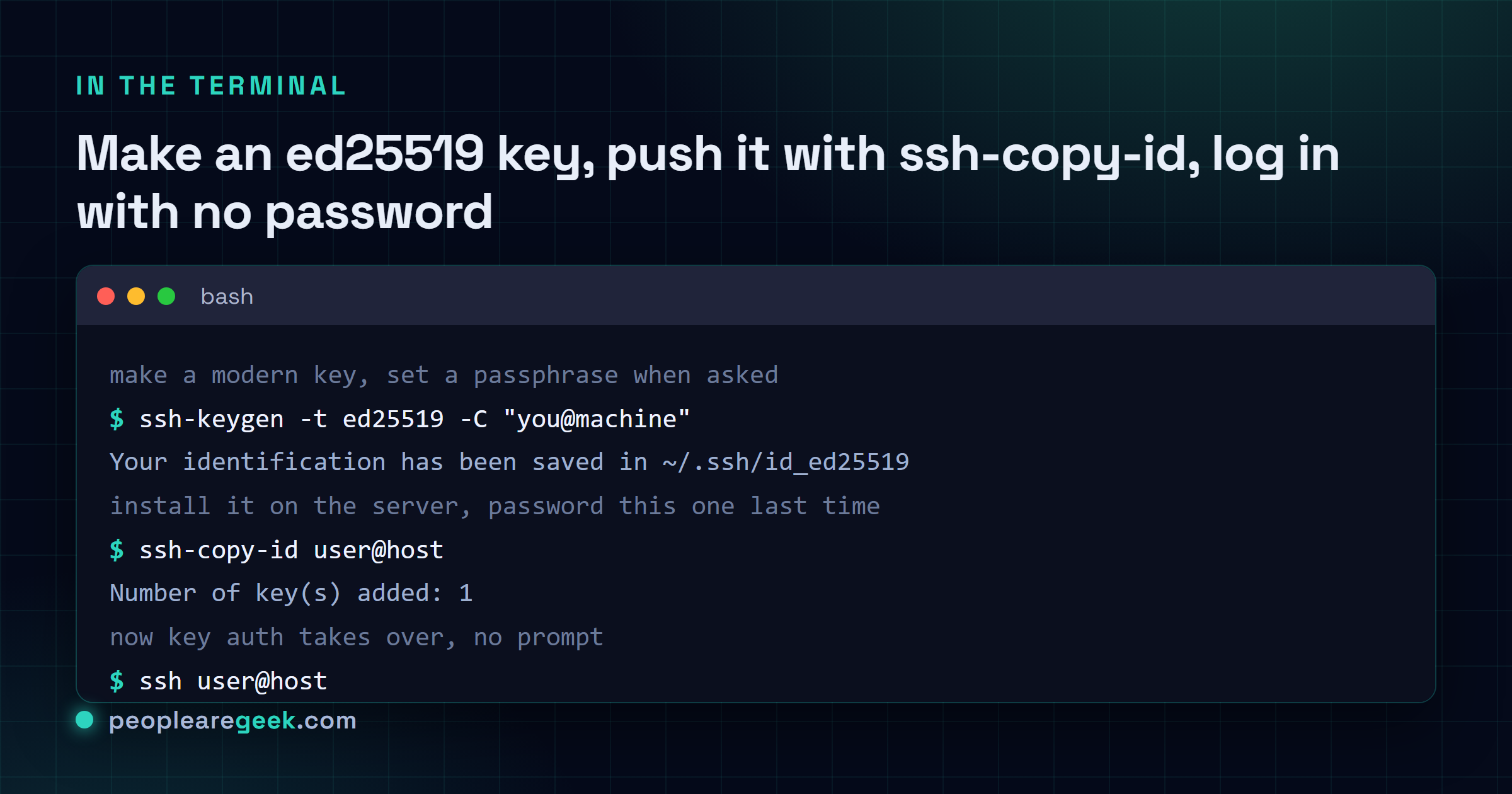
Passwords for SSH are a habit worth dropping. A key pair is stronger and, once it's set up, faster: no password prompt, you just land in. Generate one with ssh-keygen. The -t picks the algorithm and the -C tacks on a comment so future-you can tell which key is which.
| Command | What it does |
|---|---|
ssh-keygen -t ed25519 -C "you@machine" | Generate a modern ed25519 key pair, with a comment to label it |
ssh-keygen -t ed25519 | Same without the comment, accept the default path and it's done |
It writes two files: ~/.ssh/id_ed25519 (your private key, guard it like a password) and ~/.ssh/id_ed25519.pub (the public half, the bit you hand out). When it asks for a passphrase, use one. A leaked private key with no passphrase is just a password lying in a file, and you won't notice it's gone until it's far too late.
My take: use ed25519, not RSA, in 2026. For years the default was rsa, usually at 2048 or 4096 bits, and it still works fine. But ed25519 keys are tiny, fast, and the security is excellent, so reaching for -t ed25519 on a new key is just the better default now. The only time I fall back to -t rsa -b 4096 is some ancient appliance or a frozen old server that genuinely can't speak ed25519, and that's rare enough that I treat it as the exception, not the rule. Honestly if you've got RSA keys working today, there's no fire, no need to rotate everything tonight. Just make new keys ed25519 and let the old ones age out.

Copy your key to a server
Here's the one that bugs me. So many people generate a key, then SSH in with their password, then open ~/.ssh/authorized_keys in vi and paste the public key by hand, fighting the indentation, hoping they didn't add a stray newline. There's a command for exactly this. It is ssh-copy-id, and it does the whole dance for you.
| Command | What it does |
|---|---|
ssh-copy-id user@host | Install your public key into the server's authorized_keys |
ssh-copy-id -i ~/.ssh/key.pub user@host | Same, but push a specific public key |
ssh-copy-id -p 2222 user@host | Same on a server listening on a non-default port |
You'll get prompted for your password this one last time. After that, key auth takes over and the password prompt goes away. If the command isn't on your machine (it's missing on stock macOS and a few minimal setups), the manual route still works: cat ~/.ssh/id_ed25519.pub | ssh user@host "mkdir -p ~/.ssh && cat >> ~/.ssh/authorized_keys". Same outcome, more keystrokes.
Copy files with scp
Need a file on the other machine, or a file off it? scp is SSH's file copy. The mental model is plain old cp, except one side carries a user@host: prefix to say "this path lives over there". The colon is doing the heavy lifting. Forget it and you just make a confusingly named local copy.
| Command | What it does |
|---|---|
scp file user@host:/path/ | Send a local file to /path/ on the remote |
scp -r dir user@host:/path/ | Send a whole directory (the -r recurses, like with cp) |
scp user@host:/path/file . | Pull a remote file down into your current folder |
scp -P 2222 file user@host:/path/ | Copy to a server on a non-default port (capital -P, remember) |
For a one-off file, scp is perfect and I'm not going to talk you out of it. For repeated syncs of a big tree, rsync over SSH is smarter because it only sends what changed, but that's a different page. Quick copy, reach for scp.
Tunnels: forward a port, or a whole proxy
This is where the second job of SSH (moving traffic) earns its keep. You can route a port through the encrypted connection so a service on one machine looks like it's running on another. Three flavors, and the letters are genuinely confusing, so the table matters more than usual here.
| Command | What it does |
|---|---|
ssh -L 8080:localhost:80 user@host | Local forward: your localhost:8080 reaches port 80 on the remote (or its network) |
ssh -D 1080 user@host | SOCKS proxy: point a browser at localhost:1080 and it surfs out through the remote |
ssh -R 9000:localhost:3000 user@host | Remote forward: the remote's port 9000 reaches port 3000 on your machine |
Local forward (-L) is the everyday one. A database that only listens on the server's loopback? ssh -L 5432:localhost:5432 user@host and now your local 5432 talks to it, through SSH, no firewall hole opened. The SOCKS proxy (-D) is the lazy genius option: one flag and your whole browser exits through the remote, handy on a sketchy coffee-shop network. Remote forward (-R) is the brain-bender because it runs backwards, exposing something on your laptop to the server side. If keeping -L and -R straight makes your eyes cross, an SSH tunnel command generator builds the exact line and labels which end is which.
The ~/.ssh/config file (the real upgrade)
If you take one thing from this page, take this. Typing ssh -i ~/.ssh/work_key -p 2222 deploy@203.0.113.10 ten times a day is a tax you don't have to pay. Drop a block in ~/.ssh/config and all of that collapses into a name you choose.
| ~/.ssh/config block | What it does |
|---|---|
Host myserver | The alias you'll type: ssh myserver |
HostName 203.0.113.10 | The real address to dial |
User deploy | The account, so you skip the user@ |
Port 2222 | The port, so you skip -p |
IdentityFile ~/.ssh/work_key | The key, so you skip -i |
After that, ssh myserver is the entire command. So is scp file.txt myserver:/tmp/, because scp reads the same config. It's the single biggest quality-of-life win in this whole list, and it takes about a minute to set up the first host. I keep a dozen entries in mine and barely remember any of the actual IPs anymore, which is sort of the point.
Agent forwarding and debugging
Two more that earn their spot. One's a convenience with a sharp edge, the other is how you figure out why a connection is dying.
| Command | What it does |
|---|---|
ssh -A user@host | Agent forwarding: lets you hop from the server to a third box using your local key (read the caveat below) |
ssh -v user@host | Verbose: prints every step of the handshake so you can see where it breaks |
ssh -vvv user@host | Even louder, three levels deep, for the genuinely stubborn failures |
About -A: agent forwarding is lovely when you SSH to a jump host and need to reach further in without copying private keys around. Convenient, yes. But here's the caveat, and it's a real one: while you're connected, anyone with root on that host can quietly use your forwarded agent to authenticate as you to anywhere your key opens. On a box you fully trust, fine. On a shared or untrusted host, don't forward your agent; use ProxyJump instead, which doesn't expose your keys to the middle machine. And -v is the first thing to try when SSH won't connect or silently refuses your key. It'll show the keys it offered, the auth methods the server allowed, exactly where the negotiation fell over. Nine times out of ten the answer is right there in the output, usually a permissions problem on ~/.ssh.
Where to go from here
That's the working set. Connect, keys, ssh-copy-id, scp, the three tunnel types, the config alias, agent forwarding, and -v for when it all goes sideways. Genuinely covers nearly everything I touch SSH for in a normal week, plus the odd thing I look up like everyone else. Once you're living in the shell, the same copy-don't-memorize habit pays off elsewhere, whether you're poking at connections and interfaces, hunting files by name or size before you scp them, or mapping the same ideas back onto Windows and cmd.
Frequently asked questions
How do I connect to a server with SSH?
Run ssh user@host, where user is your account on the remote and host is its name or IP. The first time, SSH shows a fingerprint and asks you to confirm you trust the machine. Type yes and it remembers. If the server runs SSH on a non-standard port, add -p followed by the port number, like ssh -p 2222 user@host.
How do I generate an SSH key?
Use ssh-keygen -t ed25519 -C "you@machine". The -t picks the algorithm and ed25519 is the right choice in 2026, small and fast with strong security. The -C just adds a label. It writes a private key and a matching .pub public key in ~/.ssh. Set a passphrase when prompted, because a private key with no passphrase is just a password sitting in a file.
How do I copy my SSH key to a server?
Run ssh-copy-id user@host. It logs in with your password one last time and installs your public key into the server's authorized_keys, handling the file and permissions for you. After that you log in with the key, no password. If ssh-copy-id is missing, pipe the key in by hand: cat ~/.ssh/id_ed25519.pub | ssh user@host "cat >> ~/.ssh/authorized_keys".
What is the difference between ssh -L and ssh -D?
ssh -L 8080:localhost:80 user@host is a local forward: it maps one specific remote port onto a port on your machine, so localhost:8080 reaches that service. ssh -D 1080 user@host is a SOCKS proxy: point an app at localhost:1080 and all its traffic exits through the remote, not just one port. Use -L for a single service, -D when you want a whole browser to tunnel out.
Is SSH agent forwarding safe to use?
It depends on the host. ssh -A lets you reach a third machine from the one you connected to, using your local key, which is handy through a jump host. The risk is that anyone with root on that middle host can use your forwarded agent to authenticate as you while you are connected. On a box you fully trust it is fine. On a shared or untrusted host, skip -A and use ProxyJump, which does not expose your keys to the middle machine.