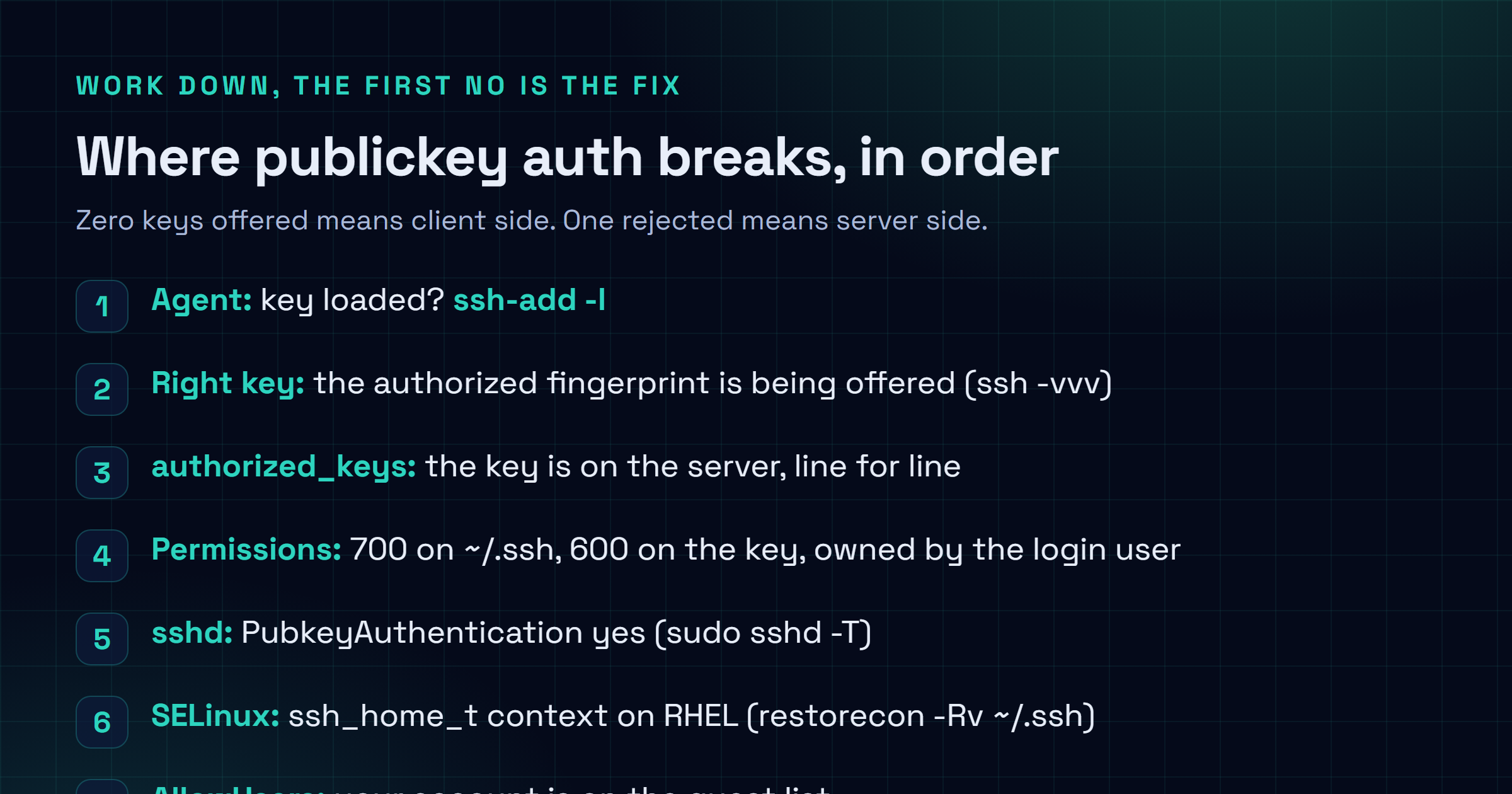
Permission denied (publickey) looks like a slammed door, but it is never mysterious once you read the handshake. The message is just SSH saying it offered a key, the server accepted none of them, and key auth is the only thing on the menu. So the fix is never guesswork. You read the handshake with ssh -vvv, find the exact gate that is failing, and close it. I work it in a fixed order, top to bottom: key not loaded into the agent, wrong key offered, key missing from authorized_keys, wrong permissions, sshd_config blocking pubkey, SELinux on RHEL, AllowUsers limits, and the keys-only server case.
The short answer
Permission denied (publickey) means SSH offered a key, the server took none of them,
and key auth is the only method allowed. Run ssh -vvv and count the "Offering public
key" lines: zero means a client-side problem (agent or key path), one or more all
rejected means the server side (authorized_keys or permissions). Fix the first gate
that fails, then retry.
You type ssh user@host, you're feeling confident, and SSH spits back Permission denied (publickey) and hangs up on you. No password prompt, no second chance, just the door slammed. I've chased this one across more boxes than I can count, lab VMs, cloud instances, a couple of NAS units that fought me for an hour, and here's the thing nobody tells you: it's almost never mysterious. The message is just SSH's way of saying "I offered a key, the server didn't accept any of them, and key auth is the only thing on the menu." That's it. So the fix is never guesswork. You read the handshake, you find the exact gate that's failing, you close it. I work it in a fixed order, top to bottom, because these failures stack in a fairly predictable way and skipping around just wastes your evening.
Read the handshake first: ssh -vvv
Before you change a single thing, make SSH tell you what it's doing. The verbose flag is the whole game here. One -v is fine, but I always reach for three, because triple verbose shows you every key the client offers and exactly how the server reacts to each one.
ssh -vvv user@hostScroll to the part where it starts talking about authentication. You're hunting for two lines. Offering public key: tells you which keys your client actually tried. Authentications that can continue: publickey tells you the server will only take a key, nothing else. If you see your key offered and then send_pubkey_test followed by another offer, the server looked at that key and said no. That single observation tells you whether your problem lives on your machine (no key got offered at all) or on the server (a key got offered and rejected). Everything below branches off that one read.
Quick gut check before you dig: run ssh -vvv and count the "Offering public key" lines. Zero of them means it's a client-side problem, your agent or your key path. One or more, all rejected, means the server side, authorized_keys or permissions. Don't skip this. It saves you fixing the wrong half.

The key isn't loaded into the agent
This is the one that gets me most, embarrassingly often. Symptom: ssh -vvv shows no key offered, or it offers a different key than the one you meant. The agent simply doesn't have your key in memory. Confirm it:
ssh-add -lIf that prints The agent has no identities, there's your answer. The agent's empty, so SSH falls back to whatever default key files it can find, and if those aren't right you get denied. Fix: load the key.
ssh-add ~/.ssh/id_ed25519
# macOS, persist it in the keychain across reboots:
ssh-add --apple-use-keychain ~/.ssh/id_ed25519
Run ssh-add -l again, see the fingerprint, retry. On a fresh shell with no agent at all, ssh-add will complain it can't connect to one. Start it first with eval "$(ssh-agent -s)" and then add the key. Honestly, half the "it worked yesterday" reports I get are just an agent that didn't survive a reboot.
The wrong key is being offered
You've got five keys in ~/.ssh and SSH is cheerfully offering all of them, in some order that isn't the one you need, and the server gives up after a few tries. Symptom: the handshake offers keys, but never the one that's actually authorized on the server. Confirm it: look at the Offering public key lines in ssh -vvv and check whether your real key's fingerprint shows up. Compare against:
ssh-keygen -lf ~/.ssh/id_ed25519.pubFix: stop letting SSH guess. Point it straight at the right key, either inline for a one-off or in your config for good. Inline:
ssh -i ~/.ssh/id_ed25519 user@hostAnd the version I actually keep, in ~/.ssh/config, so I never think about it again:
Host myserver
    HostName host.example.com
    User user
    IdentityFile ~/.ssh/id_ed25519
    IdentitiesOnly yes
That IdentitiesOnly yes matters more than it looks. Without it, SSH still throws every agent key at the server before it tries the one you named, and some servers, especially ones with a low MaxAuthTries, will boot you for too many failed attempts before your good key even gets a turn. So you end up denied while holding the correct key. Maddening. IdentitiesOnly tells SSH to offer only what you listed, nothing else.
The key isn't in authorized_keys
The most literal cause of all: the server has simply never been told to trust your key. Symptom: right key offered, server rejects it anyway. Confirm it by getting on the server some other way (console, an existing session, the cloud provider's web shell) and looking:
cat ~/.ssh/authorized_keysIf your public key's content isn't in there, line for line, the server has no reason to let you in. Fix: the clean way is ssh-copy-id, which appends your public key and sorts out the file for you, but it needs a working login (password, or another key) to do it:
ssh-copy-id -i ~/.ssh/id_ed25519.pub user@hostNo password login available? Then paste it in by hand from the console. The key is one single line, and it has to stay one line, a stray newline in the middle silently breaks it:
mkdir -p ~/.ssh
echo "ssh-ed25519 AAAA...your-key... user@laptop" >> ~/.ssh/authorized_keys
One subtlety that bites people: the key has to be in authorized_keys of the account you're logging into as. Copying it to your own home when you meant to log in as deploy or root gets you nowhere. Right key, wrong file, same denial.
Permissions and ownership are wrong
This is the cause people refuse to believe until they see it. SSH is deliberately paranoid: if your ~/.ssh or your key files are readable by anyone but you, the server flat out ignores them, no warning to your face. It assumes a too-open key file is a compromised one. Symptom: key's in authorized_keys, still denied, and ssh -vvv on the server's log (/var/log/auth.log or journalctl -u sshd) mentions "bad ownership or modes." Confirm it:
ls -la ~/.ssh
ls -la ~/.ssh/authorized_keys
Fix: the magic numbers, on the server, for the account you log into:
chmod 700 ~/.ssh
chmod 600 ~/.ssh/authorized_keys
chmod 600 ~/.ssh/id_ed25519
chown -R $USER:$USER ~/.ssh
And don't forget the home directory itself. If ~ is group writable or world writable, sshd gets suspicious of the whole chain and refuses, even with ~/.ssh locked down perfectly. So chmod 755 ~ at most, often 700 is cleaner. Ownership is the other half of this: every one of those files has to be owned by the login user, not root, not some leftover uid from a restore. chown -R settles it. Out of every cause on this page, wrong modes is the one I'd bet on if the key's clearly present and still rejected.
sshd_config blocks pubkey auth
Sometimes your side is spotless and the server itself is configured to refuse keys, or to look for them in a place you didn't put them. Symptom: every client and every key gets denied, not just yours. Confirm it on the server:
sudo sshd -T | grep -Ei 'pubkeyauthentication|authorizedkeysfile'That dumps the effective config, the values sshd actually runs with, not just what's in the file. You want to see pubkeyauthentication yes. If it reads no, keys are turned off entirely. Fix: edit /etc/ssh/sshd_config (and anything in /etc/ssh/sshd_config.d/, which overrides it and is easy to miss):
PubkeyAuthentication yes
AuthorizedKeysFile .ssh/authorized_keys
Then reload, never just edit and walk away: sudo systemctl reload sshd. The AuthorizedKeysFile line matters when someone's relocated keys to a central path like /etc/ssh/authorized_keys/%u. If that's set, your ~/.ssh/authorized_keys is being ignored on purpose, and you need to put the key where the directive points. Always test your edit with sudo sshd -t first; it catches a typo before a reload locks everyone out.
SELinux mislabels ~/.ssh on RHEL
This one's a RHEL, CentOS, Rocky, Alma special, and it's vicious because everything looks correct. Symptom: permissions are textbook, the key's in authorized_keys, sshd allows pubkey, and you're still denied, only on a Red Hat family box. Confirm it: SELinux logs the real reason where the SSH client never sees it:
sudo ausearch -m avc -ts recent
ls -Z ~/.ssh
If ls -Z shows a context that isn't ssh_home_t on ~/.ssh and its files, SELinux is blocking sshd from reading them, usually after you created the directory by hand or restored it from a backup that lost its labels. Fix: relabel it to the right context:
restorecon -Rv ~/.sshThat resets the SELinux context to what the policy expects and the denial vanishes. I've watched seasoned admins burn an hour on this one because nothing in the permission world looks wrong. When you're on RHEL and truly stuck, restorecon is the first thing I reach for now.
The server only allows certain users
Your key's perfect, but the server's been told your account isn't on the guest list. Symptom: one user logs in fine, another gets Permission denied (publickey) from the same machine with an equally valid key. Confirm it on the server:
sudo sshd -T | grep -Ei 'allowusers|allowgroups|denyusers|denygroups'Fix: if AllowUsers or AllowGroups is set, only the accounts or groups it names can log in at all, full stop, key or no key. Add your user (or the group it belongs to) in /etc/ssh/sshd_config:
AllowUsers alice deploy youruser
# or, group based:
AllowGroups sshusers
Reload sshd after. And check DenyUsers too, it's the same idea inverted, and a username sitting in there will block that account no matter what else is right. These directives are an easy thing to forget on a hardened box you set up months ago, then can't figure out why the new teammate can't get in.
The server went keys-only and you have none
Classic cloud scenario. You spin up an instance, or a sysadmin hardens an existing one, password auth gets switched off, and now the only way in is a key you never set up. Symptom: immediate Permission denied (publickey) with no password prompt at all, and you've got no key on the server side. Confirm it: the ssh -vvv handshake shows Authentications that can continue: publickey and nothing else, no password, no keyboard-interactive.
Fix: you need out-of-band access to plant a key, because SSH itself is closed to you. The usual routes:
- Cloud console: AWS EC2 Instance Connect, the GCP browser SSH, or Azure's serial console all get you a shell without a key. Once in, drop your public key into
~/.ssh/authorized_keysthe manual way from the section above. - Provider key injection: most platforms let you attach a new public key through a rescue or user-data mechanism and reboot into it.
- Snapshot rescue: mount the volume on another instance, write your key in, reattach. Slow, but it always works.
Then, only after you've confirmed your new key logs you in, consider whether to turn password auth back on. Usually you shouldn't. Keys-only is the right default, you just want to be the one holding the key this time.
Edge cases: ed25519, agent forwarding, network homes
A few that don't fit the main flow but still produce the identical error.
Old key types the server now refuses
Modern OpenSSH (8.8 and up) stopped accepting ssh-rsa with SHA-1 by default. Symptom: an ancient RSA key that worked for years suddenly gets denied after a server upgrade. Generate a fresh ed25519 key and use that instead, it's smaller, faster, and nothing modern complains about it:
ssh-keygen -t ed25519 -C "you@laptop"Agent forwarding isn't actually on
You hop to box A, then try to SSH from A to B using your laptop's key. Symptom: denied on the second hop because A has no key and the agent didn't follow you. Confirm with ssh-add -l on box A; an empty agent means forwarding didn't happen. Enable it with ForwardAgent yes in your config for that host (and make sure the server's AllowAgentForwarding is on). Only forward to hosts you trust, a root user on A can use your forwarded agent while you're connected.
~/.ssh on a network home directory
NFS or any networked home is a quiet troublemaker. Symptom: permissions read correctly but sshd still won't trust the files, often because root is squashed on the NFS share and sshd can't verify ownership the way it wants. Check the server log for an ownership complaint. The clean fix is usually to set AuthorizedKeysFile to a local path sshd controls, like /etc/ssh/authorized_keys/%u, so the key isn't sitting on a share with its own permission politics. StrictModes can also be the thing tripping here; understand why before you ever consider relaxing it.
Sources and further reading
- OpenSSH manual, sshd_config (PubkeyAuthentication, AuthorizedKeysFile, AllowUsers)
- OpenSSH manual, ssh (verbose output, IdentityFile, IdentitiesOnly)
- OpenSSH documentation index
Frequently asked questions
Why do I get Permission denied (publickey) but no password prompt?
Because the server has password authentication turned off, so key auth is the only method allowed. SSH offered whatever keys it had, the server accepted none of them, and there's no password fallback to drop to. Run ssh -vvv and look for "Authentications that can continue: publickey" with nothing else listed. That confirms it's keys-only, and you either fix the key the server expects or get in through a cloud console to plant a new one.
How do I see which key SSH is actually trying?
Run ssh -vvv user@host and read the "Offering public key" lines. Each one is a key your client sent, with its fingerprint. Compare that fingerprint against ssh-keygen -lf on your public key to be sure the right one is in play. If you see no offering lines at all, your agent is empty or your IdentityFile path is wrong, so start there rather than on the server.
What permissions does ~/.ssh actually need?
700 on the ~/.ssh directory, 600 on authorized_keys and on any private key, and every one of those owned by the login user. The home directory itself can't be group or world writable either, or sshd distrusts the whole chain. SSH ignores key files that are too open as a security measure, so over-permissive modes get you denied with no warning on the client side. The server log is where the real reason shows up.
It works for one user but not another on the same server. Why?
Usually AllowUsers or AllowGroups in sshd_config. If either is set, only the accounts or groups named there can log in at all, regardless of how valid the other user's key is. Run sudo sshd -T and grep for allowusers and allowgroups to see the effective list. DenyUsers does the same thing in reverse, so check that too. Add the account, reload sshd, and the second user gets in.
Everything looks right on RHEL but I am still denied. What am I missing?
SELinux, almost certainly. On RHEL, CentOS, Rocky and Alma, if ~/.ssh has the wrong security context, sshd can't read it even though the Unix permissions are perfect. Run ls -Z ~/.ssh and check for ssh_home_t, then look at sudo ausearch -m avc -ts recent for the actual denial. The fix is restorecon -Rv ~/.ssh, which relabels everything to the context the policy expects. This bites people who created ~/.ssh by hand or restored it from a backup.
My old RSA key stopped working after a server upgrade. Is it dead?
Probably, in its current form. OpenSSH 8.8 disabled ssh-rsa with SHA-1 signatures by default, so an old RSA key that relied on it gets rejected after the server moves to a newer release. The right move is to generate a fresh ed25519 key with ssh-keygen -t ed25519 and add its public half to authorized_keys. It's a stronger key type that nothing modern objects to, and you stop fighting deprecation warnings.