This systemctl and journalctl cheatsheet puts the commands you actually reach for right up top, because something is down, a service that should be running is not, and you have a terminal open and a vague sense of dread. You do not want a tour of systemd's design philosophy right now. You want to know if nginx is alive, why it died, and how to bring it back. So that is exactly what is here: status, restart, reload, enable --now, daemon-reload after editing a unit file, and journalctl to tail the logs live. Copy a command, swap in your service name, move on.
The short answer
The pair that does almost all the work: systemctl status nginx for active state, the
main PID and the last log lines, systemctl restart nginx to kick it (or reload to
avoid dropping connections), systemctl enable --now nginx to start now and on boot,
systemctl daemon-reload after editing a unit file, and journalctl -u nginx -f to
watch the logs live.


Something's down. A service that should be running isn't, and you've got a terminal open and a vague sense of dread. You don't want a tour of systemd's design philosophy right now. You want to know if nginx is alive, why it died, and how to bring it back. So that's exactly what's up top: status, restart, and tailing the logs. Copy, swap in your service name, move on.
Two tools do almost all the work here. systemctl drives the services: start them, stop them, wire them to boot. journalctl reads the logs systemd collects for every one of those services. They're a pair. You poke a service with one, then read what it had to say with the other.
Is it running? And why did it stop?
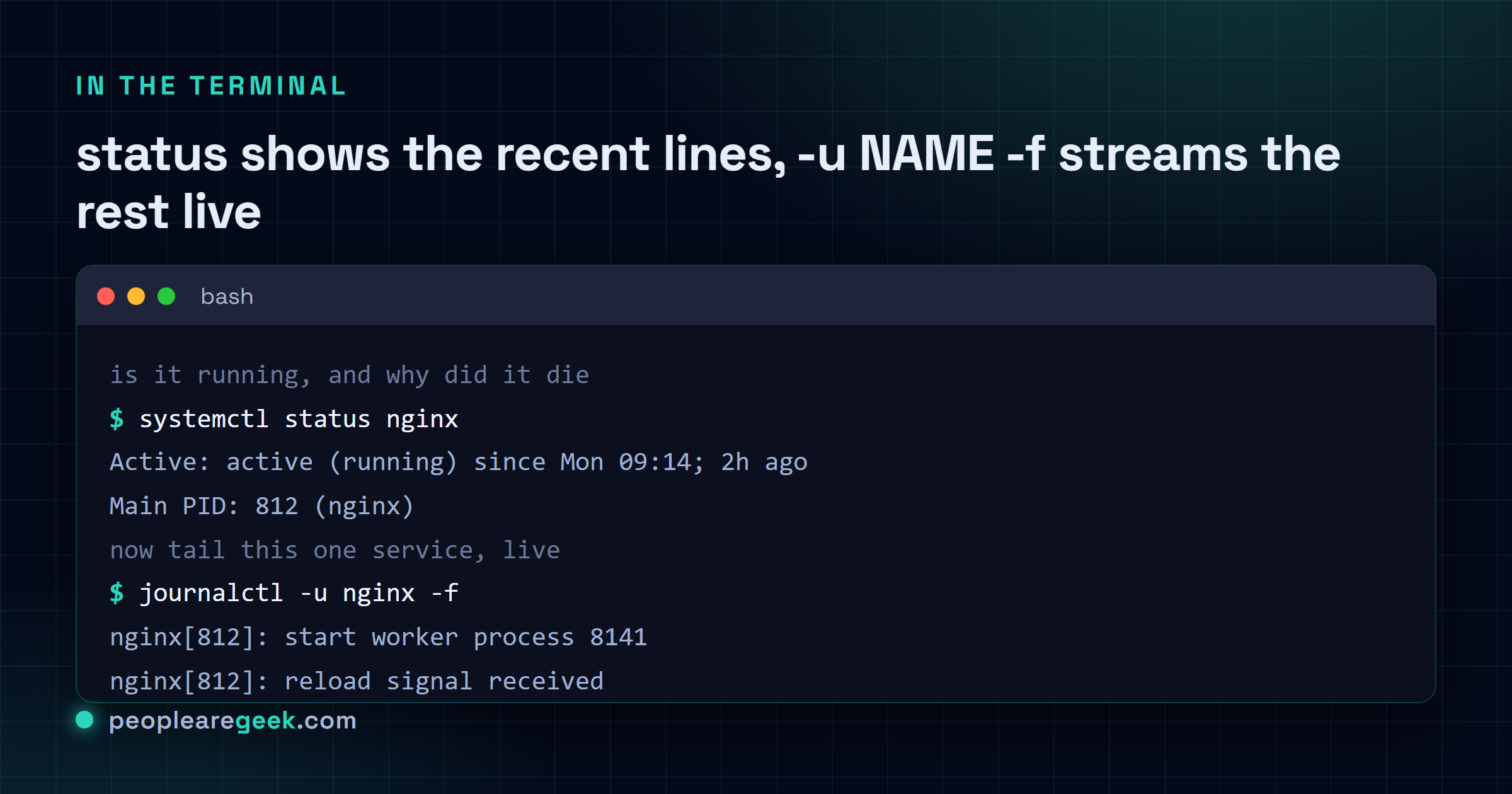
This is the first thing you type, every single time. systemctl status nginx tells you whether the service is active, when it last started or crashed, the main process ID, and (the part people miss) the last ten or so log lines underneath. Half the time the reason it died is sitting right there in plain text and you don't even need journalctl yet.
| Command | What it does |
|---|---|
systemctl status nginx | Full picture: active or dead, the PID, uptime, and recent log lines |
systemctl is-active nginx | One word back: active or inactive. Perfect inside a script |
systemctl is-enabled nginx | Will it come up on boot? enabled, disabled, or masked |
systemctl list-units --type=service --state=running | Every service currently running, one screen |
The status output is colour-coded. A green dot means active, a red one means it's failed and you've got reading to do. If you only ever learn one command from this whole page, make it this one. Everything else is follow-up.
Start, stop, restart, reload
The verbs you'd guess are the verbs that work. The only subtlety worth carrying around: restart fully stops and starts the process (it drops live connections for a beat), while reload asks the service to re-read its config without dying. Reload's gentler. Not every service supports it though, so it's not a free lunch.
| Command | What it does |
|---|---|
systemctl start nginx | Start the service now (does nothing about boot) |
systemctl stop nginx | Stop it now |
systemctl restart nginx | Stop then start, the blunt fix that clears most weird states |
systemctl reload nginx | Re-read the config without a full restart, if the service allows it |
When you're not sure whether a service does reload, just restart. A restart always works and the downtime is usually a fraction of a second. Reload is the nicer move on a busy production box where dropping connections actually matters, like a web server mid-traffic. On your laptop? Honestly, restart and stop overthinking it.

Make it survive a reboot
Here's the distinction that catches everyone once. start runs a service right now but forgets it on reboot. enable wires it to boot but doesn't start it this second. You almost always want both, which is why enable --now exists: enable it and start it in a single line.
| Command | What it does |
|---|---|
systemctl enable --now nginx | Start now and on every boot. The one you want nine times out of ten |
systemctl enable nginx | Set it to start on boot only, leave it alone until then |
systemctl disable nginx | Stop it coming up at boot (it keeps running until you stop it) |
systemctl disable --now nginx | Disable and stop in one go |
Forgetting enable is a classic. You install something, start it by hand, test it, call it done. Then the box reboots three weeks later and the service is just gone, and you spend ten confused minutes before remembering you never enabled it. Building a unit from scratch and want the boilerplate right? Our systemd service file generator writes the unit and hands you the enable command to match.
After you edit a unit file: daemon-reload
This is the forgotten step, and it's worth a whole section because skipping it wastes more time than any other mistake on this page. Systemd caches every unit file in memory. Edit /etc/systemd/system/whatever.service and your changes sit on disk doing nothing, because systemd is still running the old copy from before you touched it.
| Command | What it does |
|---|---|
systemctl daemon-reload | Re-read every unit file from disk. Run it after any edit to a .service file |
systemctl restart nginx | Then restart the service so it actually runs the new config |
The order matters. Reload the daemon first so systemd picks up the new file, then restart the service so the new settings take effect. Miss the daemon-reload and you'll swear your edit isn't working, restart five times, question your sanity, and eventually find this exact note. Been there. The tell is a little warning systemd prints when you restart with a stale unit, but it scrolls by fast and nobody reads it.
Reading the logs with journalctl
journalctl is your window into everything systemd logged. The trick to not drowning is filtering, because by default it dumps the entire journal since the dawn of the machine. So you scope it: by service, by boot, by time, by severity. The -u flag (for unit) is the one you'll lean on hardest.
| Command | What it does |
|---|---|
journalctl -u nginx | All logs for one service, oldest first, paged |
journalctl -u nginx -f | Follow live. The killer combo, scrolls as new lines land |
journalctl -u nginx -n 100 | Just the last 100 lines for that service |
journalctl -b | Everything since this boot, the whole machine |
journalctl -b -p err | This boot, errors only (priority err and worse) |
journalctl --since "1 hour ago" | Logs from the last hour. Also takes --since today |
journalctl -xe | Jump to the end with extra explanatory hints, the go-to after a failed start |
These stack, which is where it gets good. journalctl -u nginx --since today -p err means "errors from nginx, today only," and that one line turns a wall of noise into the three lines you actually care about. The -p priorities run from emerg down through err, warning, info, to debug, and naming a level shows that level and everything more severe.
When a service won't start, run journalctl -xe
A start fails and systemctl just tells you the unit entered failed state, which is maddeningly unhelpful on its own. journalctl -xe is the reflex move next. The e jumps you to the newest entries, the x adds catalog text that occasionally explains what a cryptic message means and what to try. It won't always crack the case, but it's the right first reach after any failed start, and it beats staring at the bare status output willing it to confess.
Find what's broken, and the nuclear option
When something's wrong but you don't yet know what, list-units --failed is the dashboard. It shows every unit in a failed state in one short list, so instead of checking services one at a time you see the whole mess at a glance. And then there's masking, which is disable's meaner cousin for when a service refuses to stay down.
| Command | What it does |
|---|---|
systemctl list-units --failed | Every failed unit in one list. Start here when you don't know what broke |
systemctl mask nginx | Hard-block a service so nothing, not even a dependency, can start it |
systemctl unmask nginx | Undo the mask so the service can run again |
Mask is the heavy hammer. disable stops a service starting at boot, but something else can still pull it up as a dependency. mask links the unit to nowhere, so it physically cannot start until you unmask it. Handy for a service that keeps respawning when you just want it gone for a bit. Just remember you masked it, or you'll spend a baffled half hour later wondering why start flatly refuses.
When the journal eats your disk
The journal grows, and on a long-lived server it can quietly swallow gigabytes before you notice. Two commands keep it honest: one tells you how much space it's using, the other trims old entries by age.
| Command | What it does |
|---|---|
journalctl --disk-usage | How much disk the journal currently occupies |
journalctl --vacuum-time=7d | Delete entries older than 7 days and reclaim the space |
I run --disk-usage when a box is mysteriously low on space, and more often than I'd like the journal is the culprit. --vacuum-time=7d keeps the last week and bins the rest. For a permanent cap you'd set SystemMaxUse in /etc/systemd/journald.conf, but for a quick reclaim right now, vacuum does the job and you're back to work.
Where to go from here
That's the working set. Status to see what's alive, start and stop and restart and reload to control it, enable --now to make it stick, daemon-reload after every unit edit, and journalctl to read what any of it actually logged. That genuinely covers nearly everything I do with systemd in a normal week. The deep corners I look up like everyone else.
Still deep in the shell? The same copy-don't-memorize habit pays off all over Linux. Writing the unit file these commands manage, the systemd service generator builds it for you. Chasing connections a service opened? See our Linux networking commands with ip and ss. Hunting a stray config or log file? The find command cheatsheet groups those recipes the same way. And when a unit fails because a file's permissions are wrong, the chmod calculator spells out what 644 versus 755 actually grants.
Frequently asked questions
How do I check if a service is running with systemctl?
Run systemctl status nginx, swapping nginx for your service. It shows whether the service is active or dead, the main process ID, how long it's been up, and the last several log lines underneath, which often explain a crash on their own. For a one-word answer inside a script, use systemctl is-active nginx instead.
What is the difference between restart and reload?
Restart fully stops and starts the process, so it briefly drops live connections but always works. Reload asks the service to re-read its config without stopping, which is gentler but only works if the service supports it. On a busy production box, reload when you can. Anywhere else, restart and don't overthink it.
Why isn't my systemd change taking effect?
You probably edited the unit file but skipped systemctl daemon-reload. Systemd caches unit files in memory, so your changes sit on disk doing nothing until you reload. Run systemctl daemon-reload first, then systemctl restart nginx so the service picks up the new config. It's the single most forgotten step with systemd.
How do I follow a service's logs live?
Run journalctl -u nginx -f. The -u flag filters to one service and the -f follows the log live, scrolling as new lines arrive. It's the most useful command in the whole toolkit: open it in one terminal, reproduce the bug in another, and watch the error appear instantly. Add -p err to show only error-level lines.
How do I stop journalctl from filling up my disk?
Check the size with journalctl --disk-usage, then trim old entries with journalctl --vacuum-time=7d, which deletes anything older than seven days and reclaims the space. For a permanent ceiling, set SystemMaxUse in /etc/systemd/journald.conf. For a quick one-off reclaim, vacuum-time does the job on its own.