The tar command cheatsheet you actually want has the create and extract recipes right up top, because that is the whole reason you are here: you have got a folder, you want it in one gzipped file, and you wanted it thirty seconds ago. Copy the line, swap the names, move on. The thing nobody admits about tar is that the syntax is not hard, it is just unmemorable, so this fixes the memorizing part too with a mnemonic that sticks. tar bundles many files into one archive, and on its own it does not compress anything: compression is a separate flag bolted on (z for gzip, j for bzip2, and so on). Knowing those two jobs are split is half the battle.
The short answer
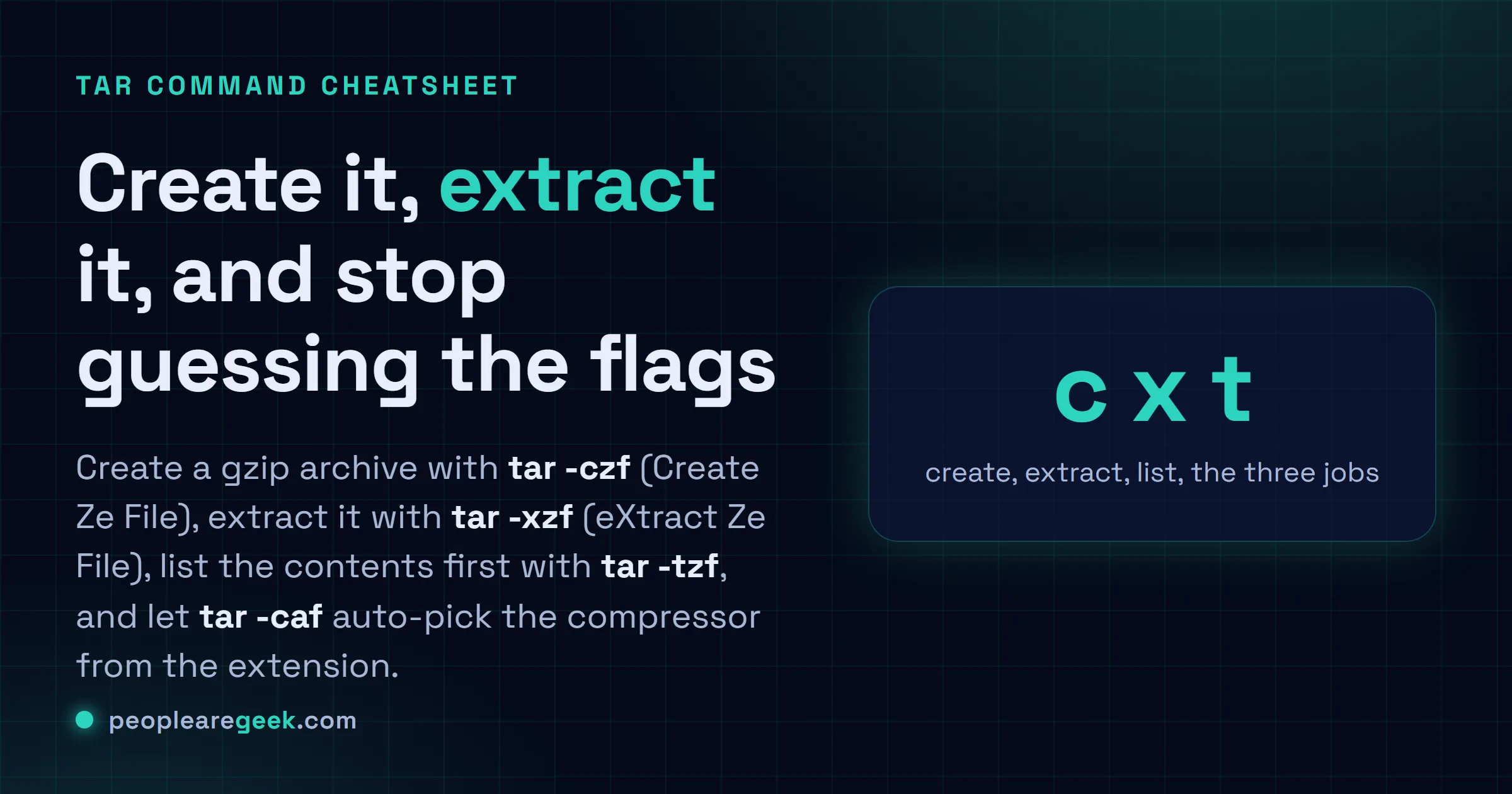
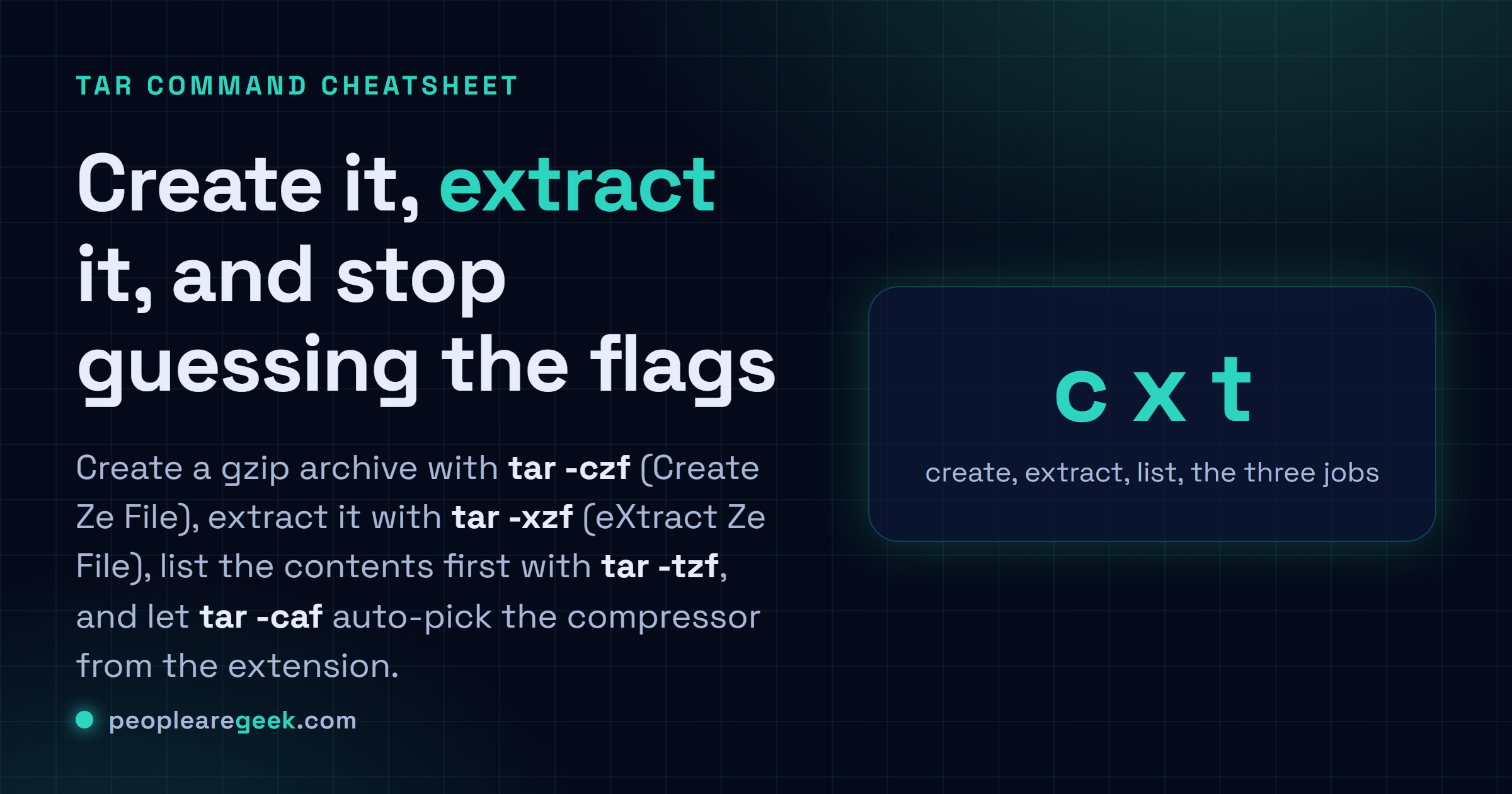
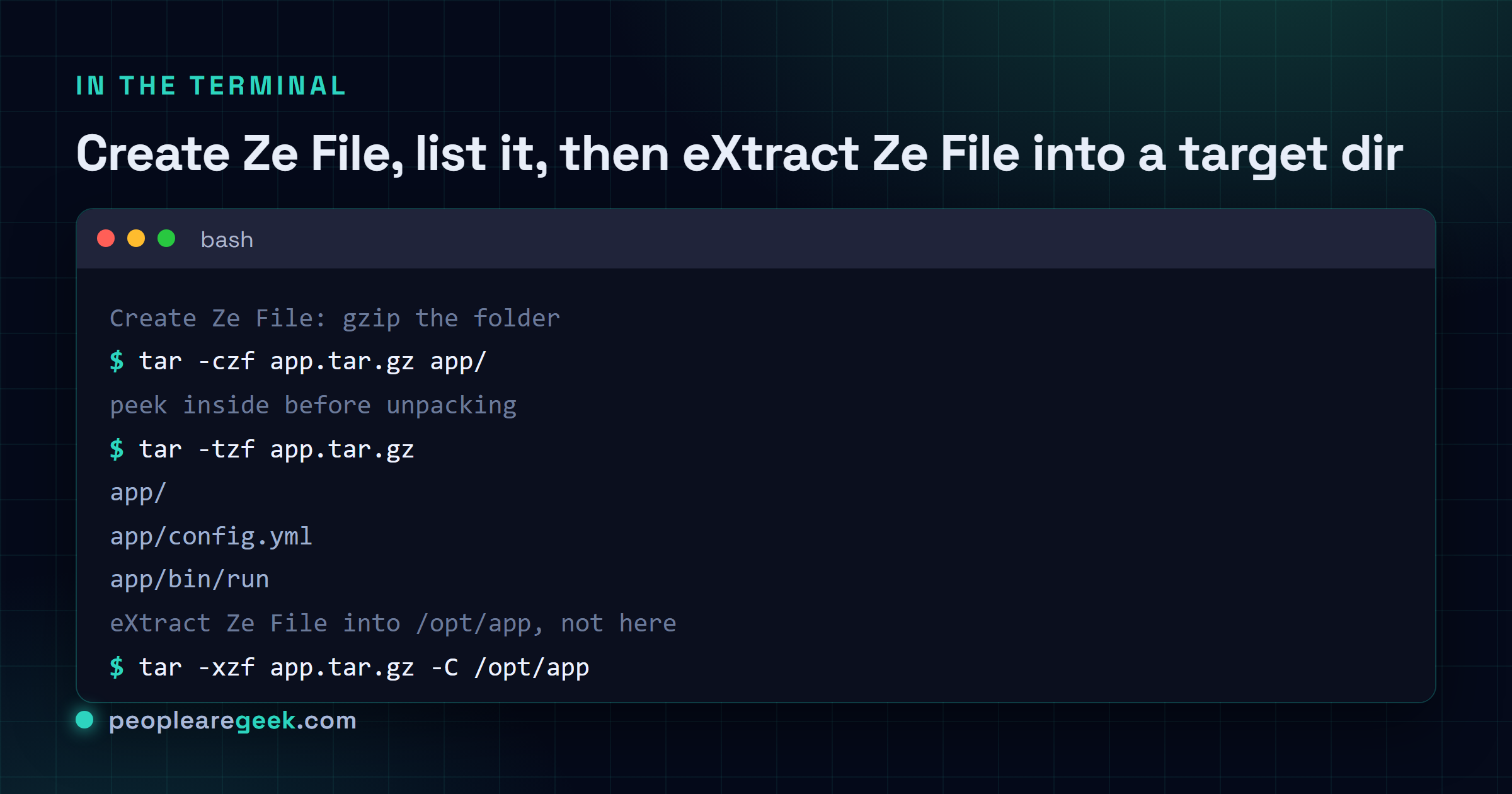
Create a .tar.gz with tar -czf archive.tar.gz folder/ (Create Ze File).
Extract it with tar -xzf archive.tar.gz (eXtract Ze File). Peek inside first
with tar -tzf archive.tar.gz, which lists the contents without unpacking a
thing. Extract somewhere specific by adding -C /path/to/dir. And forget the
letters entirely with tar -caf archive.tar.zst, where a auto-picks the
compressor from the extension.
You've got a folder. You want it in one file, probably gzipped, and you wanted it thirty seconds ago. That's the whole reason you're here, so the create and extract recipes are right up top. Copy, swap the names, move on. The thing nobody admits about tar is that the syntax isn't hard, it's just unmemorable. So let's fix the memorizing part too.
Quick orientation. tar bundles many files into one archive, and on its own it doesn't compress anything. The compression is a separate flag bolted on (z for gzip, j for bzip2, and so on). Knowing those two jobs are split is half the battle.
Extract an archive (eXtract Ze File)
Here's the mnemonic that fixes tar for good. tar -xzf is eXtract Ze File. Say it out loud once and you'll never flip the letters again. The x extracts, the z handles gzip, the f says "the next word is the filename". That last one matters more than it looks: leave off f and tar goes looking for a tape drive, which on your laptop means it just hangs there, staring.
| Command | What it does |
|---|---|
tar -xzf archive.tar.gz | eXtract a gzip archive into the current folder |
tar -xzf archive.tar.gz -C /opt/app | Extract into /opt/app instead of here (the -C changes directory first) |
tar -xzvf archive.tar.gz | Same, but verbose, so it prints each file as it lands |
tar -xf archive.tar | An uncompressed .tar. No z needed, there's nothing to decompress |
Modern GNU tar can usually sniff the compression on its own, so tar -xf archive.tar.gz often works without the z. I still type the z out of habit, and honestly because I don't trust every box I SSH into to have a tar new enough to guess right. Belt and braces.
Create an archive (Create Ze File)
Same trio, one letter swapped. c instead of x, so -czf reads as Create Ze File. The argument order is the part people botch: the archive name comes first, then the stuff going into it. Name, then contents. Get that backwards and you can overwrite your source with an empty archive, which is a genuinely bad afternoon.
| Command | What it does |
|---|---|
tar -czf archive.tar.gz folder/ | Create a gzip-compressed archive of folder/ |
tar -czvf logs.tar.gz /var/log/myapp | Same with verbose output, handy for watching a big job |
tar -czf backup.tar.gz file1 file2 dir3 | Bundle several things at once, files and folders mixed |
tar -cf archive.tar folder/ | A plain uncompressed tarball (no z), bigger but instant |
Want this built for you, with the right flags and a sane filename? Our tar command generator assembles the exact line from a couple of clicks. No shame in clicking. Half my tar commands start there and get pasted into a terminal.
List what's inside without extracting
The underrated one. Before you unpack a stranger's archive into your home directory, look first. -t is the list flag (t for "table of contents", roughly). It reads the archive and prints every path, touching nothing on disk.
| Command | What it does |
|---|---|
tar -tzf archive.tar.gz | List the contents of a gzip archive, extract nothing |
tar -tzvf archive.tar.gz | Verbose listing, with sizes and permissions and the timestamps too |
tar -tf archive.tar | List a plain uncompressed tarball |
Why bother? Because of the tarbomb, which I'll get to. A quick -tzf tells you whether the archive politely keeps everything under one top folder, or whether it's about to spray forty loose files into wherever you happen to be standing.
Pick a compressor: gzip, bzip2, xz, zstd
One letter selects the compression, and that letter has to line up with your file extension or things get confusing fast. Gzip is the default everyone reaches for. xz squeezes harder but slower. zstd is the newer one that's fast and compresses well, which is why it keeps eating the others' lunch.
| Command | What it does |
|---|---|
tar -czf archive.tar.gz folder/ | gzip (z). Fast, everywhere, the safe default |
tar -cjf archive.tar.bz2 folder/ | bzip2 (j). Smaller than gzip, noticeably slower |
tar -cJf archive.tar.xz folder/ | xz (capital J). Best ratio of the classic three, slowest |
tar --zstd -cf archive.tar.zst folder/ | zstd. Great speed and ratio, uses the long --zstd flag |
Note that J is capital and j is lowercase, and they mean completely different compressors. That casing has burned me more than once, usually at the worst time. To extract, swap the c for an x and keep the same compressor letter: tar -xjf, tar -xJf, tar --zstd -xf.

My take: learn tar caf and stop memorizing z, j and J. Modern GNU tar lets the a flag ("auto-compress") pick the compressor straight from the filename. So tar -caf backup.tar.zst folder/ uses zstd, tar -caf backup.tar.xz folder/ uses xz, no mental lookup table required. You name the file, tar reads the extension, done. The catch, and it's a real one: -a only helps on the create side, and only on a recent-ish GNU tar (so not always on macOS or some minimal containers). For extracting you're back to -xf letting tar autodetect, which thankfully it usually does. I think caf is the single best habit to build here. Maybe I'm overselling it because I genuinely cannot keep j versus J in my head, but the win is real.
The flags that save your afternoon
Past create and extract, a handful of options do the heavy lifting. Pulling one file out of a giant archive. Skipping the junk you don't want. Flattening a wrapper folder you never asked for. These are the ones worth a sticky note.
| Command | What it does |
|---|---|
tar -xzf archive.tar.gz path/inside/file.conf | Extract one single file, by its exact path inside the archive |
tar -czf site.tar.gz site/ --exclude='*.log' | Skip every .log file while archiving |
tar -xzf archive.tar.gz --strip-components=1 | Drop the leading folder, so files land without the wrapper directory |
tar -xzvf archive.tar.gz | Add v anywhere for a verbose running list of files |
tar -rf archive.tar extra.txt | Append a file to an existing uncompressed tar (see the catch below) |
That --strip-components=1 is the unsung hero. So many archives wrap everything in a single project-1.4.2/ folder you didn't want. Strip one level and the contents drop right where you're standing, no leftover wrapper to clean up. I use it constantly on source tarballs.
Why you can't append to a .tar.gz
Here's the gotcha that trips everyone. tar -rf appends to an archive, but only an uncompressed one. Try it on a .tar.gz and tar refuses, flatly. The reason is simple once you see it: a gzip file is one continuous compressed stream with an end marker, not a neat container with a slot to tack things onto. There's no clean seam to open back up. To add a file to a compressed archive you decompress it, append, and recompress: gunzip archive.tar.gz, then tar -rf archive.tar newfile, then gzip archive.tar. Annoying, but that's the format, not tar being difficult.
Stream a tar straight over SSH
This one feels like magic the first time. You can pipe a tar archive over an SSH connection without ever writing it to disk on the sending side. The - where the filename goes means "use standard output instead of a file", and the receiving end just catches the stream.
| Command | What it does |
|---|---|
tar -czf - dir/ | ssh host "cat > out.tar.gz" | Stream a compressed archive of dir/ to a file on host |
tar -czf - dir/ | ssh host "tar -xzf - -C /dest" | Pack here, unpack there, nothing touches local disk |
The second form is the genuinely useful one: it copies a whole directory tree to another machine and extracts it on arrival, all in a single pipe. Permissions and structure survive the trip. It's the move I reach for when rsync isn't installed on some stripped-down box and I just need the files over there now.
Where to go from here
That's the working set. Create, extract, list, the four compressors, plus exclude, strip-components, single-file extraction, and the SSH pipe for moving things around. Genuinely, that covers nearly everything I do with tar in a normal week, and the rare oddity I look up like anyone else.
If you're knee-deep in the shell anyway, the same copy-don't-memorize instinct pays off elsewhere. Hunting files by name or size? The find command cheatsheet has those recipes grouped the same way. Poking at connections and interfaces? See our Linux networking commands with ip and ss. And when an extracted file lands with the wrong permissions, the chmod calculator spells out exactly what 644 versus 755 actually grants.
Sources
Frequently asked questions
How do I extract a tar.gz file in Linux?
Run tar -xzf archive.tar.gz. Remember it as eXtract Ze File: x extracts, z handles the gzip compression, and f means the next word is the filename. It unpacks into your current directory. To send the files somewhere specific instead, add -C /path/to/dir on the end so they don't dump where you're standing.
How do I create a tar.gz archive?
Use tar -czf archive.tar.gz folder/. That's Create Ze File: c creates, z gzips, f names the file. The archive name comes first, then whatever you're packing into it. Get that order backwards and you risk overwriting your source, so name first, contents second, always.
How do I list the contents of a tar file without extracting?
Run tar -tzf archive.tar.gz. The t flag lists the table of contents and unpacks nothing at all. Add a v for tar -tzvf to also see sizes, permissions and dates. It's worth doing before extracting an unfamiliar archive, so you know whether everything sits under one folder or is about to scatter.
What is the difference between tar -z, -j and -J?
Each letter selects a compressor. Lowercase z is gzip, the fast everyday default. Lowercase j is bzip2, smaller but slower. Capital J is xz, the best ratio of the three and the slowest. The casing matters: j and J are different tools. On a recent GNU tar you can skip the guessing and use -caf, which picks the compressor from the file extension.
Why can't I append a file to a tar.gz?
Because a gzip file is one continuous compressed stream with an end marker, not a container with room to tack things on. The -r append flag only works on an uncompressed .tar. To add to a compressed one, decompress with gunzip, append with tar -rf archive.tar newfile, then recompress with gzip. It's the format's doing, not a tar limitation you can flag your way around.