This curl cheatsheet puts the recipes you actually reach for first: download a file and keep its name with curl -O, choose the name yourself with -o, follow redirects with -L, peek at headers only with -I, and POST JSON to an API with -d plus a content-type header. The annoying truth about curl is not that it is hard, it is that it has roughly four hundred flags and you only ever need eight of them, and they are never the ones you remember. So here is the working set, grouped by what you are trying to get done, copy, swap the URL, go.
The short answer
Download and keep the remote name with curl -O, choose the name yourself with
curl -o, follow redirects with curl -L, fetch headers only with curl -I,
and POST JSON with curl -H "Content-Type: application/json" -d '{"id":7}'. For
anything scripted, prefer -sS over plain -s so errors still surface.
You want a file off a URL, or you want to poke an API and see what it actually returns. That's nine times out of ten why anyone opens curl, so the download and the redirect-following recipes sit right at the top. Copy, swap the URL, go. The annoying truth about curl isn't that it's hard. It's that it has roughly four hundred flags and you only ever need eight of them, and they're never the ones you remember.
Quick orientation, because it saves a headache later. curl just speaks HTTP (and a pile of other protocols) and dumps the response to your screen by default. It doesn't save anything unless you tell it to, it doesn't follow redirects unless you ask, and it'll happily print a binary file straight into your terminal and scramble it. So the first two flags you learn are the ones that say "save this" and "follow the trail".


Download a file (and keep its name)
This is the one everybody wants first. By default curl prints the response to standard output, which is fine for a webpage and a disaster for a zip. Two flags fix that, and the difference between them trips people up constantly. Capital -O saves the file under whatever name it had on the server. Lowercase -o lets you pick the name yourself. Same word, different case, completely different behaviour.
| Command | What it does |
|---|---|
curl -O https://ex.com/file.zip | Save it as file.zip, the remote name (capital O) |
curl -o out.zip https://ex.com/f | Save under a name you choose, here out.zip (lowercase o) |
curl -L -O https://ex.com/file.zip | Download and follow redirects, which most download links use |
curl -C - -O https://ex.com/big.iso | Resume a half-finished download where it stopped |
Real talk: pair -O with -L nearly every time. Tons of download URLs are actually a redirect to a CDN or a mirror, and plain -O on its own will cheerfully save the tiny redirect page as file.zip, which then won't open and you'll spend ten minutes confused. Ask me how I know.
Resume a download that died halfway
Big file, flaky connection, it cuts out at 80 percent. You don't have to start over. curl -C - -O picks the download back up from wherever it stopped, and that bare - after -C tells curl to figure out the resume point on its own instead of you counting bytes. The catch is the server has to support range requests for this to work, and most file servers do, but the odd one won't and you'll just get the whole thing again.
Follow redirects with -L
Here's the gotcha that wastes the most time with curl. By default it does not follow redirects. So you hit a URL, the server says "301, it's over there now", and curl prints that and stops, leaving you staring at an empty-looking response wondering what broke. Nothing broke. You just need -L.
| Command | What it does |
|---|---|
curl https://ex.com | Fetches once and stops at the redirect, showing you the 301, not the target |
curl -L https://ex.com | Follows the redirect chain to the real destination |
curl -L -o page.html https://ex.com | Follow the redirects, then save the final page |
I leave -L on almost reflexively for anything I haven't tested, because http:// to https:// bounces are everywhere now and that alone is a redirect. The one time you might not want it is when you're specifically debugging the redirect itself, and you'd rather see the 301 than skip past it.
Inspect headers without the body
Sometimes you don't care about the page at all. You want the status code, the content type, maybe a caching header or where a redirect points. -I gives you exactly that: the response headers and nothing else. It's the fastest way to ask a server "are you alive and what are you about to send me".
| Command | What it does |
|---|---|
curl -I https://ex.com | Print the response headers only, no body |
curl -I -L https://ex.com | Show the headers at every hop of a redirect chain |
curl -s -I https://ex.com | Headers only, with the progress noise muted |
One thing worth knowing: -I sends a HEAD request, not a GET. Most servers handle that fine and return the same headers a GET would. But some apps, especially homegrown ones, treat HEAD oddly, or don't implement it at all, and you'll get a weird status or an empty reply that makes the server look down when it isn't. When a HEAD response smells off, retry with curl -sS -D - -o /dev/null https://ex.com, which does a real GET but throws the body away and prints just the headers.
POST data and JSON to an API
Testing an API endpoint by hand is curl's other home turf. -d sends a request body, and the moment you add a body, curl quietly switches the method to POST for you, so -X POST is often optional. For a plain HTML-style form you just pass the key-value pairs. For a JSON API you send the JSON string and, crucially, tell the server it's JSON with a content-type header, or a lot of backends will refuse to parse it.
| Command | What it does |
|---|---|
curl -X POST -d 'a=1&b=2' https://ex.com | POST form data, the classic key=value pairs |
curl -H "Content-Type: application/json" -d '{"id":7}' https://ex.com/api | POST a JSON body with the content type set so it parses |
curl -X POST -d @payload.json -H "Content-Type: application/json" https://ex.com/api | Send a JSON body from a file with @ |
curl -F 'file=@report.pdf' https://ex.com/upload | Multipart upload, the way an actual file-upload form behaves |
The @ trick is the one I forget and rediscover every few months. -d @payload.json reads the body straight out of a file, which beats trying to cram a giant JSON blob onto one line and fighting your shell over the quotes. And -F is its own world: it does a proper multipart upload, sets the boundaries, the lot, so reach for -F file=@path when you're imitating a browser's upload form, not -d.
Auth, headers, and seeing what's going on
The rest of the working set is about identifying yourself and watching the wire. Custom headers for tokens. Basic auth for the old-school stuff. And the verbose flag for when a request fails and the error message tells you nothing useful.
| Command | What it does |
|---|---|
curl -H "Authorization: Bearer T" https://ex.com | Send a custom header, here a bearer token |
curl -u user:pass https://ex.com | Basic auth, curl builds the Authorization header for you |
curl -v https://ex.com | Verbose: the full request and response, headers and TLS handshake |
curl -k https://self-signed.ex.com | Skip cert checks against a self-signed host (be careful) |
curl --resolve ex.com:443:127.0.0.1 https://ex.com | Fake the DNS, point a hostname at an IP without editing hosts |
That --resolve one is a quiet gem for testing. It pins a hostname to an IP for that single request, so you can hit a new server before DNS has switched over, or test a staging box that answers on the production hostname, all without touching /etc/hosts. The TLS cert still has to match the real hostname, which is exactly what you want when you're verifying a deploy.

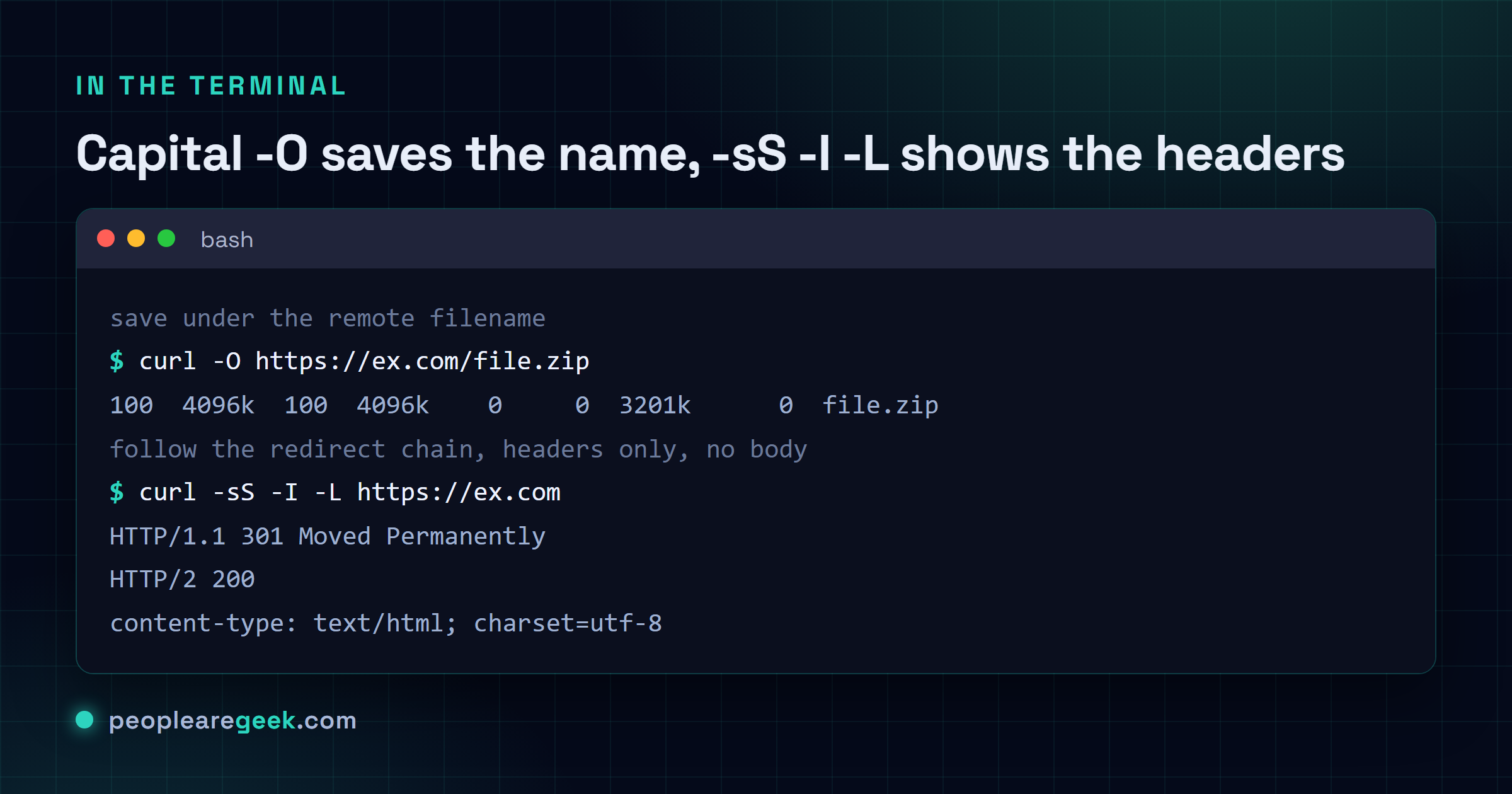
My take: type -sS, almost never plain -s. When you pipe curl into something or run it in a script, you'll want -s to kill the progress meter and the noise. The trap is that plain -s also silences error messages, so a request that fails outright just goes quiet and your script sails on like nothing happened. The fix is -sS: the lowercase s mutes the progress bar, the capital S brings errors back. So curl -sS https://api.ex.com/x | jq stays clean on success but actually tells you when the server 500s or the connection dies. I reach for -sS over bare -s basically every time now. Maybe that's overcautious for a one-off you're watching live, but in anything automated it's saved me from chasing phantom failures more than once.
Where to go from here
That's the real working set. Download with -O or -o, follow redirects with -L, peek at headers with -I, POST with -d and a content type, custom headers with -H, auth, verbose for digging, and the few sharp edges like --resolve and resume. Honestly that covers nearly everything I do with curl in a normal week, and the genuinely rare stuff I look up like everyone else.
Since you're already poking at HTTP, a couple of these pair nicely with curl. When -I dumps a wall of headers, an HTTP headers checker lays them out readably. Confused by the number that came back? An HTTP status code explainer tells you what a 429 or a 502 actually means. To check a site's up from the outside, there's the website status checker. And when you drop back to the shell to chase a connection, the Linux networking commands with ip and ss have those recipes grouped the same way.
Sources
Frequently asked questions
How do I download a file with curl?
Use curl -O https://ex.com/file.zip with a capital O to save it under the remote filename. Use a lowercase -o out.zip if you want to choose the name yourself. Add -L so it follows redirects, because most download links bounce through a CDN or mirror first, and plain -O without -L will save the redirect page instead of the actual file.
Why isn't curl following the redirect?
Because curl does not follow redirects by default. When a server responds with a 301 or 302, plain curl prints that response and stops, so it looks like you got nothing useful. Add -L and curl follows the chain to the real destination. It is the single most common curl surprise, and -L is the fix you will reach for constantly.
How do I POST JSON with curl?
Send the JSON string with -d and set the content type, like curl -H "Content-Type: application/json" -d '{"id":7}' https://ex.com/api. Adding a body switches the method to POST automatically, so -X POST is usually optional. Without the content-type header many backends refuse to parse the body. For a large payload use -d @file.json to read it straight from a file.
What is the difference between curl -s and -sS?
Lowercase -s is silent, which hides the progress meter but also hides error messages, so a failed request goes quiet. -sS keeps it quiet on success while letting errors through, because the capital S re-enables them. In scripts or pipes, like curl -sS https://api.ex.com/x | jq, prefer -sS so a server error or dropped connection actually shows up instead of failing silently.
How do I send only a HEAD request with curl?
Run curl -I https://ex.com to fetch the response headers only, with no body. That sends a HEAD request rather than a GET. Most servers handle it fine, but some apps treat HEAD oddly or not at all, returning a strange status or empty reply. When that happens, use curl -sS -D - -o /dev/null https://ex.com, which does a real GET but discards the body and prints just the headers.