This WordPress security audit is the exact run I do on a site, start to finish in about 90 minutes. Ten steps, each one a checklist card. Every step hands you the command I actually paste, plus the free tool that does the same check without SSH, plus a snapshot of what a healthy result looks like. Do all ten and you shut the door on something like 90 percent of the automated junk hammering WordPress in 2026. Not perfect, no. But honestly, a different league from where most sites are sitting right now. PHP and WordPress versions, plugin CVEs, headers, TLS, login 2FA, xmlrpc, user enumeration, logs, and backups you have actually brought back to life.
The short answer
Run ten checks in order on a live WordPress site: PHP and WordPress versions,
plugin CVEs, the six HTTP security headers, .htaccess/nginx hardening, the TLS
configuration, login rate limiting plus 2FA, xmlrpc.php, user enumeration,
logging with alerts, and off-site backups you have actually restored. Each step
gives you the command to paste, a free tool that does the same check without SSH,
and what a healthy result looks like.
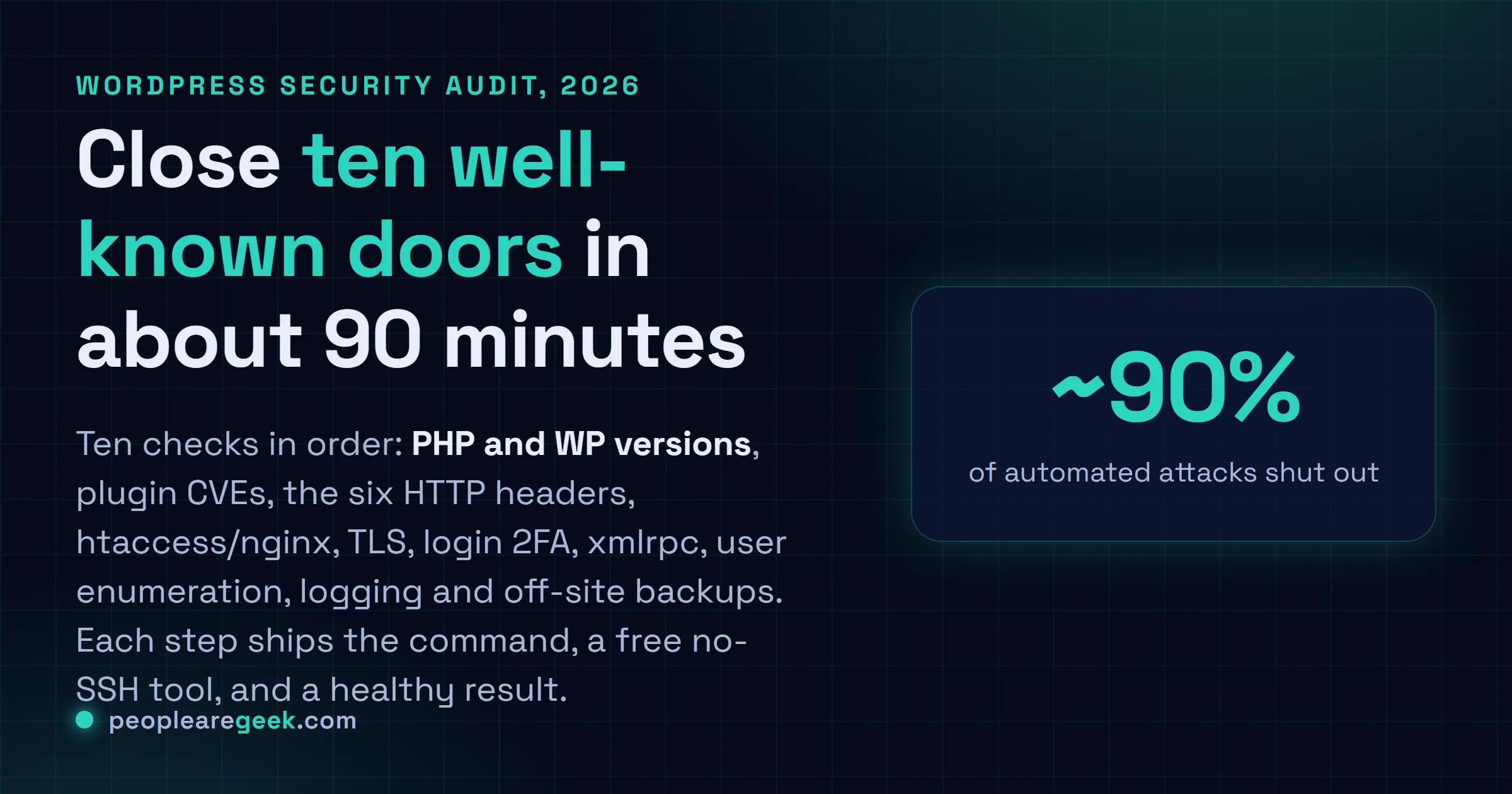
Years of cleaning up hacked WordPress sites. Exotic zero-day? Almost never. They got owned by the boring stuff, the forgotten settings that have leaked across the web for a decade. An old PHP build. A plugin nobody updated. A missing header. An xmlrpc.php sitting wide open, an admin login with no 2FA. So I wrote down the exact audit I run, and it takes me about 90 minutes start to finish. Ten steps, each one a checklist card. Every step hands you the command I actually paste, plus the free tool that does the same check without SSH, plus a snapshot of what a healthy result looks like. Do all ten and you shut the door on something like 90 percent of the automated junk hammering WordPress in 2026. Not perfect, no. But honestly, a different league from where most sites are sitting right now.
Why this audit, in 90 minutes, now
Roughly 43 percent of the open web runs WordPress in 2026. Sounds like a brag until you remember that bots go where the numbers are, and market share that big paints a target on your back. The attacker's math goes like this. A single scraper poking /xmlrpc.php and /wp-login.php can sweep a huge slice of the IPv4 space in about a week, for basically free. Your math is just as simple, and it's the part people miss. Plug the ten well-known holes below and you push the attacker off the cheap path entirely. Now they need an authenticated plugin exploit or a social-engineering play, and that's something like a hundred times more expensive per box. I've watched both sides of that trade. The 90 minutes you spend this afternoon? That's the cleanup week you don't spend later.
1. Check PHP and WordPress versions
First thing the bots fingerprint, so it's the first thing I check. An old PHP or WordPress build is a free win for them. My floor for 2026 is WordPress 6.x and PHP 8.2+, and I won't go below it. PHP 7.x is end-of-life. No more security patches, which means you're shipping known holes to the world. Still on it? Then that's your emergency, not whatever else you turned up today.
# SSH into the server
php -v
wp core version --allow-root
wp plugin list --update=available --allow-root
php 8.3.6 (cli) (built: Apr 11 2026)
WordPress 6.7.1
+----------+--------+--------+---------+
| name | status | update | version |
+----------+--------+--------+---------+
| akismet | active | none | 5.3.5 |
+----------+--------+--------+---------+Free tool: no SSH? SecuChecker reads the version straight off your public site. The meta generator, asset tags, JS bundle names. It's exactly what the attacker sees, which is sort of the whole point.
Action if outdated: wp core update, then wp plugin update --all. One warning, and I learned this the hard way. If you run paid plugins, push it to staging first. Core updates are usually painless. It's the premium add-ons that crack open on a minor bump.
2. Audit installed plugins and their CVEs
Every plugin is one more door someone has to guard. And in my experience this is where the actual break-ins come from. Not core. The plugins. So I run a hard rule here: nothing dormant, nothing carrying an unpatched critical CVE. A plugin that's gone quiet for 18 months counts as dormant in my book. Trip the rule and it's gone, or it's getting fixed today. No third option.
wp plugin list --field=name | xargs -I {} \
  curl -s "https://patchstack.com/api/v1/vulnerabilities?slug={}" | jq '.[] | select(.cvss_score > 7)'
contact-form-7 : OK (last update 2026-04-12)
yoast-seo : OK (last update 2026-05-02)
broken-plugin : ! CVE-2025-3421 CVSS 8.4 - NOT PATCHEDFree tools: I cross-check against three, because no single feed has everything: Patchstack Database, WPScan and Wordfence Threat Intelligence.
Action: every "I might need it someday" plugin you're not actively using? Delete it. Deactivated isn't safe. The code still sits on disk and still gets popped. And when a critical one has no fix, don't sit on it. Find a maintained replacement, or open an urgent ticket with the dev. Waiting and hoping is how breaches happen.
3. Test HTTP security headers
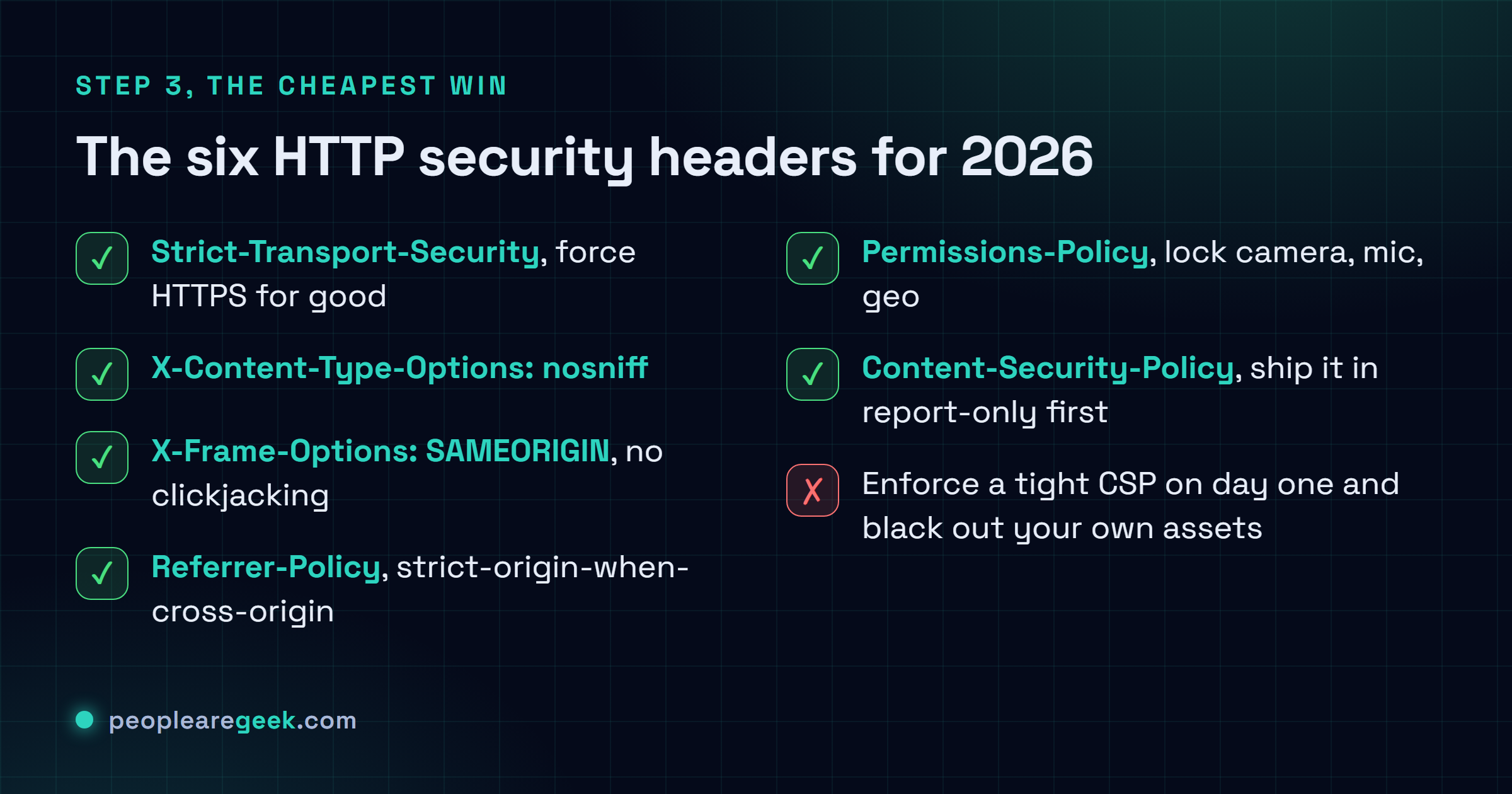
Got ten minutes and nothing else? Spend them here. Headers are the cheapest win on the whole list. Nothing on your site breaks, and every modern browser enforces the rules for free the second you set them. My 2026 baseline is six of them. The curl one-liner below tells you in one shot which ones are missing.
curl -sI https://your-site.com/ | grep -iE \
  "(strict-transport-security|content-security-policy|x-frame-options|x-content-type-options|referrer-policy|permissions-policy)"
strict-transport-security: max-age=31536000; includeSubDomains
content-security-policy: default-src 'self'; ...
x-content-type-options: nosniff
referrer-policy: strict-origin-when-cross-origin
permissions-policy: camera=(), microphone=(), geolocation=()
x-frame-options: SAMEORIGINFree tools: prefer a UI? HTTP Headers Checker by PeopleAreGeek, plus securityheaders.com and Mozilla Observatory for a graded second opinion.
Action: add the missing ones at the server level, nginx add_header or Apache Header always set. Five of the six are set-and-forget. CSP is the one that bites. Ship it too tight and you'll black out your own fonts and images and analytics in a single deploy. So run it in Content-Security-Policy-Report-Only for two weeks first, watch the violation reports roll in, and only then enforce. Never once regretted the wait. I've absolutely regretted skipping it.

4. Harden .htaccess or nginx config
A few holes WordPress just can't close on its own. They live below the app, down at the web server. A handful of rules in .htaccess (Apache) or your nginx config takes care of them. The big one is killing PHP execution inside /uploads/. That single block stops the classic "upload an image, get a shell" trick I still see in cleanup after cleanup after cleanup.
# Apache (.htaccess)
# Block direct access to sensitive files
<FilesMatch "^(wp-config\.php|readme\.html|license\.txt|\.htaccess)$">
  Require all denied
</FilesMatch>

# Disable directory listing
Options -Indexes

# Block PHP execution in /uploads/
<Directory "wp-content/uploads">
  <FilesMatch "\.php$">
    Require all denied
  </FilesMatch>
</Directory>
# nginx equivalent
location ~* /(wp-config\.php|readme\.html|license\.txt) {
deny all;
}
location /wp-content/uploads/ {
location ~ \.php$ { deny all; }
}
autoindex off;Free tool: one fat-fingered directive can 500 your whole site. So if regex makes you nervous, let our .htaccess Generator by PeopleAreGeek build the rules clean.
Verify: don't trust it until you've poked it. curl https://your-site.com/readme.html should come back 403, and so should curl https://your-site.com/wp-content/uploads/test.php. If either still serves, the rule didn't load. Check you actually edited the file the server reads, not some sibling copy.
5. Validate SSL/TLS configuration
Anyone can get a valid cert these days. That part's free and easy. The real tell is whether it keeps renewing without you, because the outage I've seen most often isn't a hack at all. It's a cron job that quietly stopped and a cert that expired at midnight on a Saturday. In 2026 I want TLS 1.3 on. 1.0 and 1.1 switched off for good. More than 30 days left on the clock, and OCSP stapling enabled.
# Quick command-line check
echo | openssl s_client -servername your-site.com -connect your-site.com:443 2>/dev/null \
  | openssl x509 -noout -dates -issuer
nmap --script ssl-enum-ciphers -p 443 your-site.com
notBefore=Apr 2 00:00:00 2026 GMT
notAfter=Jul 1 23:59:59 2026 GMT
issuer=C = US, O = Let's Encrypt, CN = R3
TLSv1.3:
ciphers:
TLS_AES_256_GCM_SHA384 (ecdh_x25519) - A
TLS_CHACHA20_POLY1305_SHA256 (ecdh_x25519) - AFree tools: SSL Certificate Checker and TLS Version Selector by PeopleAreGeek, then run Qualys SSL Labs for the full graded report. Don't settle for less than an A. A+ if you can get it, and you usually can.
Action: graded below A? Grab the nginx or Apache snippet our TLS Version Selector spits out and drop it in. That's most of the gap closed right there. Then, and I can't say this loudly enough, set a monitor that pings you 30 days before the cert expires. The renewal you assume is automatic is the one that fails silently.
6. Protect /wp-login.php and enable 2FA
Pull up any access log on a live WordPress site and you'll see it. A steady drip of bots throwing passwords at the login page, all day, every day. Target number one, full stop. I lean on a few things to take the heat off. Rate limiting at the server does most of the actual work. Then 2FA that admins can't opt out of. And if you want, moving the login URL off the default, though that last one's optional and I'll flag a catch on it below.
# nginx rate limit on /wp-login.php
limit_req_zone $binary_remote_addr zone=login:10m rate=5r/m;

location = /wp-login.php {
    limit_req zone=login burst=2 nodelay;
    fastcgi_pass php-fpm;
    # ...
}
Recommended 2FA plugins: I reach for Two Factor first. It's the official one and it's free. WP 2FA is a solid pick too, or the 2FA baked into Wordfence Premium if you already run it.
Verify: actually test it. Don't assume. Fire off ten bad logins from a throwaway IP inside a minute and make sure the eleventh gets throttled. Then pull wp user list --role=administrator and walk the list. Every admin needs 2FA, including the old "temp" account from 2023 that everyone forgot about. That one's always the way in.
Warning: skip the login-URL rename if you use the WordPress mobile app or Jetpack. They both expect the default path, and you'll break them without a single error message to show for it. I once watched someone burn a whole afternoon on a "broken" app that was just a renamed login.
7. Decide what to do with xmlrpc.php
Here's the honest version. xmlrpc.php exists for the WordPress mobile app, a few Jetpack features, and pingbacks nobody's missed in years. For most sites it's pure attack surface. It's the file that lets a bot test hundreds of passwords in one request via system.multicall. So my default is to wall it off completely. If you genuinely need it, don't open it to the world. Pin it to the handful of IPs that actually call it.
# nginx: block entirely
location = /xmlrpc.php {
    deny all;
}

# Variant: allow Jetpack only
location = /xmlrpc.php {
    allow 192.0.64.0/18;  # Jetpack
    deny all;
}
# Apache (.htaccess)
<Files xmlrpc.php>
Require all denied
</Files>Verify: hit it with curl -X POST https://your-site.com/xmlrpc.php and you want a 403 back. Went the allow-list route? The current Jetpack IP ranges live in their official docs, and yes, they change. So don't hardcode them and walk away.
8. Block user enumeration
Out of the box, WordPress will happily hand over your usernames through two channels. ?author=N bounces to user N's login slug. And /wp-json/wp/v2/users just dumps the lot as JSON. People underrate this because it's "only" a username leak. But that's the whole game. Once a bot knows your real admin handle, it stops guessing "admin" and points every single password attempt at the account that actually exists. You've handed it half the login.
# Block ?author=N (Apache .htaccess)
RewriteEngine On
RewriteCond %{QUERY_STRING} ^author=\d+ [NC]
RewriteRule ^ /? [L,R=301]

# Block /wp-json/wp/v2/users (child theme functions.php)
add_filter('rest_endpoints', function($endpoints) {
    if (isset($endpoints['/wp/v2/users'])) {
        unset($endpoints['/wp/v2/users']);
    }
    if (isset($endpoints['/wp/v2/users/(?P<id>[\d]+)'])) {
        unset($endpoints['/wp/v2/users/(?P<id>[\d]+)']);
    }
    return $endpoints;
});
curl https://your-site.com/?author=1 -> 301 to /
curl https://your-site.com/wp-json/wp/v2/users -> 401 or 404Free tool: don't fancy testing both endpoints by hand? SecuChecker hits them for you and tells you straight up whether your admin username is leaking.
9. Set up logging and alerting
No logs? Then you find out you've been hacked the day your homepage gets replaced with someone's flag. Logs plus a working alert, and you find out within the hour, while it's still one weird login attempt and not a full takeover. That gap is the whole job. It's also the part everyone skips because nothing's on fire yet. Right up until it is.
- Server logs: keep nginx/Apache access.log and error.log rotating, and hold onto at least 90 days. The day you need them is the day you'll wish you hadn't trimmed to seven.
- Application logs: run WP Activity Log or Wordfence so you can see who touched what. A plugin swapped out, or an account that appeared overnight. That trail is gold during an incident.
- Uptime and integrity monitoring: SecurityWatch by PeopleAreGeek watches five things at once (uptime, a defacement hash, TLS expiry, headers silently reverting, your WP version drifting) and pings a Slack or Discord webhook the moment one slips.
# Logrotate nginx (Debian/Ubuntu)
sudo nano /etc/logrotate.d/nginx
# Check "rotate 90" and "compress"
sudo logrotate -d /etc/logrotate.d/nginx
Free tool: SecurityWatch keeps watch with no backend to babysit. It runs in the browser off a localStorage watchlist, which is exactly right if you're juggling 1 to 10 WP sites and don't want yet another server to maintain.
10. Off-site backups and recovery plan
A backup you've never restored isn't a backup. It's a feeling. I've watched people open their "nightly backup" mid-incident and find a folder of zero-byte files going back months. Good old 3-2-1 still holds in 2026: three copies, two different media, one of them off-site and out of blast radius. And restore it every quarter, for real, because the only backup that counts is the one you've actually brought back to life.
# Manual backup via WP-CLI
wp db export ~/backup-$(date +%F).sql
tar -czf ~/wp-content-$(date +%F).tar.gz wp-content/

# Upload to S3 / Backblaze / OVH Object Storage
rclone copy ~/backup-$(date +%F).sql remote:wp-backups/
rclone copy ~/wp-content-$(date +%F).tar.gz remote:wp-backups/
Recommended plugins: UpdraftPlus (free, S3/Google Drive/Dropbox), Snapshot Pro or BlogVault for e-commerce sites.
Quarterly test: drop the newest backup onto a staging box, click around until you're sure it actually works, and time how long the whole thing took. That number's your RTO, and you want to know it before you're under pressure, not during. Every hour it takes to come back is an hour of downtime, lost sales, a client asking why the site's still down.
Recommended audit cadence
Do this once and walk away, and you've bought yourself maybe a quarter of safety before the drift sets back in. The cadence I keep looks like this. The full ten steps at launch and once a quarter. A quick mini-pass on steps 1, 2, 3 and 5 after every major WordPress update, because those are the ones updates tend to undo behind your back. And SecurityWatch or something like it running in the background the rest of the time. A site that's watched continuously gets hit roughly ten times less often than one someone glances at once a year, and it honestly doesn't matter what stack it's on. Someone paying attention is most of the difference.
Sources and further reading
Frequently asked questions
How long does a full audit take for a beginner?
Give yourself 3 to 4 hours the first time, honestly. Most of that is just figuring out where everything lives on the server. Once you know the paths, it drops to 60 to 90 minutes. The two that always eat the clock? Step 3, where CSP can swallow 30 minutes of tuning, and step 10, where a proper restore test runs about an hour. Don't rush those two. They're the ones that matter most when things go sideways.
Should I really disable xmlrpc.php?
For most people, yes. Block it without a second thought. The catch is just to check you're not actually using it. The WordPress mobile app, Jetpack in connected mode, external publishing tools like Microsoft Word or MarsEdit, they all lean on it. If none of those are in your life, the upside is real (it kills the system.multicall trick that lets one request try a stack of passwords) and you lose absolutely nothing.
Which security plugins should I use in 2026?
For a normal site, the free Wordfence gets you about 80 percent of the way there on its own. App firewall, file scanning, 2FA, done. If you're running a shop or something that genuinely can't go down, I'd layer on Patchstack or WPScan Premium so you hear about plugin CVEs the day they drop, and put a WAF out front like Cloudflare Pro or Sucuri. One thing I'll say, though. Don't stack five security plugins. They start fighting each other and you end up worse off than with one you actually trust.
My host says it handles security, is that enough?
Half true, and the half they leave out is the half that gets you hacked. A managed host like Kinsta, WP Engine or OVH WordPress takes care of the server floor (PHP updates, the network firewall, backups) and they're genuinely good at it. What they can't touch is everything inside your install. A vulnerable plugin you chose. An admin with no 2FA. ?author=N leaking your username to anyone who asks. Steps 2, 6, 7 and 8 here are yours, no matter who hosts you. We handle security almost always means we handle our layer.
How do I know if my site is already compromised?
A few tells I've learned to trust. Outbound traffic to IPs you don't recognise. Admin accounts you swear you didn't create. Pharma or casino pages hiding inside /wp-content/uploads/, and PHP files with random gibberish names sitting in your web root. Any one of those, treat it as a yes until proven otherwise. To confirm fast and free, drop the URL into VirusTotal, run it through Sucuri SiteCheck, then let the Wordfence file scan loose on the install. Clean? Great, you've lost ten minutes. If it isn't, well, you just caught it early.